
Working with Repeat Spans in Author Online
The Repeat Span in Contract Express allows you to replicate a section of text or variables in a document based on a specified number or list. This is particularly useful when you need to include multiple entries, such as listing directors, companies, products or services.
A repeat span is commonly used when the number of entries is not known when the template is created. For example, a document may need to capture details for one Tenant or several Tenants. Instead of creating separate fields manually, you can place the Tenant information inside a repeat span and control how many times it appears in the questionnaire and generated document.
The easiest way to set a repeat expression for a repeat span is in its simple form:
Repeat whole-number-variable
where a whole-number variable is typically a question variable asking how many of something there are, and which determines how many times the span will be repeated in the generated document.
Create a Repeat Span
To insert a repeat span, select the variable or content in the document that you want to repeat. For example, if you are capturing Tenant details, select the
Tenant Name
field or the section that contains the Tenant fields.Then, click on
Insert Span
and choose the Repeat
option from the menu. You can either create a new variable or select from existing variables that can control the repeat.The repeat can be controlled by a whole number variable, multi-select variable, or a computable that produces a whole number or a list. The controlling value defines how many repeated entries are generated in the questionnaire and output document.
From the example below, we are updating the
TenantCount
variable.
note
The repeat span repeats all content inside the selected span. Make sure the complete set of fields to be repeated is included within the span.
Control repeats with questionnaire buttons
To add or remove repeated entries directly in the questionnaire, select
Use buttons in questionnaire to add repeats
. When this option is selected, the questionnaire displays an Add
button, allowing the user to add rows interactively in the questionnaire.
To manage individual repeated fields, select the More options menu for the required field.
- Insertadds a new input field before the current one.
- Addcreates a new input field after the current one.
- Removedeletes the selected field.
This is particularly useful when the number of required entries is not known in advance. Users can start with a single entry and add additional entries as needed while completing the questionnaire.
If the option is unchecked, the repeat is controlled by a variable or a computable. For example, the user may first be asked for the number of Tenants, and the form will then render that many input fields automatically. The controlling value must be either a whole number or a list, as these define how many repeats to generate.
For example, a TenantCount variable can ask how many Tenants are required, and the repeated Tenant name field will appear once for each Tenant.


note
You can modify the "TenantCount" value anytime while working on the details. When placing this information in the questionnaire, place the controlling variable before the repeated detail questions. Contract Express needs the repeat count before it can display the repeated fields.
Advanced mode
Enable the
Advanced mode
toggle to manually enter a logical expression or a whole number variable with repeats. Advanced mode is useful when the repeat needs to be controlled by an expression rather than a basic selected variable.For example, Advanced mode can be used when the repeat depends on a calculated value or when additional repeat formatting keywords must be added to the markup.

Add punctuation between repeated items
Repeated values often require punctuation to ensure that the generated text reads naturally. For example, a list of Tenant names might need to appear as Allan Clayton, John Daszak, and Sarah Mills.
To insert punctuation between repeated items, add the
Punctuation
keyword followed by the required format string in double quotation marks. The format string can define the separator used between most items, the text that appears before the final item, and any punctuation required at the end of the list.
Place a Mark field immediately after the repeated text within the span. The Mark field indicates where Contract Express should insert the punctuation for each repetition.

note
If the punctuation expression includes a full stop, do not add an additional full stop outside the repeat span. If the punctuation expression does not include a full stop, place the full stop outside the span. A full stop included inside the repeat span is repeated after every item.
Handling singular and plural wording
There may be cases where the wording in the document is dependent on whether a singular value or a multi value is entered/selected in the questionnaire. For example, a document refers to a "Tenant" but depending on the value of the variable "TenantCount", we will need to use either term "Tenant" or "Tenants".
To update this information, use the
show/hide
span type and use the Condition
tabs to define the requirements.Firstly, add both versions of the wording to the document.

Next, apply a show/hide span to the singular wording and configure it to display only when the repeat count
Is 1
.
Similarly, apply a separate show/hide span to the plural wording and configure it to display when the repeat count
Is more than 1
.
Finally, preview the questionnaire and generated document to verify that the appropriate singular or plural wording is displayed.
This approach helps the generated document read correctly whether the user enters one repeated item or several repeated items.
Managing Repeated variable presentation in the Questionnaire
When working with repeats, ensure the questionnaire is structured so that repeated information is presented clearly and is easy for end users to navigate.
The display of repeated content is determined by the page and group settings assigned to the repeated variables. Variables that belong to the same repeat span should be contained within the same group and should not share a group with variables outside that repeat context. Combining variables from different repetition contexts within a single group can result in an error.

Additional settings

- Always show: Check this box if you always want the group to show even if no variables are relevant. This is useful if you want to give more information or guidance to the user separate from the rest of the page.
- Side by side: This layout option aligns the question prompts and input fields to each other. It is particularly useful for entering multiple numbers one after another.

Repeated group settings

Repeat title
: Repeat Title is the subtitle displayed beneath a group title to identify each repeat instance. By default, it shows the current repeat number and the total number of repeats (for example, 1 of 2, 2 of 2).The Repeat Title can be customised to provide clearer guidance by using the RepeatCounter function, which returns the repeat index when repeating by number or the list item when repeating by a list. For example, configuring the Repeat Title as "{RepeatCounter Format "wth"} Board Member" displays titles such as First Board Member, Second Board Member, and so on.
Repeat button label
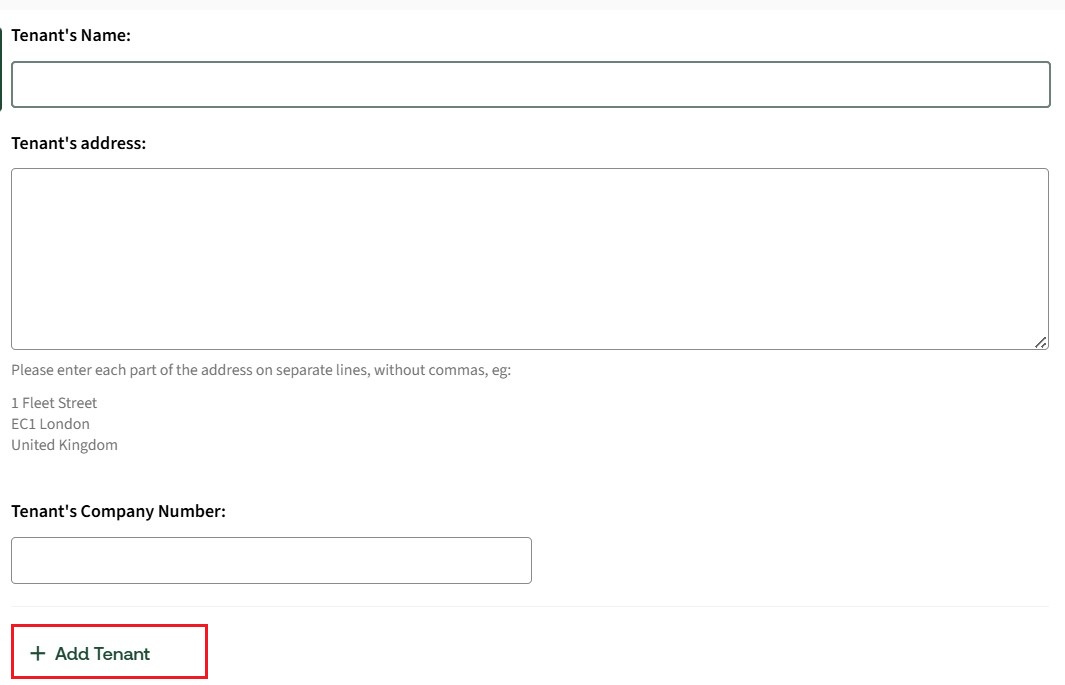
: Repeat Button Label specifies the text displayed on the button used to add new entries to a repeat group in the questionnaire. The label supports dynamic expressions and can be customised to provide more meaningful instructions for users. This setting applies to repeat groups using the Default or Grid presentation style. For example, by default, the repeat button label will be updated as + Add
, to make it more meaningful and less confusing, you can further customise it to read as + Add Tenant
.
Repeat layout
: Controls how repeated group instances are presented in the questionnaire. The selected layout determines whether repeated entries are displayed in an expanded view or in a more compact format, affecting how users navigate and review repeated data.By default, repeated groups use the Expanded layout, though six layout options are available.
For more detailed information about each layout and how it appears in the questionnaire, see Presentation of repeated variables in the questionnaire.