
Creating contacts
A Contact contains information, such as name and address, about an individual or organisation, much like an email contacts list or address book. The information captured in a Contact is determined by the auto-provisioned Contact template which can be amended.
Contacts may be created individually in Contacts, from the questionnaire or imported from an email platform, for example a Gmail or Outlook Contacts list/address book.
How to create contacts
Contacts can be created through either of the following methods:
From the contacts list
Contacts can be created from the Contacts page in Contract Express and immediately added to your main list of Contacts. To create a Contact:
- Navigate to the Contacts page and click New+ New contact.

- Select the Contact type and enter the Contact information, making sure any mandatory fields, marked with an *, are filled in and clickSave & Close.The new Contact will be added to the list of Contacts.
From a document
To create a Contact from a document:
- Create a new Document (see Creating documents) or open an existing Document that has a template that supports contacts.
- ASet <contact type>button will be displayed which indicates where a Contact may be inserted, click one of these to insert a contact.
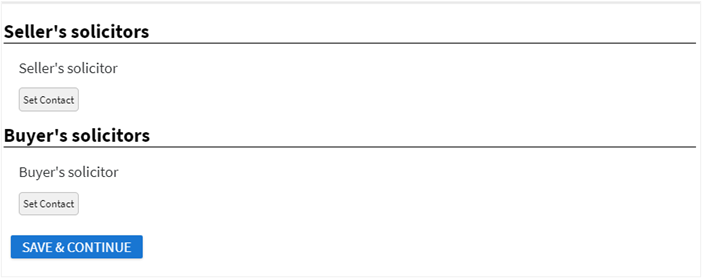 This Document supports contacts in two places, for the Seller’s solicitor and the Buyer’s solicitor; clickingSet Contactadds a contact for the Seller’s solicitor and the Buyer’s solicitor respectively.
 - To create a new Contact, selectNew Contactin the Contacts selector, choose a Contact type and clickSelect. By default, this new contact will be saved to your list of contacts; to prevent this and create a local contact (to be used within this Document only) uncheck theSave to Contactscheckbox before clickingSelect.
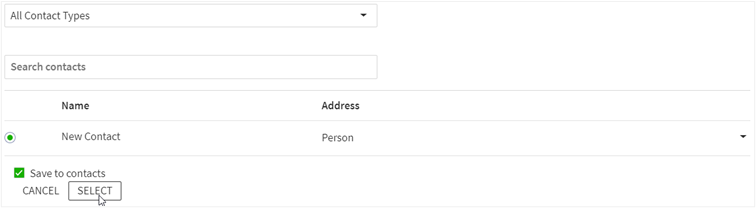
- Enter the contact information, making sure any mandatory fields, marked with an *, are filled in. If appropriate, uncheckSave to contactsto prevent it from being added to your list of contacts. Continue editing the document and clickSave and Continuewhen finished to save the document and all its contacts.