
Access Contract Express datasheets in Power BI
Pull Datasheets into Power BI for easy reporting and visualisations to get insights into how Contract Express is being used and what contracts are being generated. Connect Datasheet information with data from other sources to create dashboards and get the analytics you need for workload management and strategic decisions.
This guide explains how to establish the connection between Contract Express and Power BI desktop app using a custom connector.
Set up Contract Express and Power BI
Custom Connector and Certificate files
Download this zip file and extract the following two files:
- ContractExpressSigned 2.pqx
- ContractExpressThumbprint.reg
Add a custom connector to he specified directory
Save the
.pqx file
to the following folder on your computer:[Documents]\Microsoft Power BI Desktop\Custom Connectors
note
If you do not have these folders on your computer already, create them with the names provided.
Add a certificate thumbprint to the registry
For the custom connector to be trusted as a third-party connector, a certificate thumbprint must be added to the registry. For more information on this requirement, please check this article.
Save the
.reg
file to your computer. Right-click the file and note its full path. Open the Start menu, locate Command Prompt
, and right-click it to select Run as administrator
. In the command line, paste the full file path and press Enter
.
Review the security warnings and confirm to create a new registry entry containing the certificate's thumbprint.
Create an API Client in Contract Express
Go to the Admin tab in Contract Express and navigate to API Clients in the Data Connections section. Click
Add Client
and complete the required fields below.- Client Name: Power BI
- Redirect URI: https://oauth.powerbi.com/views/oauthredirect.html
- Refresh Token Lifetime: 30
Click
Save
. Take note of the Client ID and Client Secret on the screen for reference.
Create data connection in Power BI
In the Power BI desktop app, go to
File
> Get data
. Click on Get data to see full list of options and enter "Thomson
" in the search box. The following custom connector should appear on your list.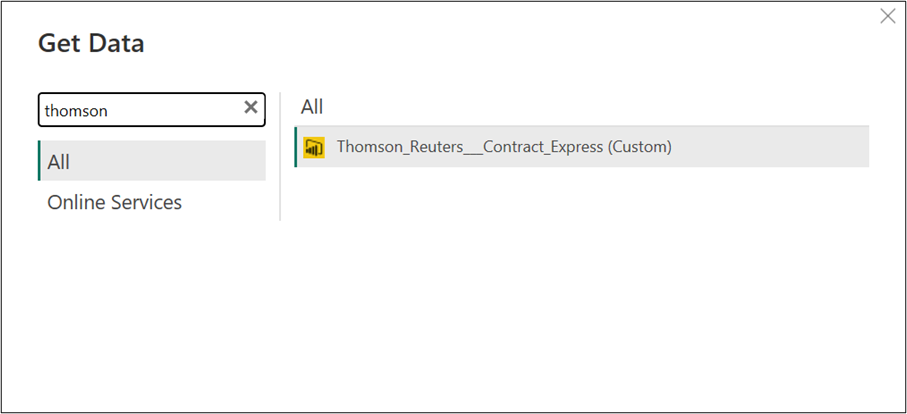
Click Connect.
note
If the Power BI desktop application was already running when you did the file set up, close and reopen Power BI to see the connector appear.
In the next screen, enter the
API URL
of the datasheet you want to pull in, and the Client ID and Client Secret from the API Client connection in Contract Express.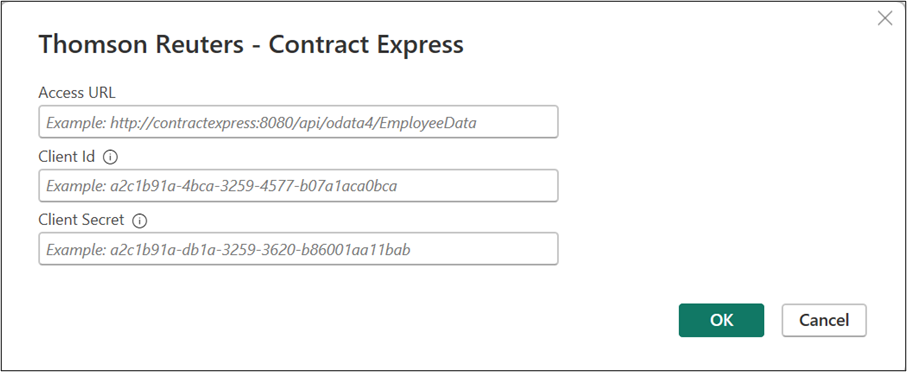
The API URL can be copied from the Datasheets tab in Analytics (available in Contract Express version 9.18 or higher) or created using the sample URL provided below:
https://eu1.contractexpress.com/Rest/api/contracts/?datasheet Id=2637&fileFormat=xlsx
- Replace the instance as needed.
- Replace the ID of the datasheet. To get the ID number of your datasheet, check the browser URL for a document list with the datasheet applied in Contract Express.
Click
OK
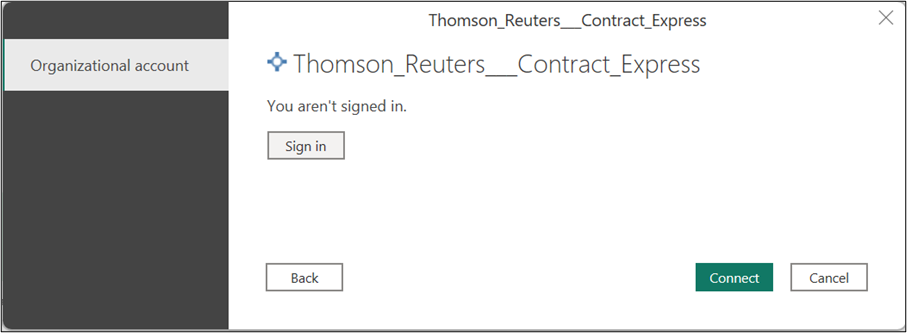
to confirm. On the next screen, select Sign in
.You will be presented with a Contract Express login prompt. Enter your valid Contract Express credentials and click
Connect
.
A preview of the data will be presented. Click
Load or Transform Data
to start working on Power BI reports or visualisations.
note
If the data in the Power BI is refreshed by a user who is not a Contract Express administrator, ensure that the Datasheet and relevant documents are shared with this user in Contract Express.
How to work with Datasheets in Power BI
Add more Datasheets
The easiest way to add another datasheet into your report is to duplicate the one that is already added. Go to Transform Data in the Power BI ribbon, right click on the existing query in the left-hand side list and choose Duplicate.
Right click on the new entry and choose
Advanced Editor
. In the Advanced Editor expression window, find the datasheet URL and replace it with the new URL.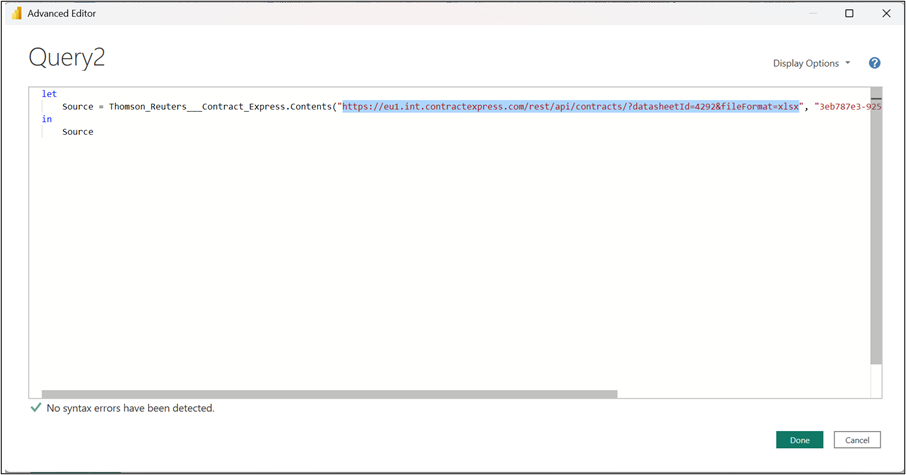
Click
Done
. You will be asked to specify how to connect.
Click Edit Credentials and Sign in. Enter your Contract Express credentials and click on Connect.
note
If you want to report on specific documents only, apply the relevant Template, Status or Created by filters in the Conditions tab of the Datasheet.