
Configuring datasheets for the document details page
This section explains the datasheets that customise the information shown on the
Details
tab of the document details page. For information about datasheets that generate customised views of document lists, see Working with datasheets.Datasheets for details pages are used to surface document metadata and questionnaire answers on the document details page.
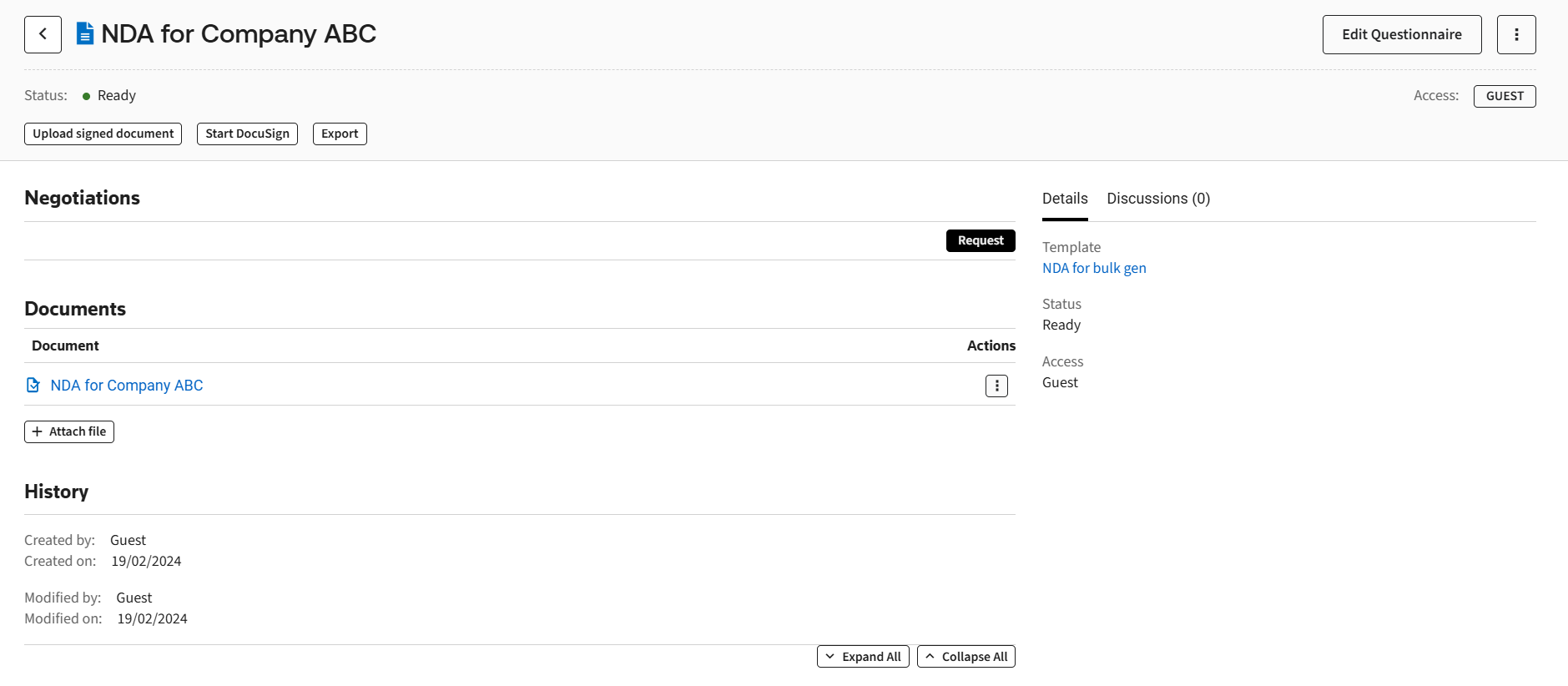
To enable datasheets for document lists and for document details pages, you need to check
Datasheets
checkbox in Admin > Features
. Creating datasheets
To create a datasheet:
- Go toAdmin>Datasheets for details pages.
- ClickAdd datasheet.
- Define datasheet parameters:
- Datasheet name- set a unique name for the datasheet.
- Used in- select Document details to surface data on the document details page or Matter details to surface data on the matter details page.
- Specify what data datasheet should contain.
- ClickAdd variable.
- Select template and variables and clickAddbutton.
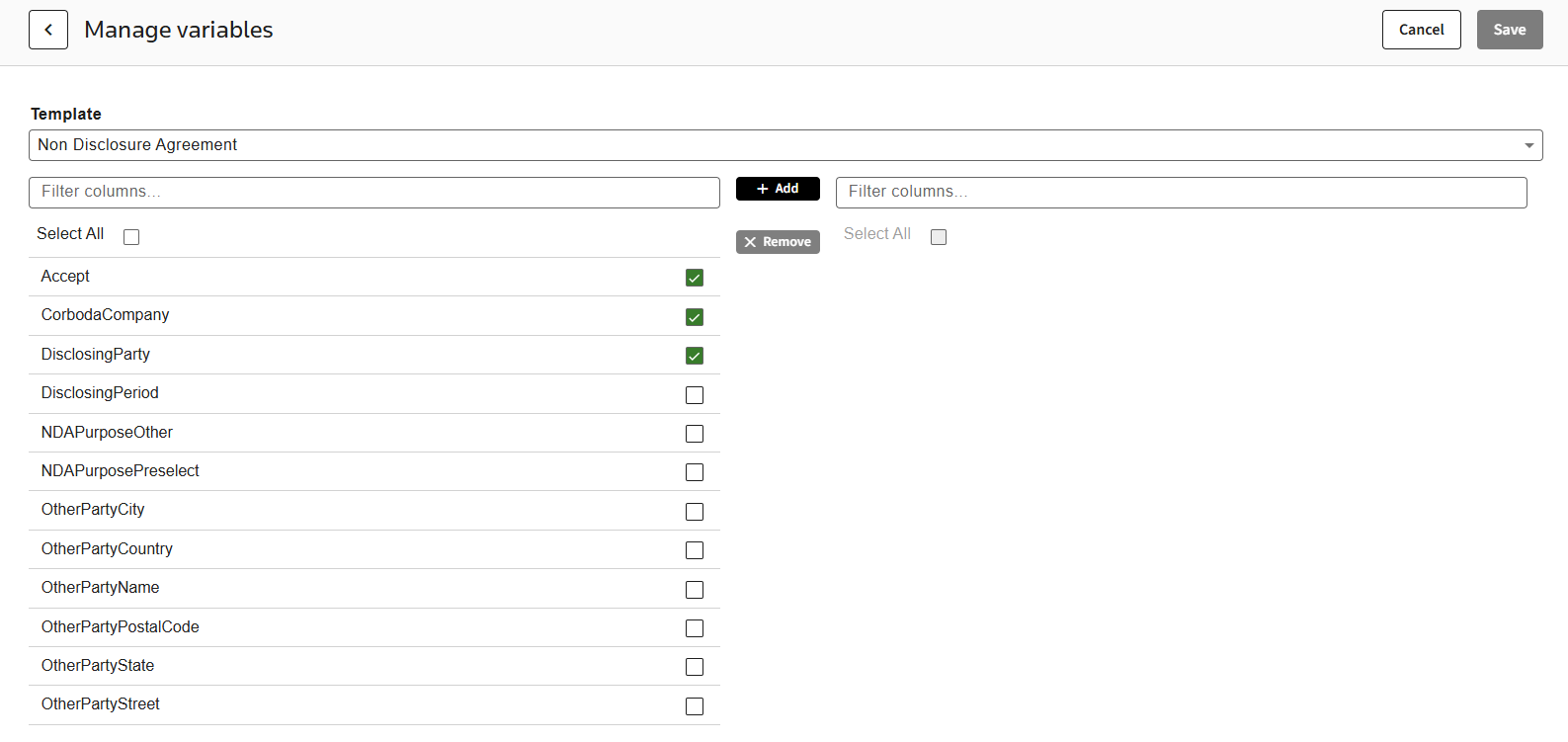
- ClickSaveto save the selected variables.
If a variable is used in a Repeat you can specify a specific repeat occurrence by entering the number of the Repeat in the
Repeat context
field.
note
If you have multiple Templates that use the same Variable, you do not need to add the Variable from each Template. If the Variable name and type are the same across all Templates, you will only need to add the Variable as a Column from one Template.
Viewing datasheets
You need to apply the datasheet to a template to be able to see it on the document details page:
- Go toTemplatesand select the required template.
- Select the datasheet from theDatasheetdropdown onTemplate details.
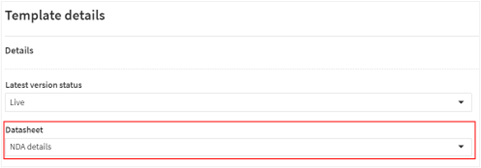
- ClickSave.
note
To apply the datasheet to Matters you need to define the datasheet for the Matter template.
To view the datasheet:
- Select the document created from the template with configured datasheet.
- View theDocument detailstab that should contain the data defined by the datasheet.
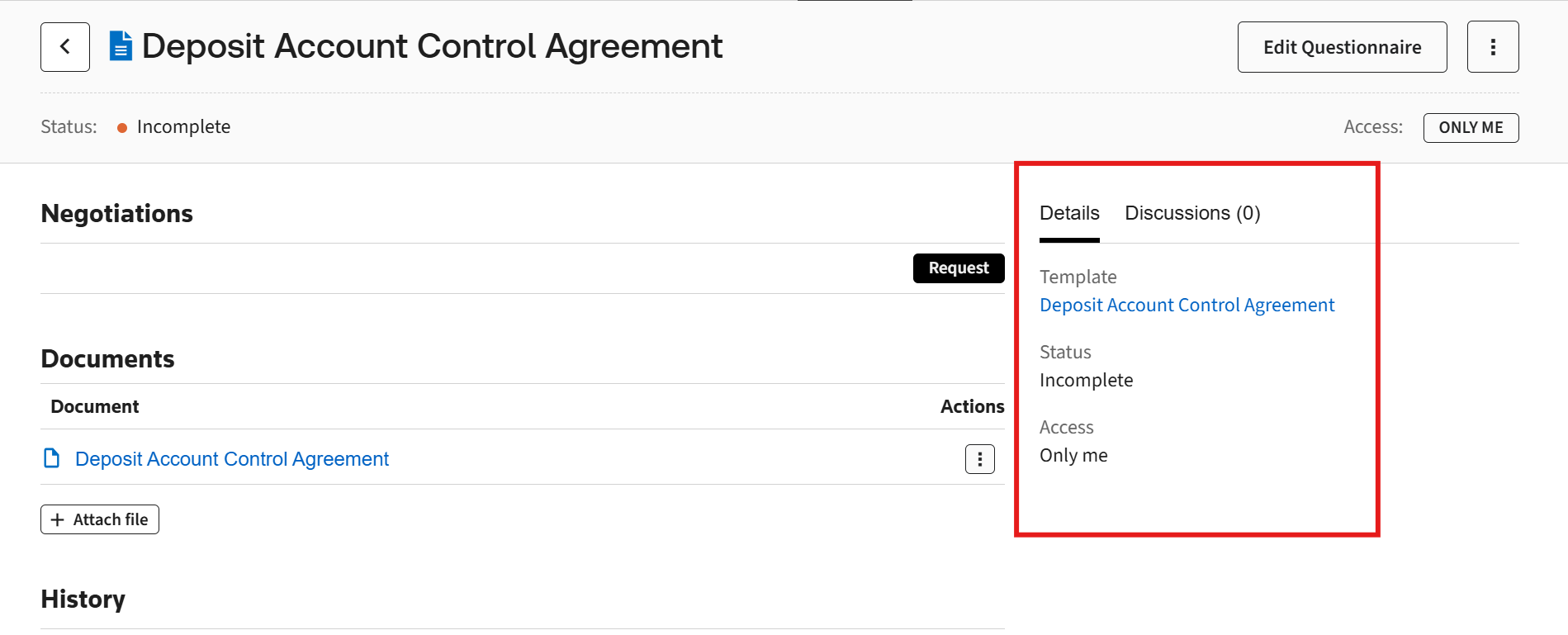
Editing datasheets
To edit the datasheet, select it in
Admin
> Datasheets for details pages
.Deleting datasheets
To edit the datasheet, check it in
Admin
> Datasheets for details pages
and click Delete
.