
Managing multiple documents
Contract Express allows to create multiple documents in batch by uploading an .xlsx file. You can get a pre-set file by:
- Downloading a Datasheet output (see Sharing datasheets). You should configure the datasheet so that it containsDoc IdandTemplatecolumns (these map to the ContractId and TemplateReference columns in .xlsx file). As a result, you will get a spreadsheet with columns for any variables that have been added to the datasheet as a column.
- Exporting an .xlsx file with all variables from the applicable template. This option is only available to Administrators and Authors from template details. Click onDownload as XLSto download the .xlsx file.
/export_temp_as_xls.png/_jcr_content/renditions/original)
Once you downloaded the .xlsx file, you can open the file and start editing. You can use the single .xlsx file to create new documents as well as update existing documents.
Creating documents using .xlsx file
- Add applicable data in the variable columns.
- Fill in the ‘TemplateReference’ column with the Template reference of the Template that will be needed to create the document(s).
- Ensure the ‘ContractId’ column is left blank.
- Once the amendments have been made, save the changes and import the file into Contract Express using theUpload Datasheetoption on theDocumentstab.
/upload_xls.png/_jcr_content/renditions/original)
note
Generated document status will not be validated and the variables in the document names will not resolve until the user clicks on the link to view the document details page or selects the document for download.
Refreshing documents
Refresh multiple documents to update their status after the upload of a datasheet.
- Apply a filter or Datasheet to list the relevant documents.
- Scroll down to the bottom of the page and click on the down chevron to load more documents.
- Click Select all.
- Click Refresh button.
- A pop up will be shown with the information about the number of documents selected. Confirm with OK.
As the documents are being checked and updated, a progress window will be displayed on the screen.
Cloning documents
- Ensure the ‘ContractId’ column is populated with the Document IDs that must be cloned. All answers from these documents will be copied to the new document.
- Add/update any data in the variable columns that should be different from the answers provided in the original document.
- ‘TemplateReference’ column is only necessary if you want to use a different template than one used to generate the original document. Note that the most recent published version of the template will be used to generate the new documents.
- Choose theUploadoption on theDocumentstab and check the option “Clone the documents in the Contract ID column.”
- Upload the saved spreadsheet.
/import_template_from_xl_file.png/_jcr_content/renditions/original)
Editing documents
- Add/update applicable data in the variable columns.
- Ensure the ‘TemplateReference’ column is populated with the template reference of the Template that will be used to amend the document(s).
- Ensure the ‘ContractId’ column is populated with the Document ID of the document to be updated.
- Once the amendments have been made, save the changes and import the file into Contract Express using theUploadoption on theDocumentstab.
If the existing documents have been generated using an older version of the template, the most recent published version of the template will be applied to them on the update.
To update the documents using the same template version as when they were first generated, you must manually deselect the "Use the latest published template version" option in the Datasheet upload drawer.
/drop_drag_option.png/_jcr_content/renditions/original)
note
It is not possible to update documents where you only have Read permissions on the document.
Downloading multiple documents
Contract Express allows you to download multiple documents as a single
.zip
archive.Select the required documents from the
Documents
tab and click Download as zip
to download them all at once.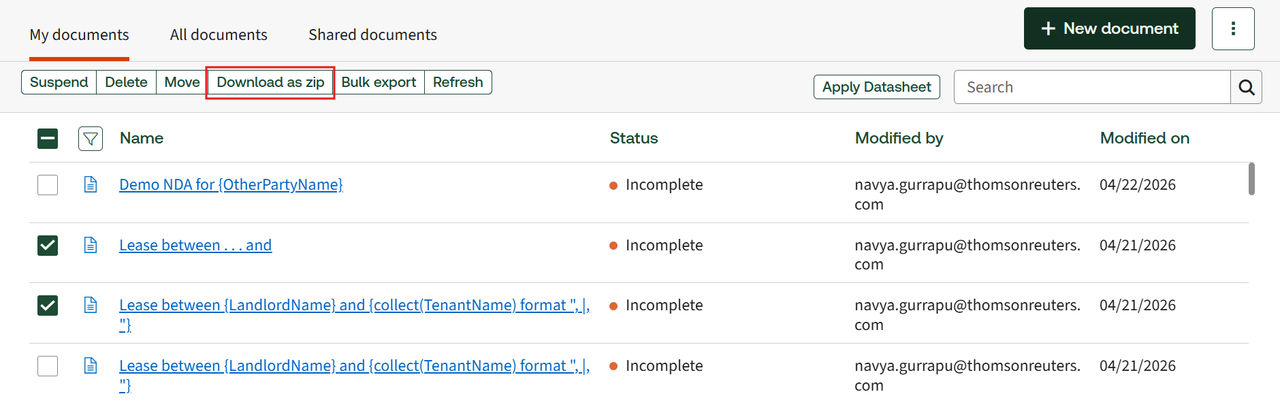
When you use
Download as zip
option, the system performs a pre-processing step by refreshing the selected documents first, which reduces the chances of timeouts. By default, you can download up to
250 documents
at a time. If you select more than 250 documents, the following message appears:/exceeded_max_limit.png/_jcr_content/renditions/original)
Try to select fewer documents and download them again.