Export Documents to Icertis
With Contract Express, you can export generated documents to Icertis as part of your drafting workflow.
The guide outlines the steps to export documents, including selecting the export location, defining document properties, and how to work with documents after export.
note
Your Contract Express Administrator must configure the connection to your Icertis work instance before you can export documents to it.
Create a document in Contract Express
To create a document, navigate to the
Documents
tab and click the New document
button.
Select your desired template and answer all questions in the questionnaire.
note
Documents may only be exported when they have a status of
Ready
or Executed
. However, your Contract Express Administrator may have configured your site to permit this action for other statuses.- Documents will have aReadystatus when the questionnaire is considered complete. This means all questions have been answered and there are no pending approvals.
- Documents will have anExecutedstatus after successful completion of the electronic signature process or after the document owner has uploaded a signed copy of the contract and manually marked it as executed.
Export to Icertis
You must have
Write
or Full
sharing permissions on the document to export documents to Icertis.Export a single Contract Express Document
The steps below outline how to export files to a Icertis folder.
Choose the export location
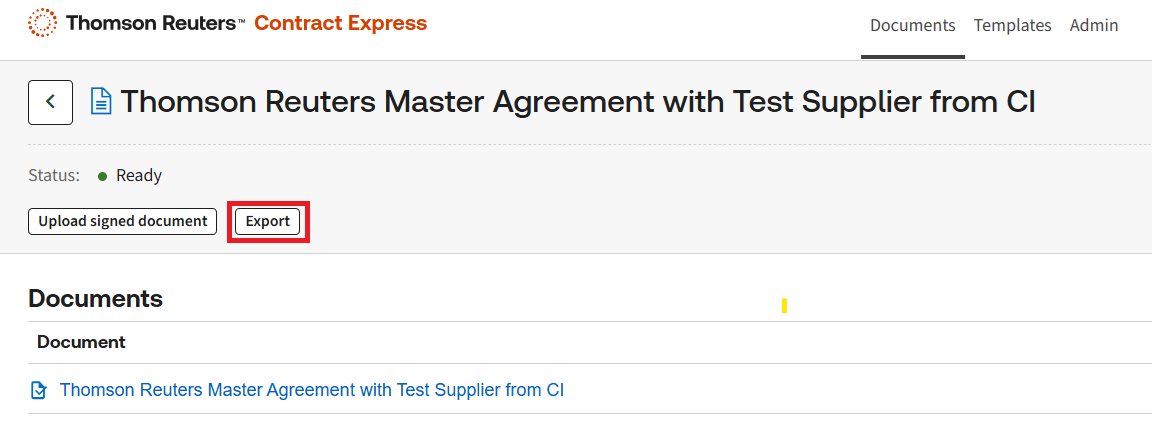
- From theDocumentstab, navigate to the document you wish to export.
- Click onExportbutton at top left of page.
- Select documents for export from the available document list.
- In the select location window, selectConnectionif it is not already selected.
- ClickSelect Locationbutton.noteThe first time you clickExport Documents, you will be taken to the Icertis login page where you must enter valid credentials and allow the connection to Contract Express. You will not be prompted for credentials again, unless you revoke the Icertis token on yourMy Accountpage.
- Enter your Icertis credentials, if prompted.
- Select the Icertis contract type under which the exported contract will be created. If the relevant contract type is not listed in the dropdown list, enter a search term at the top of the list to bring up the relevant results.noteIf the Export location has been defined in the template settings for this template, it will be pre-populated for all documents generated and will not need to be selected manually.
- ClickSave. Contract Express then creates a new draft contract in Icertis and attaches the generated document.Information mapped from the questionnaire, including parties, dates, and values, is populated in the corresponding Icertis contract fields. Lookup and reference fields are populated using the values configured by the template author.
Initiate Export
note
Ensure you have selected export locations for all files that you need to export. The
Export
action can be performed only once.Once all the files you need to export are listed in the Export files section, click the
Export
button.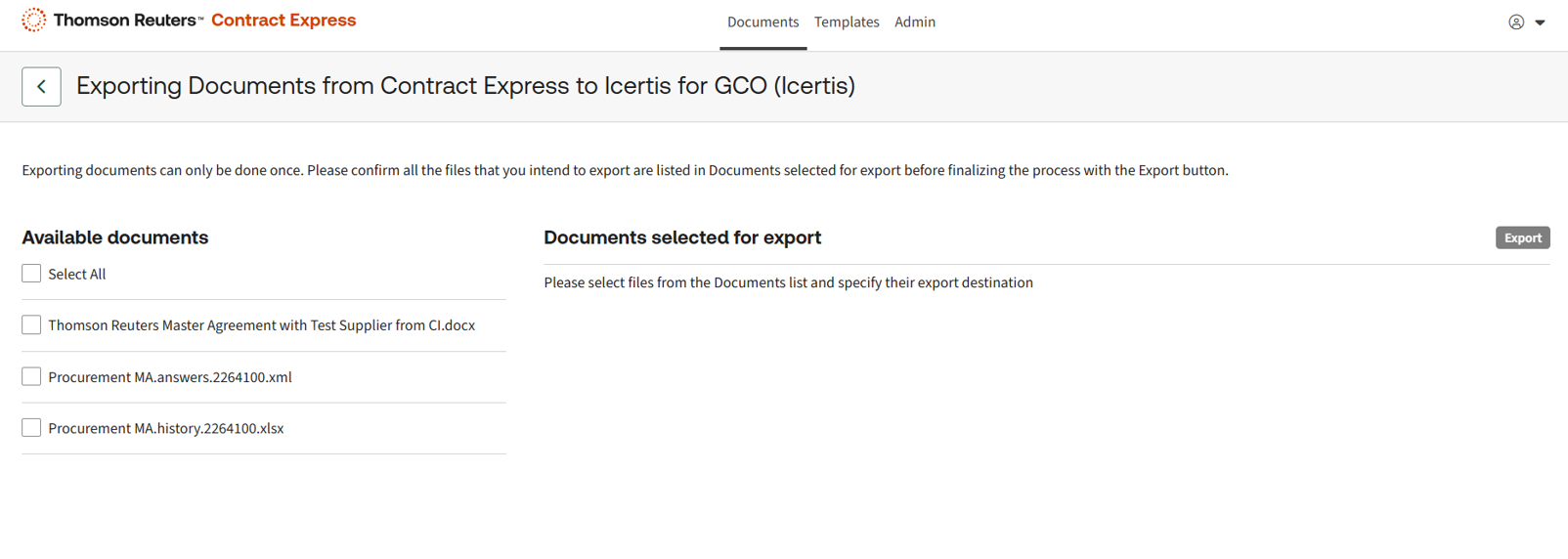
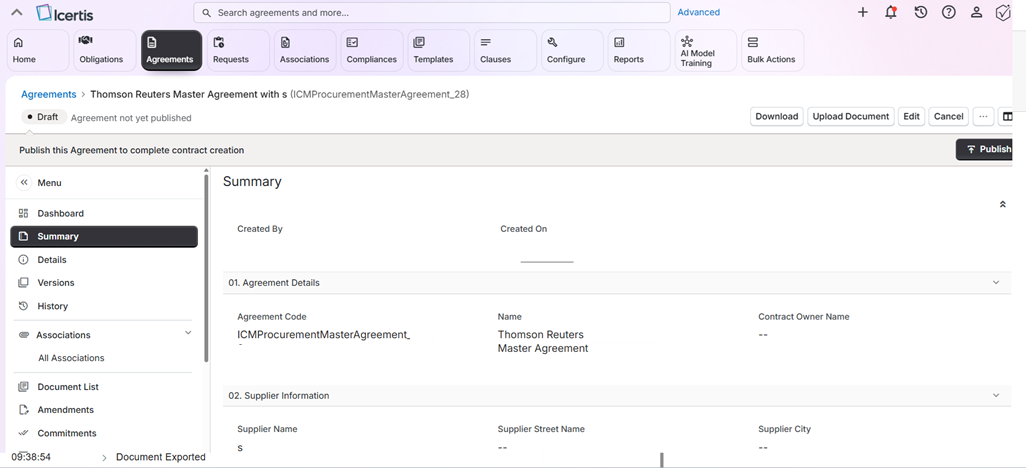
After a successful export, Contract Express creates a draft contract in Icertis and includes the generated document and mapped field values. The contract remains in draft status so that it can be reviewed and progressed in Icertis.
If the export does not complete successfully, Contract Express displays a message indicating that the document was not exported. The document is not assigned the
Exported
status. Review the message before attempting the export again.note
The Icertis export includes the generated document and the contract fields mapped from questionnaire answers. Questionnaire answer files and Contract Express document history are not exported to Icertis. The exported contract is created as a draft and is not automatically published or progressed.
Working with exported documents in Contract Express
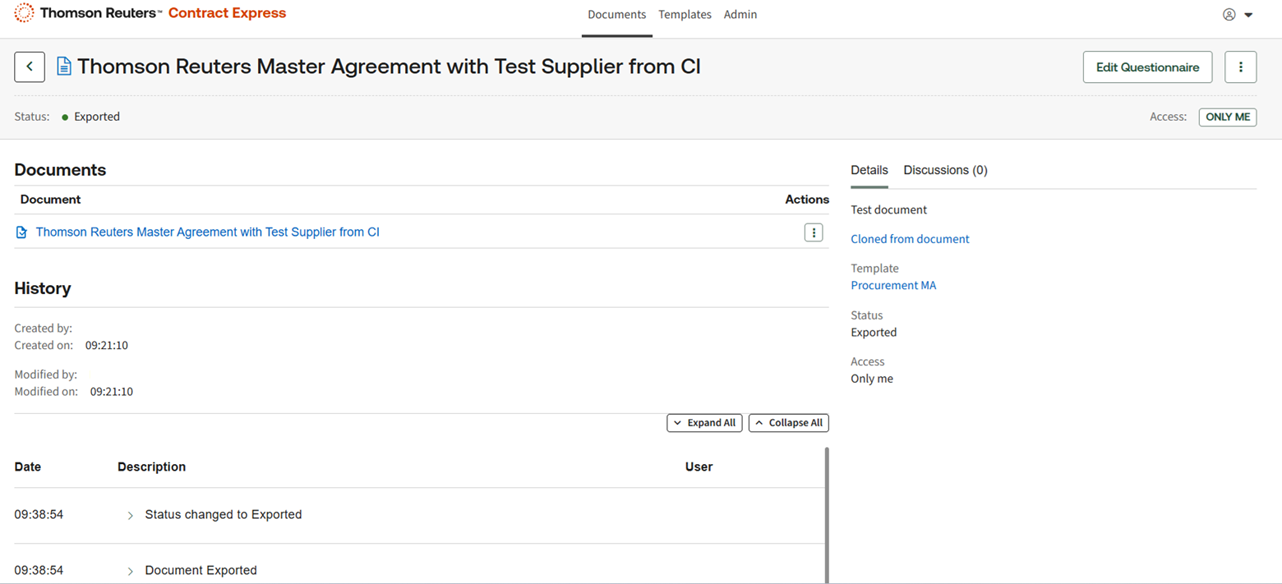
After a document is successfully exported to Icertis, its status in Contract Express changes to
Exported
. If the export is unsuccessful, the document is not assigned the Exported
status.note
Exported documents can be cloned to create a new document with the same questionnaire answers. You can then update the questionnaire answers as needed and export the cloned Document to Icertis.
View the export location of documents
To view the export location, go to the document page and select the
History
tab. Locate the Document Exported
entry and expand it to view the export location.