
Generating Documents with Contract Express
Accessing the contract express portal
The Contract Express portal is accessible at the following address: [your url here]
note
Contract Express requires login details in order to be able to access the site. If you are not a registered user, please contact your site administrator to arrange.
Creating your Document
To create a new Document, navigate to the
Documents
tab. Choose + New document
and enter the desired name for your document.
Answering the Questions
In the screenshot below, you can see an example of a Questionnaire.

On the left, the Questionnaire pages are listed. The bar at the top indicates the overall completion level of the Questionnaire. Each page also displays its own progress, showing when that page is complete.
Above the questionnaire, you'll find navigation arrows to move between pages:
- Preview: Displays a live view of the final document as you complete the questionnaire.
- Download Answers: Lets you download your responses so you can reuse them later in another questionnaire usingUpload Answers.
- Save & Close: Allows you to pause and save your progress or exit the process while keeping your answers intact.
In the Questionnaire itself, we have (in the above example) a group called
Name and address of the other party
which holds several questions. Guidance might be added to the questions to guide your answer.Your Final Document
Once you have finished answering the questions, press
Save & Close
to have access to your document.In the screenshot below, you can see that the document is ready and has a green traffic light next to
Status
. Furthermore, you can change your answers by clicking Edit Questionnaire
.
You can share your document with colleagues by clicking
Only Me
next to Access
. This will open a window where you can specify the type and access level.
note
Uncheck
Inherit permissions
option to add additional users.You may also add additional files to the Item using the '
+ Attach file
' option, and if working on a document item with colleagues, leave comments in the Discussions section.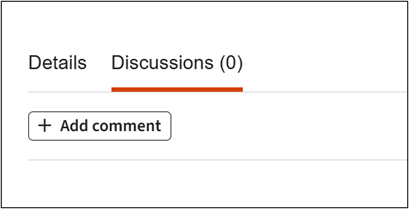
A full history is available under the
History
section of each Document item.Optional further processes
There are several additional options for document management available in Contract Express once a document has been generated. The site administrators decide on the use of these options and will set them up according to each organisation's particular requirements.
Approvals
If your Document requires Approval, this will either be sent automatically for you, or you will be given an option to Request Approval. This is decided by the site administrators and can be dependent on the answers given in the questionnaire.

If an approval request is required, submit it by selecting the
Request
button. You can also see who the approval is directed to and will have the opportunity to comment on the item. All approval requests and subsequent approval or rejections are updated in the document item, as well as associated e-mails with direct links sent to the applicable users.Sending for Signature
If the document is manually signed, you may upload a signed copy using the
Upload Signed Document
option, provided this feature is available in your organisation. Alternatively, use the e-signature functionality. Contract Express supports both DocuSign and Adobe Sign.To send an electronic signature item, use the
Start DocuSign
, or Start AdobeSign
button (as applicable). You will be asked to provide a login to the e-signature platform.
note
This is not your Contract Express login, but your login for the e-signature platform. Details of this process are organised by your site administrator.
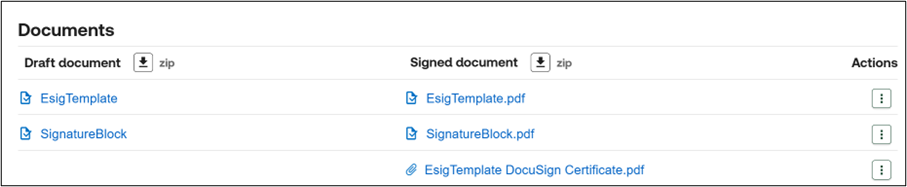
Complete the e-signature process as usual. When the document has been signed by all parties, the signed copy will appear in Contract Express in your Document item and the status will be marked as
Executed
.
Export
Contract Express supports several connections to external DMS systems allowing users to export their completed Documents to the organisations preferred Document Management System. This is set up by the site administrators.
If present, click on the '
Export
' button available in the Document item, select the folder location in the applicable DMS, and save. This will export a copy of the document to the applicable DMS. Once this has been completed, the status will update to 'Exported
'.Documents overview Page

The above screenshot shows your Documents page. There are 3 tabs available:
- My Documents: shows documents created by you by latest date.
- All Documents: shows your documents and other documents available to you.
- Shared Documents: shows documents which have been shared with you, sorted by folder and access permissions.
Within each option, you can see the status of the document, and whether the document has been shared. It is also possible to filter your documents (by name, status, etc.) with this button  .
.
.