
Using Template Suite Viewer
Template Suite Viewer
is a tool that allows you to inspect a template suite, as captured in a snapshot. It shows the relationships between templates, displays the consolidated dictionary, and allows discovery of templates that use a particular variable.note
In Contract Express, templates can be linked to each other so that one questionnaire generates multiple documents or the same clause is re-used in multiple templates but maintained as a single template. Such linked templates are called Template suites. Please refer to Template hierarchy and Consolidated templates for more information on how the template suites work.
Launching Template Suite Viewer
Click on
Template Suite Viewer
in the Contract Express ribbon. The two options you can chose from are:- View for current template
- View from snapshot
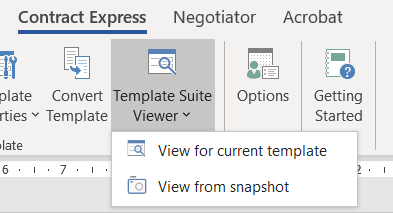
If you have the parent template open in Word, you can choose the first option. Contract Express will look up this template on the server, generate a snapshot from it and display the template suite data. In this scenario the current template will be treated as the top template (template that is used to start the questionnaire) and the template suite will show all sub-templates referenced in this template or its sub-templates. The relevance expressions will not contain any answers.
For the second option, you can browse to a snapshot that has been downloaded from the document details page or from the questionnaire. In this case, the top template will be the one that was used to start the questionnaire and any answers saved in the session will appear in the relevance expressions displayed in the Template Suite Viewer.
Tree view of the template suite
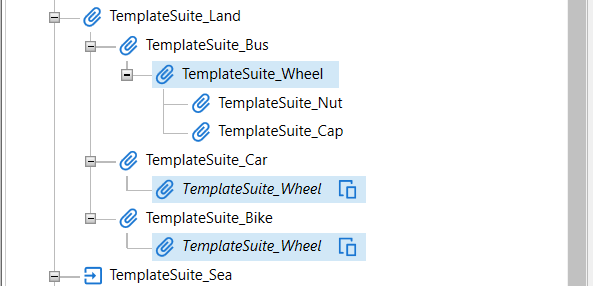
When the Template Suite Viewer window opens, on the right-hand side you will see the template hierarchy starting from the top template. Different icons will indicate how the sub-template has been referenced in the parent template:
- Include template
- Attach template
- Using template
- Multiple references of various types
You can hover over the icons to check the meaning of the icons.
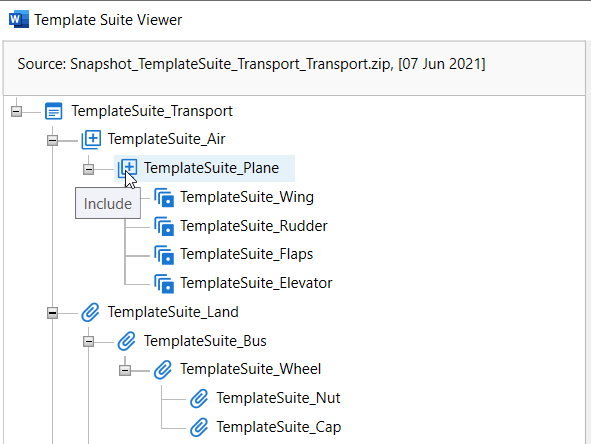
Select a template to open the details panel at the bottom of the window with information about the template version, document name and generated documents, if the snapshot contains them. Hover over the document name to see information on the document's completeness, and right-click to open the document.
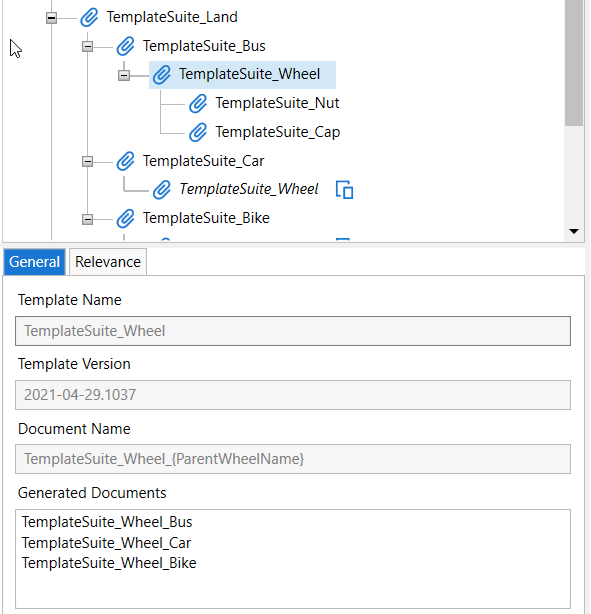
In the same way, you can also open any of the templates in the tree view list by using right click menu.
The
Relevance
tab contains the relevance expression. Where the snapshot contains answers, templates that are not relevant based on the answers provided in the answer set will be greyed out in the tree view list.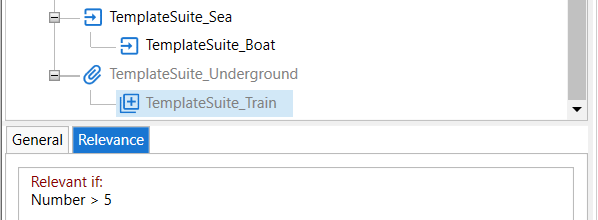
Templates that are referenced in the template suite multiple times will have the sub-templates listed only on the first occurrence and all other occurrences will be marked with a special icon. Use the right-click menu to highlight all occurrences or to go to the first template.
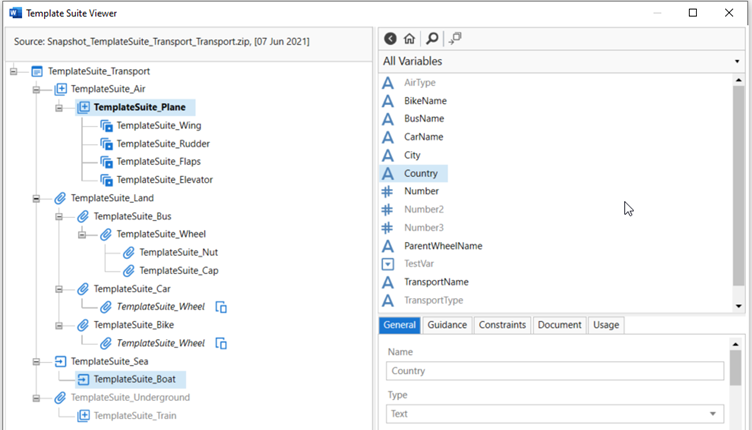
Consolidated dictionary
On the right-hand side of the Template Suite Viewer window is the consolidated dictionary displaying all information in read-only format. You can review the questionnaire, the variable list, and check the variable usage details.
Click on a variable to highlight the templates which use this variable. The template in bold font contains the definition of the variable that is used across the template suite.
In a similar manner, clicking on a warning in the
Warnings list
will highlight the template where this warning has been added.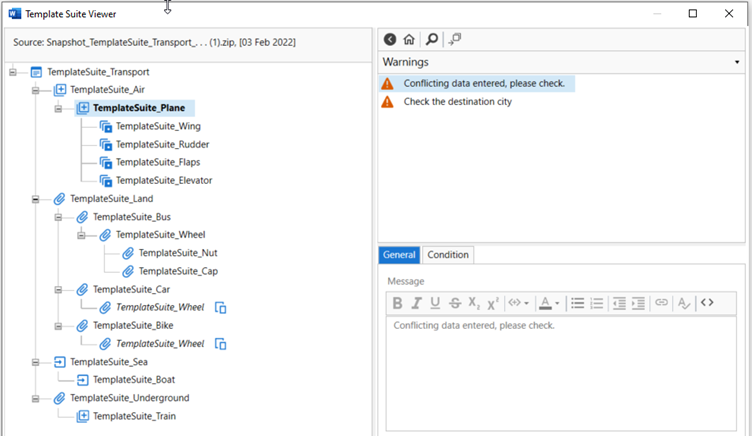
The bottom section of the consolidated dictionary contains the
Issues list
which are the issues that have been found during the template suite consolidation. Some of these errors may have been caused by the interaction of the template logic within the template suite, therefore it is a good idea to review this list to address any consolidation issues.
Additional Information
Snapshots have been enhanced in Contract Express 8.9 to contain additional information that is used by the Template Suite Viewer.
Template Suite Viewer can still be used to review template suites running on earlier versions of Contract Express but there are some limitations:
- Where templates running on earlier versions do not contain the necessary usage analysis information, Template Suite Viewer will run this analysis. There may be a delay before the Template Suite Viewer window opens.
- In cases where the additional usage analysis is necessary, it is derived using the current version of the Contract Express engine. In most cases the logic used will not differ significantly from the version in which the template is running but there is a chance that, in some cases, the logic of the earlier versions of Contract Express engines will not be reflected with 100% accuracy.
- Document names and associations with specific templates are not available for templates running on Contract Express 8.8 and earlier. In these cases, all generated documents will be listed under the top template.
Related Content
-
Review issues
Format: Article