
Using the Markup Wizard
The
Markup Wizard
can be used to compare two similar documents and use the differences between them as the starting point for authoring a new template. The wizard will guide you through reviewing the differences identified and prompt you to insert Contract Express mark-up language. To open the Markup Wizard
, click on the Tools
icon in the Contract Express
tab and select Markup Wizard
from the dropdown.
With the
Markup Wizard
you can:- Accept, Reject, or Skip each identified change
- Keep or Remove altered text
- Convert altered text to a span or field
Using the Markup Wizard
When you run the Markup Wizard you are prompted to select a document to compare your current one to. This should be a similar document.
Once you have selected your second document, a comparison will be run between the two documents and the Markup Wizard will open to the right of your document. Document differences will also be displayed within the document itself as track changes.
The Markup Wizard will guide you through each document difference in turn, identifying the type of change and allowing you to
Accept
, Reject
, or Skip
the change.- When youAccepta change, you will also need to select one of theAccept Optionsdescribed below.
- When youRejecta change, the text will be treated as if you had rejected the track change.
- When youSkipa change, no action is taken and the Markup Wizard will skip to the next identified change.
Accept options
In all cases, your
Accept
options will include Convert to span
and Convert to field
.- If the type of change isDeleted text, you will also have the option toRemove from documentand delete the text.
- If the type of change isInserted text, you will also have the option toKeep document as isand retain the text.
If you choose
Convert to field
, you will be prompted to enter a variable name. You can also select Include the next Changed Text in this field
to convert adjacent pairs of deleted and inserted text into a single field.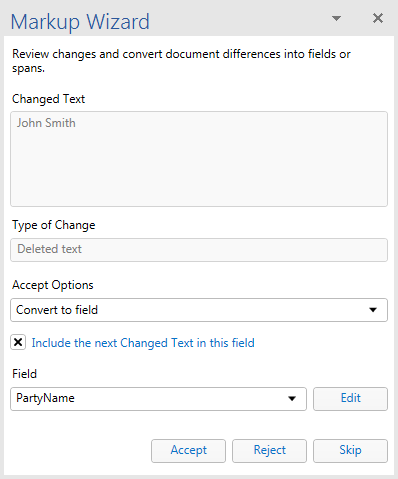
If you choose
Convert to span
, you will be prompted to enter a business rule. You can click on the Edit
button to open the Expression Editor.