
Configuring Contract Express License
The
Admin
tab allows Contract Express Administrators to configure their license space.Changing License settings
Your license details are available in the
Admin
> License
section.You can view the details of your license on this page:
- License name and its period of validity.
- Link to the public page, if the license allows guests.
- Your Single Sign-On email domain (if configured).
- Your user limit and the number of unallocated user licenses available.
Uploading License
Contract Express license is an .xml file. Contact Contract Express support, if you have not received your license file.
To upload the license:
- Go toAdmin>License.
- ClickUpload License.
- In the opened side panel, clickbrowseor drag-and-drop .xml license file straight into the panel.
- ClickUpload.
As a result, Contract Express will upload and apply the license to the license space.
User License table
After uploading your license file, the user license table will update to display the user license types you have purchased, your user limits and the number of available licenses.
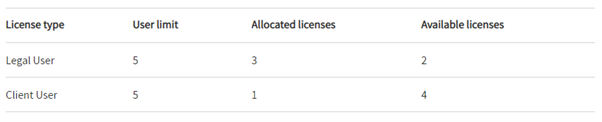
The user license types displayed in the table will depend on the license you have been issued.
Law Firms
The user license types available to Law Firm customers are:
- Legal User, for internal use. Roles available: Admin, Author and User.
- Client User, for external client use. Roles available: User.
Corporations
The user license types available to Corporate customers are:
- Power User, for use by the Legal team. Roles available: Admin, Author and User.
- Self-Serve User, for non-legal functions. Roles available: User.
Closing License
To close the license:
- Delete all users within the license space, except the Administrator user you use for closing the license.
- Go toAdmin>License.
- ClickClose License.
- Confirm license close in the confirmation dialog.After that, Contract Express sends an email to the account linked with your Administrator account.
- Follow the link in the email and confirm the license closure.
note
By closing the license space, you will prevent access to all data and sites contained within and you will
not
be able to access it for future operations.