
Contract Express - SSO with Microsoft Entra ID
The Contract Express application is built of four (four) web applications:
- API: This Contract Express API application is responsible for core (aka API) functionality; it is usually deployed as a virtual application "/rest".
- UI: This Contract Express UI application is responsible for UI elements; it is usually is deployed as a virtual application "/app".
- ID: This Contract Express Identity Server application is responsible for authentication; it is usually deployed as a virtual application "/id".
- Search: This Contract Express Search application is responsible for the Search feature within UI; it is usually deployed as a virtual application "/search".
Contract Express Identity Server supports using a company's Microsoft Entra ID (Formerly Azure AD) as an external identity provider to authenticate users. This page details the necessary configuration changes required to enable this feature.
Contract Express Identity Server uses the OpenId Connect protocol to authenticate users against Microsoft Entra ID. Only work or school accounts can be used for authentication, Microsoft personal accounts are not supported.
Azure – Register a Client Application for Microsoft Graph API
Contract Express needs to be registered with Microsoft Entra ID to support authentication and access the Microsoft Graph API. To register for the app, please follow the instructions:
- Navigate to theMicrosoft Azure Portal(https://portal.azure.com/).
- Loginusing your work or school account.
- Navigate toApp Registrationsblade.
- ClickNew registration, and:
- Specify aNamefor the app(for example, Contract Express SSO with Microsoft Entra ID)
- Select the appropriate option from theSupported account types(we strongly recommendunless another option is required)Accounts in this organizational decretory only
- In the Redirect URI section, select theWeboption from the dropdown and enter the Contract Express Identity Server signin-azuread endpoint to%The_ID_URL%/core/signin-azuread(for example, https://contoso.contractexpress.com/id/core/signin-azuread)
- ClickRegister
- You will beredirectedto the created application:
- Take a note ofApplication (client) IDas this is the value ofMSGraphClientId
- Take a note ofDirectory (tenant) IDas this is the value ofMSGraphTenant
- SelectCertificates & secretsblade within just created application.
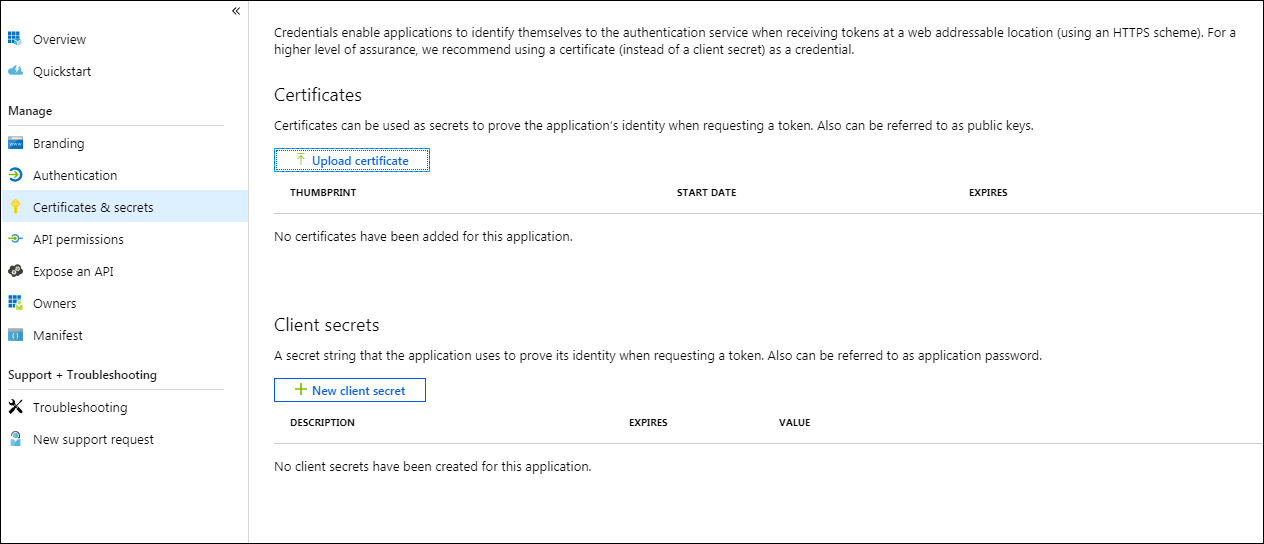
- ClickNew client secret
- SpecifyDescription(for example, Contract Express MSGraphClientSecret)
- SelectExpiresoption(we strongly do not recommend set as Never)
- ClickAdd
- Take a note ofValueas this is the value ofand it will be not possible to display that againMSGraphClientSecret
- SelectAPI permissionsblade within the created application.
- ClickAdd a permission.
- In a pop-up blade, selectMicrosoft Graph
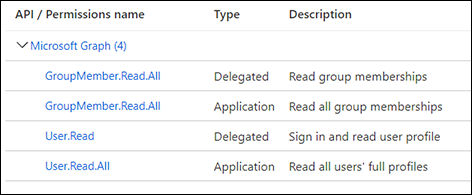
- ClickDelegate permissionsand select the following:
- GroupMember.Read.All
- User.Read
- Click Application permissions and select the following:
- GroupMember.Read.All
- User.Read.All
- ClickAdd permissions
- You should see all added API/permissions
- SelectAuthenticationblade within created application:
- UnderRedirect URIs, add the Contract Express%The_UI_URL%/admin/authenticationendpoint as a new Web type entry (for example, https://contoso.contractexpress.com/app/admin/authentication)
- UnderAdvanced settings, check-inAccess tokensandID tokens
- ClickSave
Contract Express – Back-end Configuration
These configuration steps are issued by Contract Express back-end administrator.
Update the API web.config as follows:
- Update value ofMSGraphClientIdparameter with previously capturedMSGraphClientId
- Update value ofMSGraphClientSecretparameter with previously capturedMSGraphClientSecret
Update the ID web.config as follows:
- Update value ofMSGraphClientIdparameter with previously capturedMSGraphClientId
- Update value ofMSGraphClientSecretparameter with previously capturedMSGraphClientSecret
- Update value ofMSGraphTenantparameter with previously capturedMSGraphTenantnoteIf "Supported account type" is selected as "Accounts in any organizational director" during the application provisioning, you may want to use Common asMSGraphTenantvalue.
- Update value ofEnableMSAuthparameter withTrue.

Contract Express – Front-end Configuration
The following steps are required to implement in order to enable Microsoft Entra ID user/group lookup and AD sync via the Microsoft Graph API. This is a one-time activity. These configuration steps must be issued by a Contract Express
front-end Administrator
, who also has Microsoft Entra ID Global Admin rights
:- Loginas Admin user to Contract Express.
- Navigate toAdminpage.
- SelectAuthenticationunder Licence(this option is visible only if CE SSO with Microsoft Entra ID is configured)
- Click onhere.
- Onceredirectedto Azure Portal, use the Microsoft Entra ID Global Admin credentials to authenticate.
- On the next screen clickAccept(this will establish trust between Contract Express and Azure)
- Once accepted, the page will redirect to the Contract Express application.