
Managing notices
Notices enable license space administrators to set up, for example, notice of downtime. The use of notices must first be set up in your Contract Express deployment configuration, see the Enterprise Installation Manual for more details.
Once Notices have been enabled, the Administrator has access to them through the
Admin
> Notices
.Creating notices
To create a notice:
- Go toAdmin>Notices.
- ClickNew notice.
- Define parameters of the notice:
- Notice title- the notice header
- Description- the main body of the notice
- Estimated Start/End Dates- time period, use these to tell the users when the maintenance will be taking place.noteA notice is active as soon as it is created and does not depend on the Start Date.
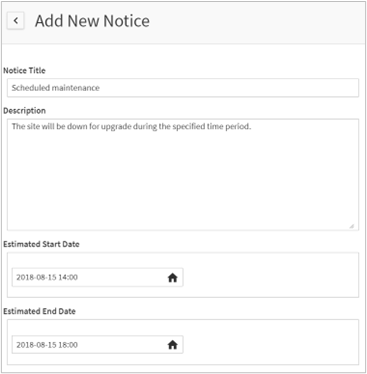
- ClickSave.
Removing notices
If you do not need to display a notice anymore, you can remove it:
- Go toAdmin>Notices.
- Select the required notice and clickMark as Done.
- EnterClosure Reasonand save.
note
You cannot permanently delete a notice from the list.
Displaying notices
Contract Express displays notices to users when they log in to the system.
Users should acknowledge the notice by clicking
Continue
. Users can check Remind me later
checkbox, if they want to see the notice after their next login.All active notices are available for users with
My account
> View current notices
.