
Managing users
Every user in Contract Express has one of four user roles, available in Contract Express.
Roles in Contract Express
Role | Functions | Available tabs in Contract Express |
|---|---|---|
User | Users can complete questionnaires and generate documents. |
|
Author | Authors can upload, test and control permissions on templates. Authors can share published templates with users, who can then generate documents using them. Authors can perform all actions, available for Users. |
|
Admin | Admins can add and manage users, groups and sites. Admins can edit profiles and view analytics. Admins can perform all actions available to Authors and Users. Admins have administrative permissions over all templates and documents and can view all the documents within the license space. |
|
Guest | Guests are invited to complete individual questionnaires, through either an invite or a public URL. This is only available in sites that have been set up with Forms Based Authentication and where your license allows Guests. | None |
Adding users to Contract Express
If there are unallocated users available in your license space, you can invite new users to Contract Express. The way of inviting new users depends on your authentication method.
Inviting users to license spaces with forms-based authentication
To add new user:
- Go toAdmin>Users.
- ClickAdd userbutton.
- Enter parameters of a new user:
- Email address(this will be their username) - mandatory parameter.
- Name(Display name) - optional parameter.
- License type- select the user license type (see User license table for more information about user license types).
- Role.
- If it is required, assign new user to one or more groups usingAdd groupbutton.
- CheckSend email invitation to new usercheckbox, if you want Contract Express to send an invitation to the new user. If left unchecked, the user will be added to Contract Express but will not be notified via email.
- ClickSave.
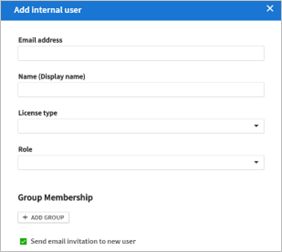
If you have selected to send invitations to new users, they will receive an invitation email with a link to join, with 28 days to follow through on the invitation before the link expires.
Inviting users to license spaces using Active Directory
If you use Windows Authenticated mode for your license space, all users from your Active Directory can automatically use Contract Express.
Contract Express Administrator can share documents and templates with any Active Directory user. The users will have access to all templates and documents shared with them automatically upon their first login.
Users appear in the
Users
list in Admin
> Users
section after their first login.To configure user’s permissions in advance you can either:
- Assign Role-based permissions (see Sharing template with other users).
- Assign the group template permissions.
note
When using Mixed Mode Authentication, you can invite users by clicking the 'Add User' button. For more information, refer to the Contract Express Enterprise Installation Manual.
Adding multiple users to Contract Express
Contract Express allows importing multiple users from a file.
To add multiple users from a file:
- Go toAdmin>Users.
- ClickImport usersbutton.
- In opened panel clickDownload sample fileand save the sample .xlsx file on your disk.
- Enter the list of users into the sample file. For every user you should define:
- Email- mandatory parameter.
- Full name- optional parameter, Contract Express will use this name in the invitation email.
- Role- optional parameter, you may define one of the Contract Express roles for users (Admin/ Author/ User). If left empty, Contract Express will automatically assign User role to the users.
- User License Type- optional parameter. If left empty, Contract Express will allocate a default license type. You can change this later.
noteDo not delete any columns from the file, even if you leave them empty, as Contract Express requires these columns to create users correctly. - Go toAdmin>Sitesagain and clickImport usersbutton.
- Select the site, for which you want to add users.
- CheckSend email invitation to a new usercheckbox, if you want Contract Express to send invitation to the new users. If left unchecked, the users will be added to Contract Express but will not be notified via email. UseAdditional informationfield, if you want Contract Express to add some information to the standard invitation email.
- Drag and drop the file with users to the dedicated area or browse for it.
Changing user roles and license types
To change a user's role or license type:
- Go toAdmin>Users.
- Click on the username for the required user.
- In the opened panel, select another role or license type and clickSave.
User Search and Document Navigation
Administrators can use the
Search Users
option to quickly locate users and access their associated documents.After searching and selecting a user, administrators can view and update the user's details. From the user details page, the
Their documents
link allows administrators to navigate directly to the user's document folder.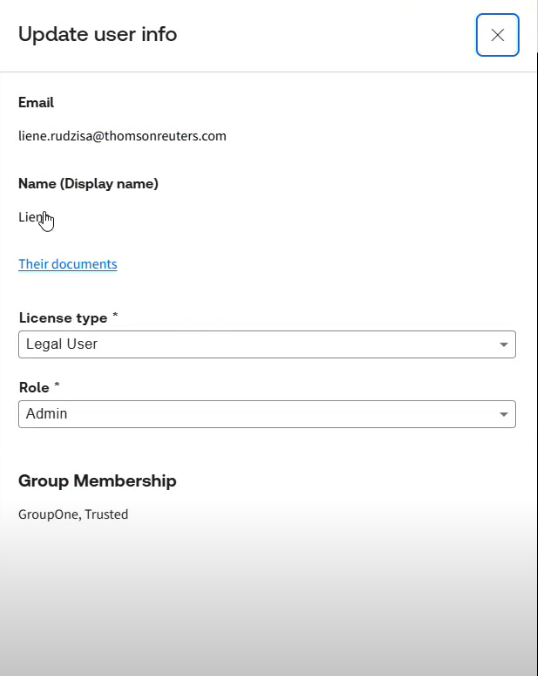
The document folder displays all documents associated with the selected user, providing administrators with a convenient way to review or manage user documents.
Deleting users
To delete a user:
- Go toAdmin>Users.
- Check the user you want to delete in the list.
- ClickDeletebutton.
Document permissions
These are applied to Documents which have been generated. For these permissions to apply, the user in question must have at least Read permissions on the template. As with Template permissions, the Admin role always has Full permissions.
The None option is used to expressly remove permissions from a user or group. Where multiple entries give a user more than one Access Level, the occurrence highest in the access list will take precedence.
Permission level | Read | Write | Full |
|---|---|---|---|
View properties | Yes | Yes | Yes |
Download Document as pdf | Yes | No | No |
Download Document as Locked .docx | Yes | No | No |
Download Document as .docx | No | Yes | Yes |
View Questionnaire | Yes (read-only) | Yes | Yes |
Edit Questionnaire | No | Yes | Yes |
Delete Document | No | Yes | Yes |
Edit permissions | No | No | Yes |
Request/Revoke Negotiations | Yes | Yes | Yes |
Clone Document | Yes | Yes | Yes |