Configuring approvals for a template
Contract Express allows configuring multiple approval steps for a template. Approvals can be conditional; in this case, you would need to configure the approval triggers in the template.
Configuring approval triggers in a template
Approvals can depend on the answer of an explicit true/false question or on the value entered in the questionnaire for any variable type or rely on a computation. See the Contract Express Author manual for further information on how to create computation variables.
One you added the approval triggers, upload the template to Contract Express,
Publish
the template and set the applicable sharing permissions.Adding approval steps
To configure approvals steps for a template:
- Go to theTemplatestab and select the required template.
- SelectApproval stepssection.
- ClickNew approval step.
- Configure parameters of the approval step:
- Give the approval step aTitle. The title must be unique for all approval steps associated with this template.
- CheckAuto Startif you want Contract Express to initiate the approval automatically upon completion of the questionnaire. Users will still be able to start the approval manually if documents are not complete.
- CheckApprover Editif you want to enable approvers to edit the questionnaire.
- Define, when the approval isApplicable:
- Always- approval is always applicable
- Never- approval is never applicable
- Dependent on rule below- approval is triggered based on a configured rule. For more details, see Configuring Applicable rule for approvals.
- Define, when the approval isRequired:
- Always- approval is always required
- Never- approval is never required
- Dependent on rule below- approval is required based on a configured rule. Rule configuration is similar to the Applicable rule, see Configuring Applicable rule for approvals.
- DefineDefault approvers. See Setting up approvers for approvals.
- DefineData driven approvers, if required. See Setting up approvers for approvals.
- Set upNotifications. See Configuring notifications for approvals.
- ClickSave.
Configuring Applicable rule for approvals
When configuring the Applicable rule, you can:
- Use multiple conditions;
- Group conditions to define the order of conditions.
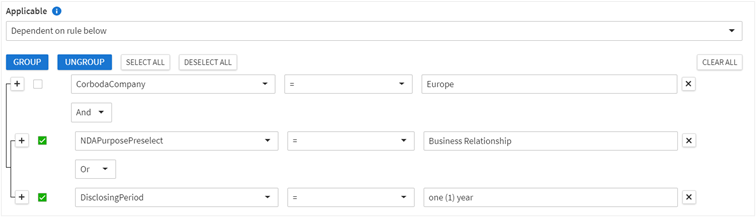
For example, if we want to create an approval for all European non-disclosure agreements, based the auto-provisioned non- disclosure agreement template, where the approval is triggered whenever an agreement is a business relationship or the disclosing period is 1 year, we would create the following applicable rule:
- Set the Applicable rule todependent on rule below.
- For the first row select "CorbodaCompany"+"="+enter the value "Europe".
- Click on the+button to add a new row and select"And"from the new dropdown menu in the first row
- Set the second row to"NDAPurposePreselect"+"="+enter the value"Business Relationship".
- Click on the+button to add a new row and select"Or"from the new dropdown menu in the second row
- Set the third row to "DisclosingPeriod"+"="+enter the value "one (1) year".
- Select the checkbox for the second and third rows and clickGroup.
Setting up approvers for approvals
Contract Express allow defining two types of approvers for an approval step:
- Default approvers- approvers that can approve any documents created from this template
- Data driven approvers- approvers, whose approval is required depending upon the answers the user gives in the questionnaire.
To configure the default approvers:
- ClickAdd approverbutton in the Default approvers section.
- Select the type of approver. You can select Contract Express users and/or groups. Alternatively, the approvers can be derived by a selection made during the questionnaire session by selecting "Variable". The field to the right will change into a dropdown menu with a list of applicable variables – please see Allow users to select an approver during the questionnaire on setting up these variables.
- Add other approvers, if required.
note
If there is more than one approver listed in an approval step, the first approver will be the primary approver, with subsequent approvers added to the approval step listed as alternate approvers.
To configure the data driven approvers:
- ClickAdd data driven approverin the Data driven approvers section.
- Select a variable, based on which value Contract Express should define the approver. Note that you can use only Yes/ No variables to define the data driven approvers.
- Select the type of approver. You can select Contract Express users and/or groups. Alternatively, the approvers can be derived by a selection made during the questionnaire session by selecting "Variable". The field to the right will change into a dropdown menu with a list of applicable variables – please see the Contract Express Author manual or Author Help article Allow users to select an approver during the questionnaire for instructions on setting up these variables.
- Add more approvers, if required, by clicking theAdd approverbutton.

- Add another condition to define data driven approvers, if required, by clicking theAdd data driven approver.
note
When the approval is triggered, Contract Express will decide which set of approvers are responsible by working down the list of data driven approvers. If the first condition is true, Contract Express will assign the approval task to the first set of approvers and ignore the next sets of approvers. If the first condition is not met, Contract Express will continue working down the list of data driven approvers. If no conditions are met, Contract Express will use the set of approvers from the Default approvers section.
Configuring notifications for approvals
Contract Express allows defining the notification text that it sends at certain stages of the approval process. All emails will contain a link to the item as standard. Depending on each stage, emails can be sent to the owner, primary approver, or all approvers.
- Request: is the notification that will be sent to the specified approver(s) at the point the approval process is commenced. This applies whether the approval is set to begin automatically or manually. You can configure whether this will be sent to the primary approver or to all approvers.
- Forward: is the notification that will be sent to the new approver if an approval task is forwarded from one approver to another.
- Approve: is the notification that will be sent to all approvers and the document owner when the document has been approved.
- Reject: is the notification that will be sent to all approvers and the document owner when the document has been rejected.
note
Contract Express sends notification emails only if both the Subject and Body contain text or fields.
Using variables within Notifications
Within the Subject and Body of the notification emails, it is possible to use data drawn from Contract Express and the template to relay more information to the recipient. You can add individual variable from the template along with information that will be captured for each document (e.g. the name of the document).
To add variables in Subject or Body:
- ClickAdd variablelink.
- Select variable from the dropdown.
Apart from plain text and template variables, you can use the following data in Subject and Body:
- Approval:Title- This field corresponds with the name of the approval step.
- Approval:ContractName- This field will insert the name of the document.
- Approval:ApproverName- This field will pull in the name of the approver for this approval step.
- Approval:Comment- There is a Comments box that appears at various stages of the approval process if the document owner or the approver wishes to add comments. You can add this field to the body of any of the notification emails, and Contract Express will pull in the comments at that specific point in the approval process.
Editing approval steps
To edit an approval step:
- Go to theTemplatestab and select the required template.
- SelectApproval stepssection.
- Click required approval step and make the changes.
- ClickSave.
Managing approval order
If you defined more than one approval step, you can specify the order in which the approval steps should be activated.
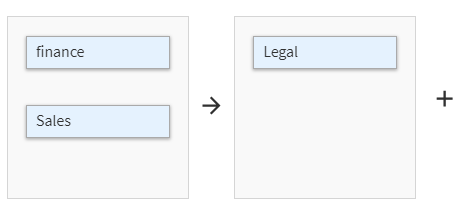
Contract Express can run approvals in parallel or sequentially.
To configure the approval order:
- Go to theTemplatestab and select the required template.
- SelectApproval stepssection.
- ClickManage orderbutton.
- Define the order of approval steps. Approvals shown in the same section will be run in parallel. Use the+button and drag and drop an approval to move it to another section. The sections will run sequentially from left to right.
- ClickSave.
Deleting approval steps
To delete an approval step:
- Go to theTemplatestab and select the required template.
- SelectApproval stepssection.
- Check required approval step and clickDelete.
Approval process
Users
Requesting Approval:
When user has completed the questionnaire, they can start approvals by clicking
Request
in the Approvals
section.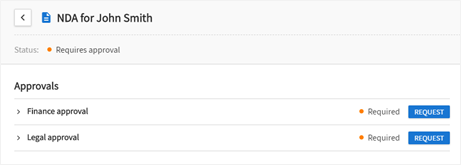
note
If you set up an approval to Auto Start, Contract Express will start this approval automatically.
Using Profiles, administrator or template author can define the document access for the business user (no access, read-only access or unrestricted).
Once the user clicks
Request
they can enter any comments they wish to direct to the approver. 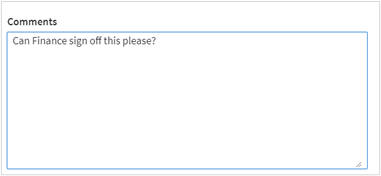
Approval Overview
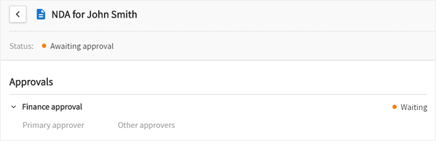
A full view of the approval processes for a document can also be found in the document details page in
Approvals
section.For every approval, you can see its name, status, approvers and available actions, if any.
Users can review the questionnaire once an item has been sent for approval, however the questionnaire will display the answers in read only mode.
Post-Approval
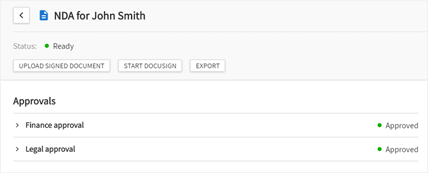
Once the document has received all relevant approvals the user will be able to access the document as configured in the Profile settings. The settings are no access, read-only access or unrestricted. In the screenshot below, the Business User has been given unrestricted access to the document.
When the status traffic light moves to green with a status of "Ready", then the user knows that their document has received all relevant approvals. The user will typically be notified of the approval by the email notification that was created in an approval step. Or, the user can monitor his/her document status by logging into Contract Express.
Rejected Documents
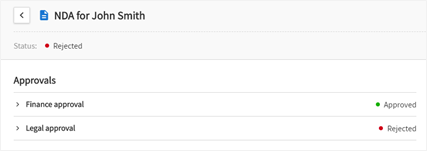
If an Approval is not granted, the user's access to their generated document will be restricted as configured in the Profile settings. They should select the Edit Questionnaire button and amend their answers to comply with the approval requirements.
Once the document has been approved the user may access their documents depending on the Profile settings configured.
Approvers
Approvers can view all live documents awaiting their approval under the Open approvals tab of the Tasks tab in Contract Express. Past approvals can be viewed under the Closed approvals tab.
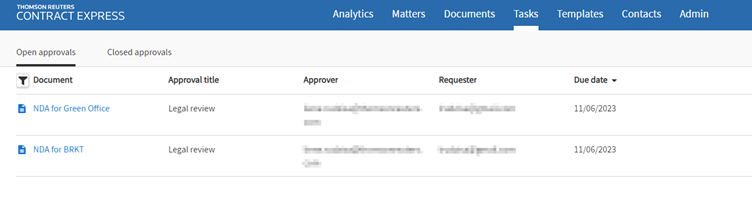
To review the document an approver should click the link with the document's name. Alternatively, if the notifications have been set up at the point of Request, the approver can follow the link in the email notification sent to them for a direct link to the item awaiting approval.
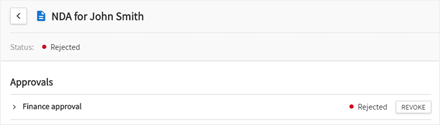
The approver will then have the option to Approve, Reject or Forward the item. Approvers will also have access to the Word document of the item and have permission to edit the questionnaire, if Approver Edit was set in the approval step or they have the role of Admin.
If an approver rejects an item, the approver still retains the ability to revoke that approval by accessing the document from the Closed approvals tab and navigating to the Document details page. Revoking an approval will undo a rejection action and the approval state will return to Awaiting Approval.