
Downloading and Sharing templates
Downloading templates
You can get a .docx version of every template within Contract Express.
To download the latest version of a template, select it on the
Templates
tab and click Download
. You can download multiple templates at once:
- Check the required templates on the Templates tab.
- Click Download.
- Select whether you want to download latest published version or latest version.
- Check Include subtemplates, if you want download templates with their subtemplates.
- Click Download.
To download a specific version of a template:
- Select the template on theTemplatestab.
- Go to theTemplate versionsection.
- Select the required version and click
 to download it.
Sharing templates
To share a template with other users you need:
- Mark the template as Published.
- Share the template with other Contract Express users.
- Make the template Public, if you want to share it with guests.
Marking templates as Published
Marking a template as
Published
means the template is now available to all users, and it has been shared. They can now create live documents from the Published
template. The most recent Published
version of a template is made available to other users when you share the template.To mark a template as Published:
- Select the template on theTemplatestab.
- Go toTemplate detailsand select the Publish Latest button.

note
Once a template has been published, it is not possible to revert the template status to unpublished. However, the template or template version can be archived (or in some cases deleted) if the template is no longer wanted in a published state.
Sharing template with other users
Once you marked the template as Published you can share it with other users within your license space and external users. This makes the template available for them to begin generating documents.
To share a template:
- Go to theTemplatestab.
- Click the button in theSharingcolumn for the required template.
- ChangeAccessto Shared.
- SelectUser Accesstab and add permissions for other users, groups or roles.To allow other users to edit a template, give them Write permissions on that template. Please note that they must also be an Author to access theTemplatestab.
- ClickSave.
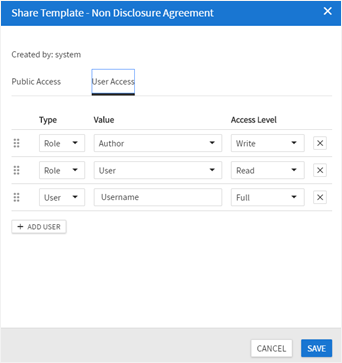
To update sharing settings for several templates in bulk:
- Check required templates on the Template tab and click Edit.
- ChangeAccessto Shared in the opened panel.
- SelectUser Accesstab and add permissions for other users, groups or roles.
- ClickSave.
Making templates public
To make the template available for Guests, you should make it public.
To share a template:
- Go to theTemplatestab.
- Click the button in theSharingcolumn for the required template.
- ChangeAccessto Shared.
- SelectPublic Accesstab and checkMake publiccheckbox.
- CheckShow on public page, if you want to make the template available on the page with all templates available for public access. You can find the link inAdmin>License.

- Savethe sharing settings.
- Go to template details and copy thePublic link. This link allows generating documents without the need for a Contract Express user account.

The
Embed code
provides an iframe which allows you to embed the questionnaire for that template within another web page.Downloading a template report
From the Templates tab, Admins and Authors can download a report in xlsx format with information about their templates. For Authors this list will be limited to the templates to which they have been granted access.
In addition to the information that is available in the Templates list view, the report contains information about sharing permissions, external dictionaries, parent templates, profiles and categories. Standalone Contract Express users will also be able to check the details of workflow steps, alerts and status of eSignature.
To run the report:
- Click on the three ellipses
 .
. - Choose to run a report of latest templates (includes both published and unpublished templates) or published templates.

The report will download automatically.