
Access to documents (not used in HighQ)
Controls the level of access users and guests have to generated documents at different stages of the document lifecycle.
Guest restriction
Controls the maximum level of access guests are granted to documents at any time. Available options include:
- Access to a read-only format of the documents– Allows guests to view documents in a read-only format.
- No access to the documents– Prevents guests from accessing documents entirely.
- Unrestricted access to the documents– Allows guests full access to generated documents.
This setting defines the upper limit of access for guests. The actual access granted may be further restricted by other factors, such as approval settings. If the template includes an approval process, guest access is additionally governed by the Pre-approval and Post-approval restrictions.
Pre-approval restriction
Controls the level of access users have to documents before an approval is completed. Available options include:
- Access to a read-only format of the documents– Allows read-only access during the pre-approval stage.
- No access to the documents– Prevents access before approval is granted.
- Unrestricted access to the documents– Allows full access before approval.
This setting applies only while the document is in the pre-approval stage.
Post-approval restriction
Controls the level of access users have to documents after an approval is completed. Available options include:
- Access to a read-only format of the documents– Allows read-only access after approval.
- No access to the documents– Prevents access after approval.
- Unrestricted access to the documents– Allows full access after approval.
This setting applies only once the approval process has been completed.
Automatically download a single document
Controls what happens when a guest completes a questionnaire that generates a single document. Available options include:
- Download document– Automatically downloads the document when the questionnaire is completed.
- Show output page– Displays the output page instead of automatically downloading the document.
This setting applies only when a single document is generated.
Enable comparison of the generated document to template (standalone only)
Controls whether users can compare a generated document with its source template.
- Yes– Adds a Compare to template option to the Actions menu on the document details page. This lets users download a redlined version of the generated document, with excluded wording shown as strikethrough, making it easier to identify differences from the source template and track deletions.
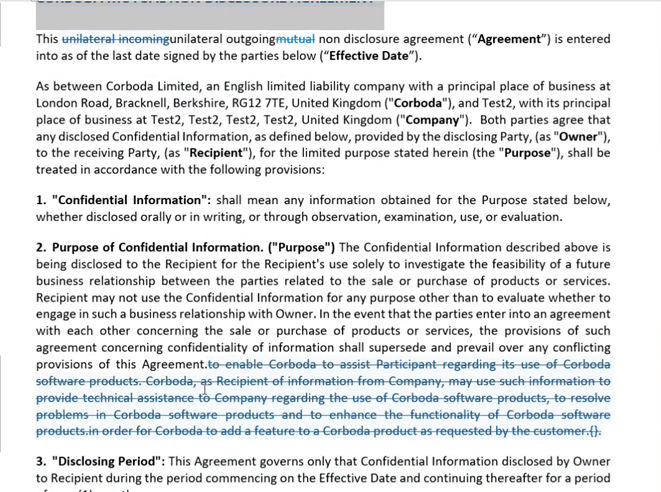
- No– Does not provide the option to compare the generated document with the template.
Related Content
-
Document
Format: Article