
Document text in preview
Controls how document content, markup, formatting symbols, and excluded text are shown in preview mode.
Display markup brackets for all spans and fields in preview
Controls whether markup brackets are shown in preview mode.
- Yes– Displays markup brackets for all spans and fields in the preview.

- No– Hides markup brackets in the preview.
Display sequence numbers alongside the markup brackets for all spans in preview
Controls whether sequence numbers are displayed next to markup brackets.
- Yes– Displays sequence numbers next to each span's markup brackets.

- No– Does not display sequence numbers.
Sequence numbers are shown in preview only and do not appear in the generated document.
Paragraph markers and other format symbols
Controls whether paragraph markers and formatting symbols are shown in preview mode.
- Display paragraph markers– Shows paragraph markers and formatting symbols in the preview.
- Do not display paragraph markers– Hides paragraph markers and formatting symbols in the preview.
The frequency with which text runs in the preview document content are blurred
Controls how frequently text in the preview is blurred, leaving answers visible. Numeric value (0–4):
- 0 = no blurring
- 1 = complete blurring
- 4 = blurs 1 in every 4 text runs
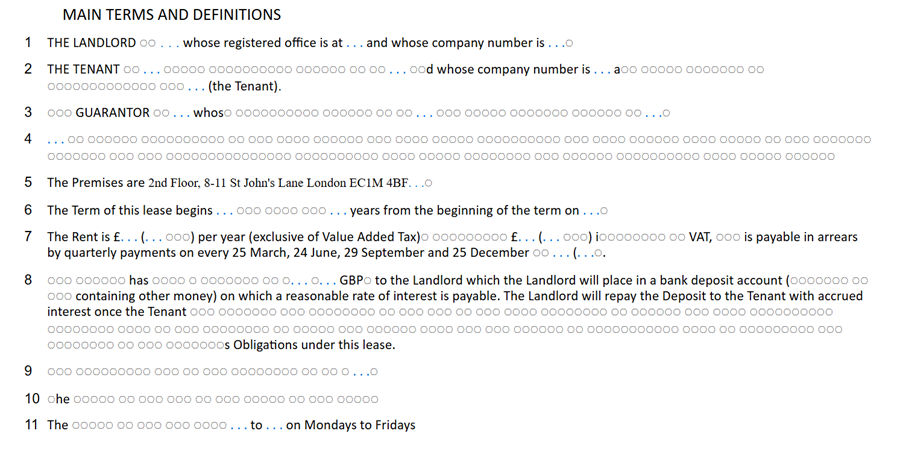
This option is useful for hiding document text in the preview while focusing on answers.
Excluded text
Controls how excluded document text is displayed in preview.
- Display excluded text as strike-through– Shows excluded text with a strikethrough when a condition removes it.

- Do not display excluded text– Hides excluded text entirely from the preview.

Default text used for cross-references which are broken
Specifies the default text shown in preview when a cross-reference is broken.
Preview content display options
Controls which types of content are visible in the preview pane.
- Document wording and drafting notes– Displays both the document wording and drafting notes.
- Document wording only– Displays only the document wording.
- Drafting notes only– Displays only drafting notes.
When using Note spans, drafting notes appear as expandable links in preview.
Related Content
-
Preview
Format: Article