
Answers: upload, warnings, validation
Controls how answers are entered, validated, uploaded, and how compulsory warnings are displayed and enforced in the questionnaire.
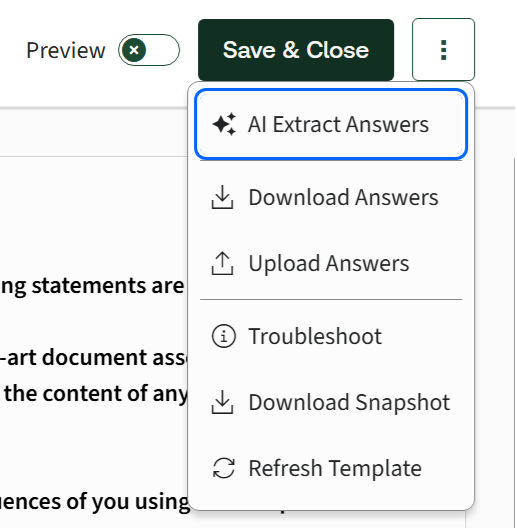
Show buttons to download and upload answers
Determines whether the Download Answers and Upload Answers buttons are shown to users; select Yes to display the buttons, or No to hide them.
Enable AI answer extraction in questionnaire
Determines whether AI is used to extract and suggest answers from uploaded documents automatically. Select Yes to extract answers directly from source documents, or No to enter answers manually.
If a compulsory warning is raised due to answers on a questionnaire page then prohibit the user from navigating away from that page until the issues have been addressed
- Yes– To prevent users from navigating away from a questionnaire page when a compulsory warning is unresolved; when enabled, a warning pop-up is shown, and users must address the warning before continuing.
- No– Users can navigate away without a warning.
note
As a best practice, set both this option and Save and Close to Yes so that a warning pop-up appears and helps prevent user confusion.
If a compulsory warning is raised due to answers on a questionnaire page, then popup a dialog when the user attempts to navigate away from that page
- Yes– If a compulsory warning is triggered and the user attempts to navigate away, a pop-up displays the warning message. The user can still proceed by clicking OK on the pop-up, unless the setting to prohibit navigation is set to Yes.
- No– The user can navigate away without any warning pop-up being displayed.
note
If the Save and Close button is selected before the compulsory warning is addressed, the document page displays a warning, and no document is generated.
Show warnings on all questionnaire pages, not just those that caused the warning to be raised
Determines whether a warning triggered by answers on one questionnaire page continues to be displayed on all other pages. Select Yes to display the warning across all pages, or No to show it only on the page where it was triggered.
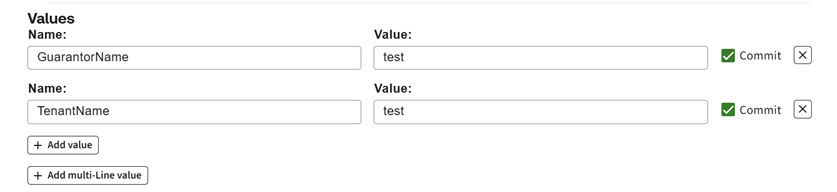
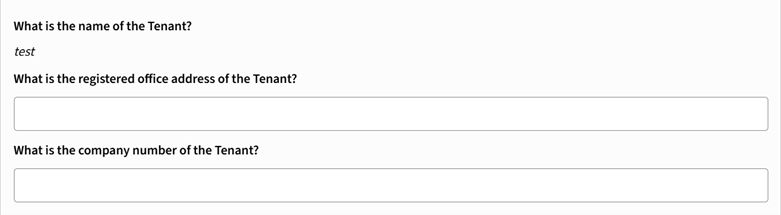
Display committed answers as read-only on the questionnaire
Determines whether answers prefilled using the Add Values option and marked as committed are editable in the questionnaire. Select Yes to make them read-only, or No to allow users to change them.
If there are answer validation errors on a questionnaire page then popup a dialog when the user attempts to navigate away from that page
Determines whether a dialog is shown when the user tries to leave a page that contains validation errors (for example, entering text in a number field). Select Yes to display a dialog warning before navigation, or No to allow the user to navigate away without a prompt, even if validation errors are present.
Enforce a maximum character limit of 255 for text variables
Limits whether text input in the questionnaire is limited to 255 characters. Select Yes to enforce the limit and prevent users from entering more than 255 characters, or No to allow longer text entries.
Related Content
-
Questionnaire
Format: Article