
Setting up a profile
Profiles are used by Contract Express to control the look and feel of a template's Questionnaire and the output document. By default, Contract Express includes a
Built-in Profile
, which cannot be edited and uses the default values for all settings.If you want to customise these settings, you must create a new profile.
- Go toAdmin>Profiles.
- ClickNew profilebutton.
- SetProfile nameanddescription.
- Configure the profile settings in the sections described below.
note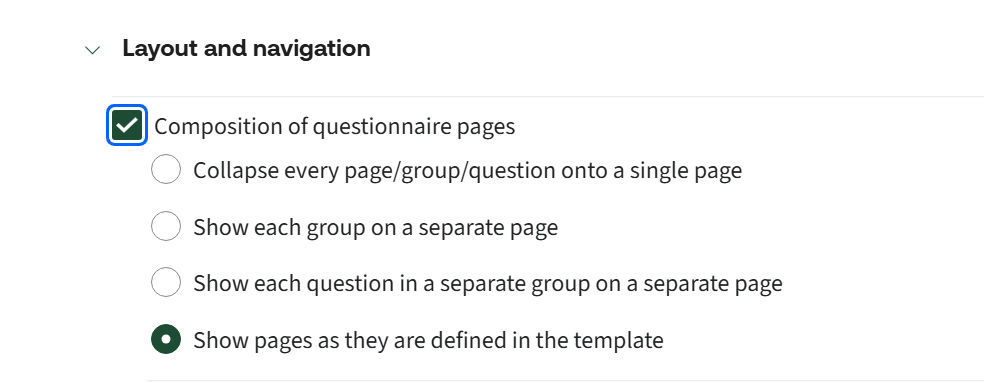
When creating a profile, you must select (check) each setting you want to apply and then choose the appropriate option.
Where can I apply Profiles?
You can apply profiles at different levels:
- Apply asite‑wide default profilefromAdmin>Features>Profile.
- Apply profilesper templateby navigating toTemplates>[Template Name] > Profiles>Live/Test.
- IfCategoriesare enabled, you can also apply profilesper template within a category.
How do Profiles apply?
Profiles are applied cumulatively. For example, if you apply
Profile A
at the site level, Profile B
at the template level, and Profile C
to the same template within a category, then when you launch the template from that category, the system evaluates settings in the following order:- Profile C– Checks whether each specific setting is activated (checked).
- If a setting is not specified, the system then checks:
- Profile B– Checks whether the setting is activated.
- If it is not specified, the system then checks:
- Profile A– Checks whether the setting is activated.
- If it is still not specified, the system then uses:
- TheBuilt‑in Profile– Applies the default value.
So, if Profile C does not specify the document output format, but Profile B does, the system uses the setting from Profile B.
Test profiles
Profiles configured under the
Test
tab in the template details are used only
when launching the template from:- TheTestbutton in Author.
- TheTest latest versionbutton on that same page (even if the latest version is Live/Published).
- TheTestlinks available on the same page.
Which profile is used when bulk‑generating documents using datasheets?
When you use datasheets to bulk‑generate documents,
category‑level profiles are ignored
, even if categories are enabled. In this scenario, Contract Express uses only the profiles applied at the template
and site
levels.This is because a single template can be associated with multiple categories, and the system cannot determine which category‑specific profile should apply. As a result, it defaults to the profiles set at the template and site levels.
note
- If you are working between multiple environments (e.g. Dev + Prod), you can download and upload Profiles and Locales, rather than needing to re-create them from scratch.
- If you are working with a suite of templates, the Profile added to the master template will be used.
Settings
The following sections describe all available Profile settings in Contract Express, organised into the five main categories listed below:
- – Helps you choose the language and regional settings used in the questionnaire and generated documents, such as date formats and translations.
- – Allows you to shape how users answer questions, including the way questions, answers, and logic appear on screen.
- – Defines how the document preview is shown to users while they are completing the questionnaire.
- – Determines how the final document is created, including the file format and what users can do with it after generation.
- – Provides access to system-level options, such as data retention and the handling of unresolved or excluded content.
Managing profiles
Editing Profiles
All profiles are editable, except for
Built-in
profile.To edit a profile:
- Go toAdmin>Profiles.
- Select the required profile.
- Make required changes. You can edit any settings of a profile.
- ClickSave.
Open the profile by clicking on its name; all settings are editable.
Deleting Profiles
You can delete profile either by:
- Checking the profile in the list, clickingDeleteand confirming deletion.
- Opening the profile, clickingDeleteand confirming deletion.
Downloading and uploading profiles
Contract Express allows downloading and uploading profiles. To download a profile, select the required profile and click
Download profile
button.To upload a profile, click
Upload profile
in Admin
> Profiles
and select the .xml file of profile to upload.