Managing Reports
The managing report section lets admins save, view, and rerun reports with preset filters, and download them in Excel or PDF formats.
Saving process reports
It is possible to save a report with a unique name, which will save the set of input parameters quick access to them later. To save a set of input parameters for a report:
- Once a report has been run, click theSave reportbutton.
- Enter a unique name for the set of input parameters. The default name is “Report Type (Period)”. This can be changed if required.
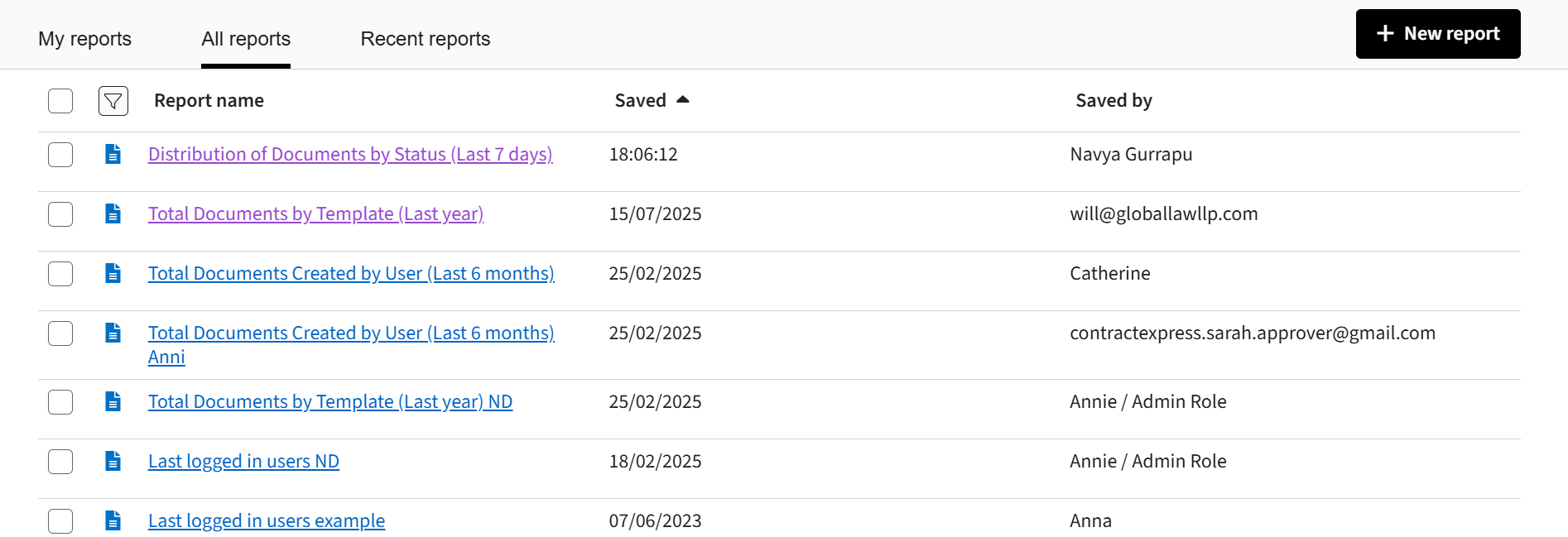
Your saved reports are available on
My reports
tab in Analytics
. All reports
tab contains your own saved reports and/or reports saved by other Administrators.Click on the name of a report to run the report.
Viewing recent reports
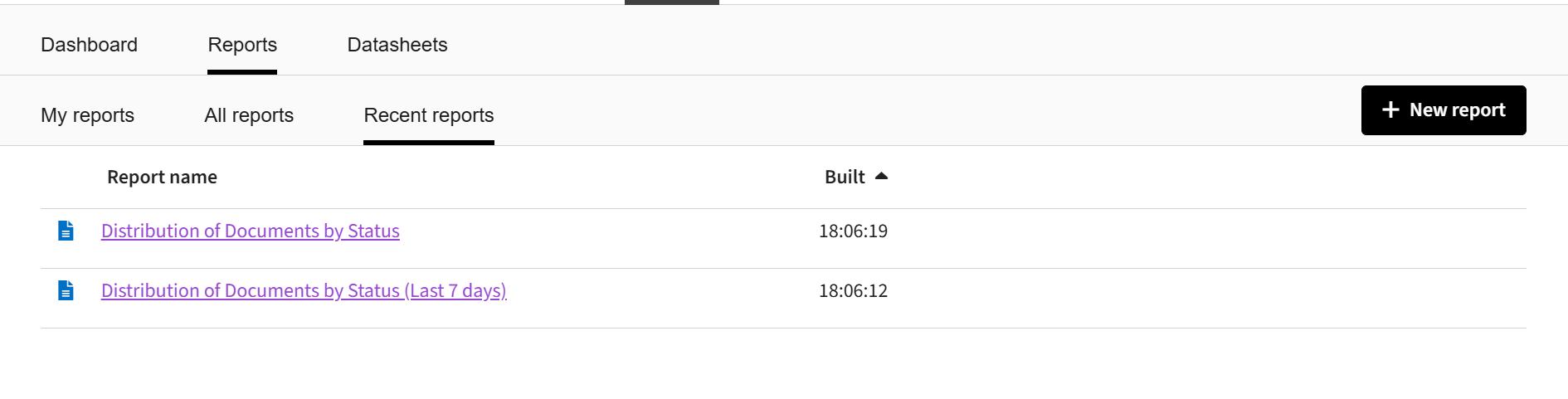
Administrators can view a list of the last 10 reports that have been run by all Administrators on the
Recent reports
tab in Analytics
. To run a recent report, click on the name of the report.
Downloading process reports
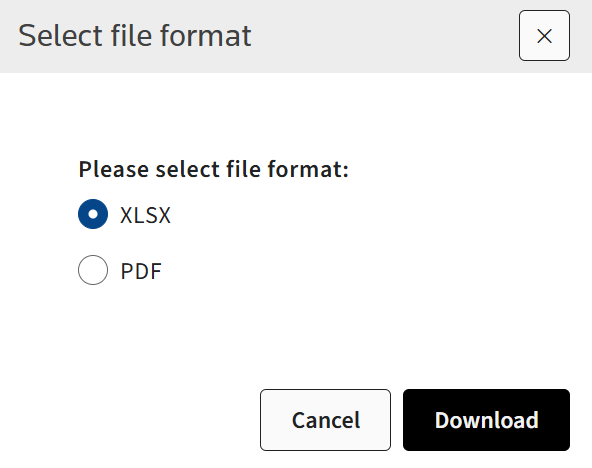
Administrators can download Excel or pdf versions of each report.
To get the Excel version of the report click on the
Export
button on the page of the report.To get the pdf version of the report click on the
Print
button on the page of the report.