
Working with Repeats
Repeats are often regarded as one of the most complex features in Contract Express Author. Understanding repeat contexts, questionnaire structure, and related list functions can make repeat logic easier to plan, review, and maintain.
This guide assumes a basic familiarity with repeats. It focuses on repeat behaviour, repeat contexts, questionnaire impacts, and supporting functions rather than the initial creation of repeats.
Repeat Contexts
Each time the Repeat function is used, a repeat context is created. Everything placed within the repeated span becomes subject to that context. This can include fields, subsequent business rules, and larger sections of a document.
The following example illustrates a common clause containing party details. After a repeat span is applied around the clause, the variables inside the span should be understood as belonging to the repeated context.
<
Repeat PartyNo
{CompanyName}, a {CompanyType} with company number {CompanyNo} and with its registered office address at {CompanyAddress}.>When variables from a repeated context are reused elsewhere, the repeat context must be considered. A common issue occurs when repeated variables are reused without the associated repeat span. In that scenario, the system may be unable to determine which instance of the repeated value should be used.
For example,
CompanyName
may represent a list of party names if it was collected inside a repeat. Reusing CompanyName
outside the repeat span without defining the intended instance can cause a repeat context warning or error.
If a repeat context error appears, review whether the variable shown in the message is used consistently throughout the document. The variable should remain in a compatible repeat context, or an appropriate function should be used to adjust its context.
The variables inside a repeat span are subject to the repeat context. However, the controlling number variable is not itself repeated. In the example above,
PartyNo
controls the number of repeat instances, but PartyNo
is not part of the repeated data set.Keeping track of Repeat contexts
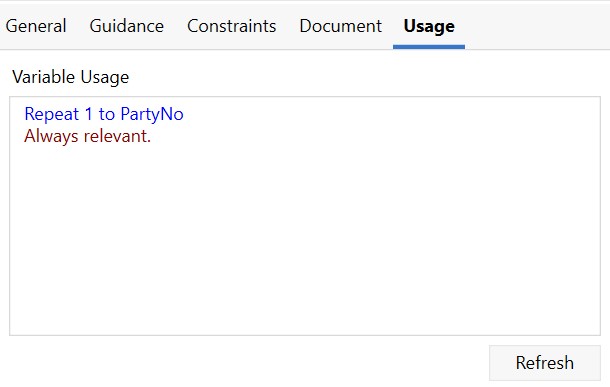
Variable usage information can help identify whether a variable is repeated and how many repeat levels apply to it. In the
Variable Editor
, the usage details show the relevancy context associated with a variable.If a variable is repeated, its relevancy is listed as a repeat from 1 to the specified number value.
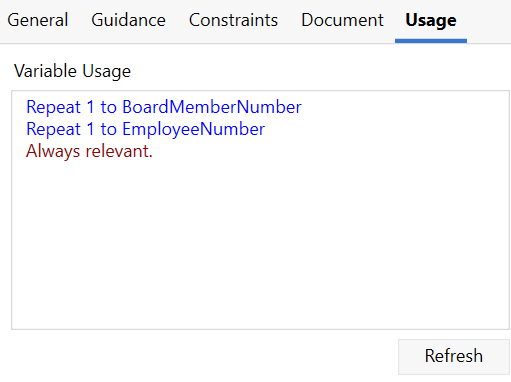
If a variable belongs to multiple repeat levels, the levels are listed in order, with the outermost repeat shown first.
The relevancy of a specific location in a document can also be reviewed by placing the cursor at the relevant point and using the
Relevance
option in the Author toolbar.Repeats do not always need to be based on a whole number variable. A repeat can also specify an immediate number value. For example,
[
Repeat 2
VariableName]This approach can be useful when the repeated data is intended to be referenced elsewhere in the document. It can also help simplify examples where a fixed number of repeated instances is sufficient to explain the concept.
Repeats and the Questionnaire
Repeats can affect both document output and questionnaire structure. The repeat context used in the document should be reflected clearly in the way variables are grouped and presented in the questionnaire.
In the following example, all variables inside the repeat span are subject to the repeat context, while the controlling variable
PartyNo
is not repeated.<
Repeat PartyNo
{CompanyName}, a {CompanyType} with company number {CompanyNo} and with its registered office address at {CompanyAddress}.>If repeated variables and their controlling variable are placed in the same questionnaire group, the system may return an error because the variables exist at different repetition depths.
To avoid this issue, repeated variables should generally be placed in their own questionnaire group. This keeps the questionnaire structure aligned with the repeat context defined in the document.
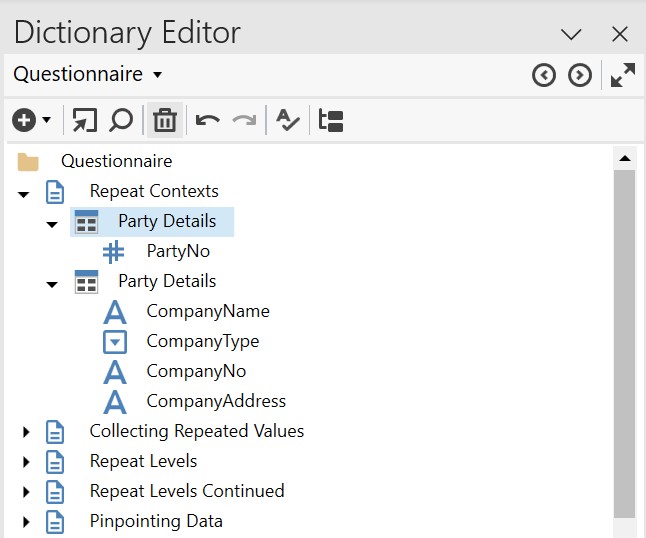
The placement of the controlling variable in the questionnaire also depends on the presentation type used. When the controlling variable is presented as an
Edit Box
, it acts as an explicit question because the user supplies a numeric value.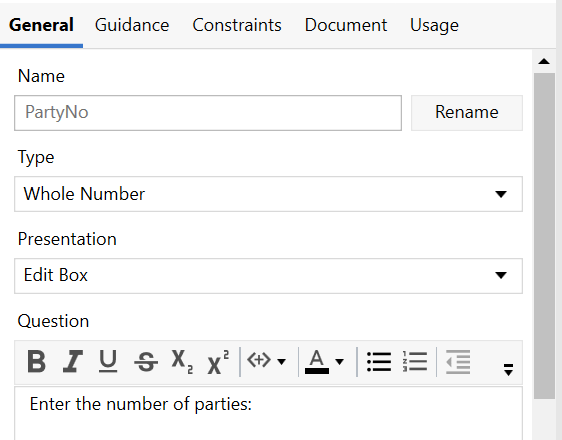
When the presentation is changed to
Calculated from Repeat
, the controlling variable becomes implicit and the Question field will be greyed out as shown in the example below. 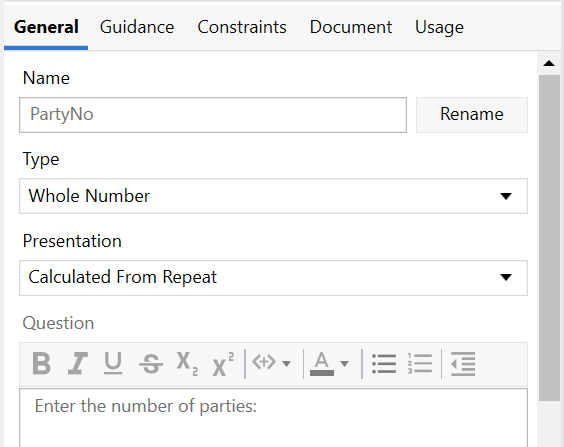
In the questionnaire, this type of repeat is typically represented through
Add
and Remove
controls. The first instance of repeated information is shown, and additional instances can be added as needed. This is particularly helpful if there is a set order in which the information needs to be entered as it also allows users to reorder the list in the Questionnaire as needed.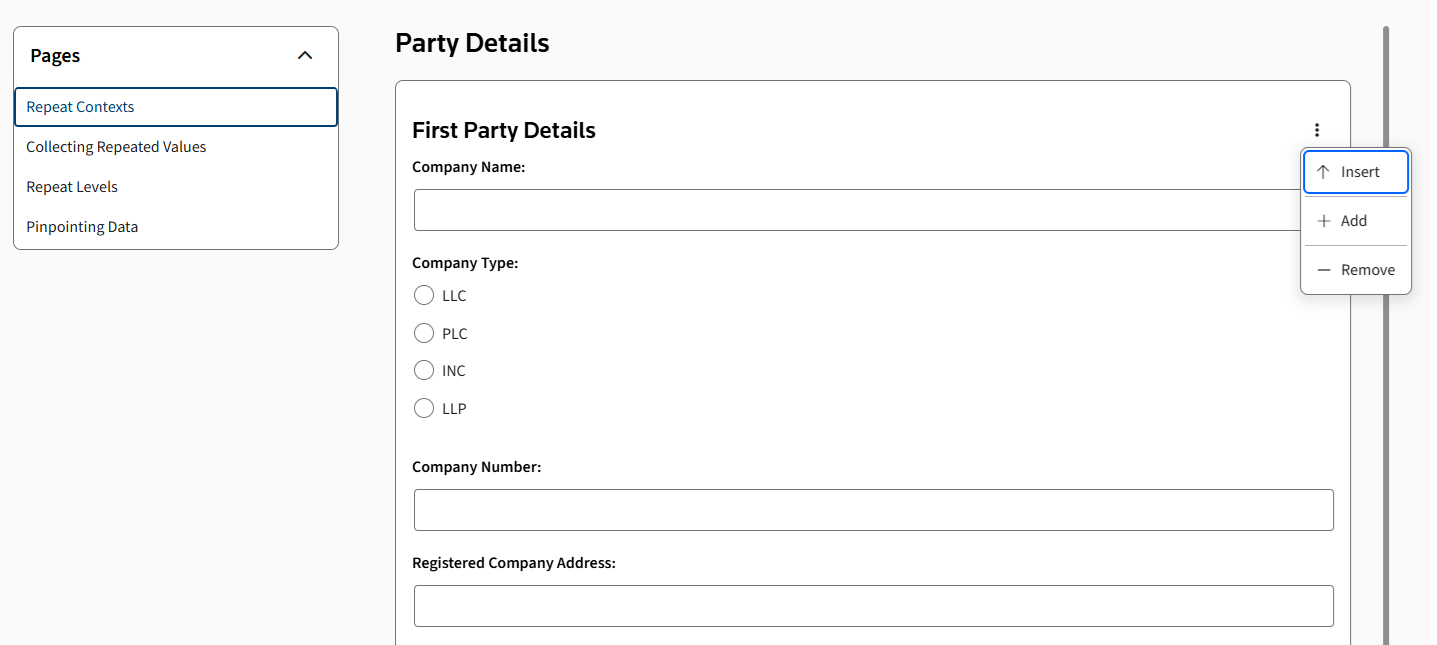
Calculated from Repeat
is often useful when the repeated information must be entered in a specific order. It can also allow the list of repeated items to be reordered in the questionnaire.When a controlling variable uses
Calculated from Repeat
, it can be placed outside the group containing the repeated variables or left unallocated. The relevancy is detected from the variable being used in at least one repeat span in the document.Repeat Counter
The
RepeatCounter
function is commonly used to guide users through questionnaires that contain repeated sections or multiple lists. For example, a formatted repeat counter can display the first, second, third, and subsequent instances of a repeat, which is,RepeatCounter Format "wth"
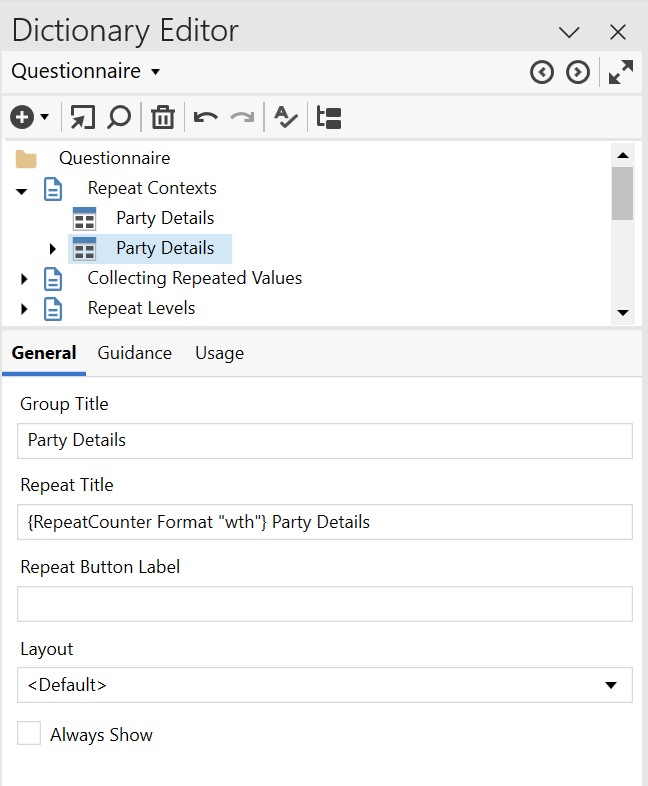
This type of format can be used in places such as a question field or a questionnaire group title. The
Repeat Title
field in questionnaire groups is designed for repeated groups because repeated groups can contain more than one instance of the same set of questions.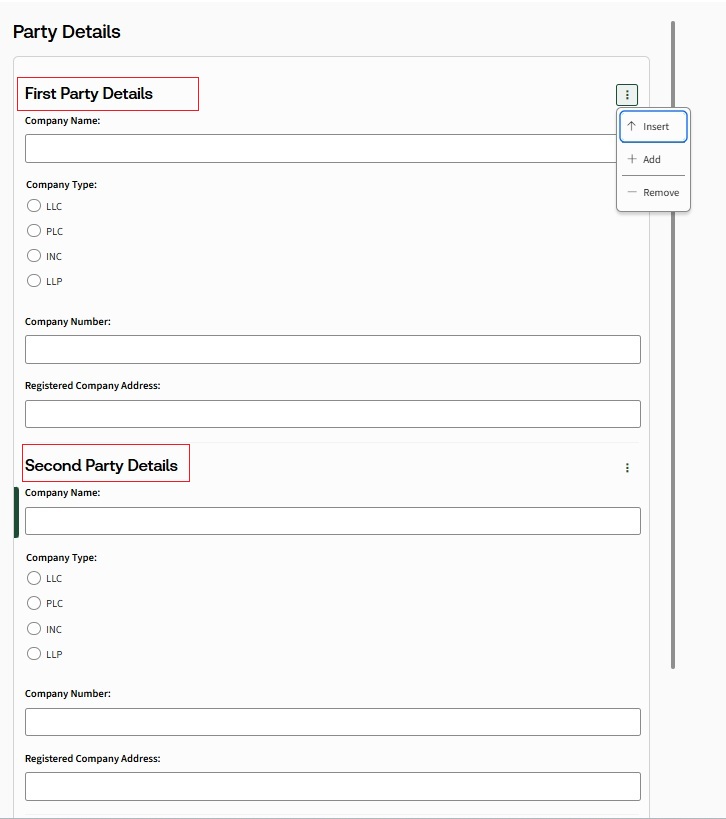
In many cases, Word auto-numbering is sufficient for numbering lists in generated output. In other cases,
RepeatCounter
function can provide more control over numbering, especially when numbers need to start from a specific point.For example, if the first party is static and the repeated list should start from the second party, the repeat counter can be adjusted as follows:
ToInteger(RepeatCounter) + 1
Formatting and Repeats
By default, repeated values are presented as a vertical list. This applies whether individual variables, clauses, or larger sections are repeated.
One
Two
Three
In many scenarios, a vertical list is sufficient. However, some documents require repeated values to be formatted in a specific way. Formatting can be controlled through functions such as
Format
or through punctuation applied to the repeat span.The following examples show how repeated values can be collected and formatted into a sentence-style list.
- Format: {Collect(CompanyName) Format ", |,"}
- Punctuation: <Repeat PartyNo punctuation "; | and |."The {RepeatCounter Format "wth"} party to this agreement; {CompanyName}{Mark}>
Collecting and Manipulating Repeated Values
Contract Express includes several functions that help manage repeated data. The
Collect
function gathers values from a repeated list and presents them as a single collected value. The collected value can then be formatted or further manipulated.For example, a collected list of company names can be filtered to include only companies with a specific company type.
{Collect(CompanyName, CompanyType Is "LLP") Format ", |,"}
Repeated lists can also be tested to determine whether certain values exist. This is useful when a paragraph or clause should be included only if a specific condition is present in the repeated answer set.
<
Exists(CompanyType Is "LLP")
This paragraph will only be included if at least one of the companies in the specified answer set is an LLP. If no LLP is selected from the repeated list, this paragraph will not be included in the generated document
.Another way to use a repeated list is to evaluate whether a particular condition is true for every item in the list. For example:
<
Every(CompanyType Is "LLC")
This paragraph is included only if every company in the repeated list is an LLC
.>Different repeated lists can also be combined by using functions such as
Join
or Union
. Because the values are repeated lists, Collect
is used to gather each list before combining them.{Join(Collect(List(CompanyName)), Collect(List(StaffName))) Format ", |,"}
For more information about working with lists, see the article in the Knowledge Base.
<
Repeat StaffNo
{StaffName}>Repeated lists can also be used within dynamic list logic. A computable can hold different list options depending on the conditions met by the repeated answers.
If Every(CompanyType Is "LLP") Then List("LLP Option a", "LLP Option b", "LLP Option c") Else List("Generic option a", "Generic option b", "Generic option c")
Unrepeated and Nonrepeated
Some scenarios require information collected inside a repeat to be used outside its immediate repeat context. Other scenarios require a question to appear within a repeated context without itself being repeated. The
Unrepeated
and Nonrepeated
functions help manage these situations.The difference between these functions is easier to understand by thinking of repeats as levels. In the following example, the repeat around
(Repeat BoardMemberNumber)
creates one repeat level.Board Member Name | Company |
|---|---|
< Repeat BoardMemberNumber {BoardMemberName} | {Unrepeated(BoardMemberCompany)}> |
Repeat Level | Without Unrepeated CompanyName and BoardMemberName are on the same repeat level. | ||
1 | |||
0 | |||
Board Member Name | Company Name | ||
Because this example has one repeat level, applying
Unrepeated
once to BoardMemberCompany
removes that variable from the immediate repeat level and returns it to the non-repeated context.Repeat Level | With Unrepeated CompanyName is taken out of the repeat context. BoardMemberName maintains it repeat level. | ||
1 | |||
0 | |||
Board Member Name | Company Name | ||
Nested repeats add additional repeat levels. For example, if each board member has a list of employees, the employee repeat sits inside the board member repeat. This creates a second repeat level.
Board Member Name | Employee Name | Company |
|---|---|---|
< Repeat BoardMemberNumber<Repeat EmployeeNumber {Unrepeated(BoardMemberName)} | {EmployeeName} | {Unrepeated(Unrepeated(BoardMemberCompany))}>> |
In this nested example,
EmployeeName
is controlled by the inner EmployeeNumber
repeat and therefore exists at repeat level 2. BoardMemberName
must be moved down one level so that it remains associated with its original board member context. BoardMemberCompany
must be removed from both repeat levels to return to the non-repeated context.The same approach can be extended if additional repeat levels are added by using:
Unrepeated(Unrepeated(Unrepeated(CompanyName)))
When adjusting repeat levels, ensure that variables remain in their intended context. In this example,
BoardMemberName
must remain at repeat level 1 and CompanyName
at repeat level 0. If BoardMemberName
is not moved back to its original repeat level, it is repeated first by BoardMemberNumber
and then again by EmployeeNumber
. EmployeeName
has a repeat level of 2 because its controlling repeat is nested within the original repeat structure.Repeat Level | |||
2 | |||
1 | |||
0 | |||
Board Member Name | Employee Name | Company Name | |
Difference Between Unrepeated and Nonrepeated
Function | Purpose |
|---|---|
Unrepeated | Removes the applicable variable from the immediate repeat context or level, but not from all other repeat contexts. |
Nonrepeated | Removes the applicable variable from all repeat contexts throughout the template. |
Although
Nonrepeated
may appear simpler in some situations, it should be used only when necessary. Overuse of Nonrepeated
in large or complex templates can reduce efficiency because each repeat must be evaluated more broadly. Where possible, Unrepeated
should be used to remove only the required repeat level.Pinpointing Data from a Repeated List
Repeated list data can be collected and reused to create selection options. The following example uses repeated text variables for a director name and director title.
<
Repeat DNo
Name: {DirectorName}Title: {DirectorTitle}>
After the director information has been collected, it can be used to create a selection list. This allows the user to choose which directors are present at the board meeting.
To create the selection list, use the
Collect
function. Because the text selection will be repeated based on another value, such as the number of directors present at the meeting, include an Unrepeated
statement in the command. This ensures that the list remains in the correct repeat context, as discussed earlier. The names and titles of the directors can then be collected separately using the following expression:Unrepeated(Collect(DirectorName))
If both the director name and title are required in the selection options, the values can be combined with plain text by using the addition sign (
+
). This makes it possible to display multiple pieces of information as a single, descriptive selection item.Unrepeated(Collect(DirectorName + ", " + DirectorTitle))
The resulting options can appear as combined name and title values.
Adam, UK Director
Bill, US Director
Carol, MEA Director
A second repeat can then present the selected directors.
<
Repeat DPNo
{DSelect}>To target individual items from the selected list, a computable can be used with
MemberIndex
against the text selection variable.MemberIndex(DSelect, SelectionOptions(DSelect))
After the list has been indexed, the
MemberNth
function can retrieve the corresponding values from the original collected lists. This is useful when the director name and title need to be used separately in different parts of the document.<
Repeat DPNo
The {RepeatCounter Format "nth"} present director is:Name: {MemberNth(DS, Unrepeated(Collect(DirectorName)))}
Title: {MemberNth(DS, Unrepeated(Collect(DirectorTitle)))}>
Key Takeaways
- Understand the repeat context associated with each variable before reusing the variable elsewhere in a document.
- Confirm how many times a variable is repeated and which repeat level applies to it.
- Keep questionnaire structure aligned with document logic by separating repeated and non-repeated questions where appropriate.
- UseRepeatCounterwhen repeated questionnaire sections or generated output need clearer numbering or labels.
- UseCollect,Exists,Every,Join, and related list functions to manage values from repeated answer sets.
- UseUnrepeatedto remove a variable from the immediate repeat level. UseNonrepeatedonly when the variable must be removed from all repeat contexts.
- Review nested repeats carefully because each nested repeat adds another repeat level.
- Treat the examples in this guide as explanatory references rather than working template content.
Support and Additional Guidance
For product-specific questions, authors should refer to the current Contract Express product documentation or the relevant internal support channel used by their organisation.
This guidance document is intended to explain repeat concepts and does not replace current product documentation, platform-specific instructions, or implementation guidance.
Related Content
-
Working with repeating spans - an extended example
Format: Article