
Marking and controlling optional text in the template
The most common type of span is the conditional span. A conditional span is a range in the template that is to be included in the generated document if some condition or business rule evaluates to true. The business rule is specified as part of the span mark-up, appearing as superscripted text immediately following the open bracket of the span. The span range itself is delineated by a matching pair of open and close brackets. Square brackets [ ] are most often used as the span brackets, however other characters can be specified in the Template Properties dialog. Span ranges can be nested within one another. A close bracket matches an open bracket if there are no other unmatched open or close brackets in the range of text between them.
Spans can be inserted at various places within a document:
- the body of the document
- the page headers and footers associated with a section
- within footnotes and endnotes
See also Document Mark-up
note
Only text that has been explicitly superscripted will be considered as part of the span mark-up. Text that has a character style whose definition includes superscript (e.g. the character style
Footnote Reference
) will not be considered as part of the mark-up. Generally, a span condition is simply a business rule. In this example we will use the following as a possible span in a document (using the default square brackets as the delineators):
[This Agreement is subject to the laws of the State of New York]
Inserting a span using the Markup Editor
The best way to insert a new span is using the
Markup Editor
, this can be opened by clicking the Markup Editor button in the Contract Express tab in Microsoft Word.
Inserting a new span
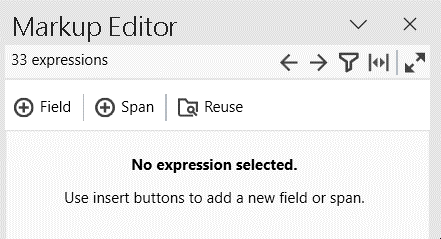
To insert a new span using the Markup Editor, highlight the text in the template that you want to be controlled by the span.
If the text you have highlighted does not contain any markup, Markup Editor will automatically display a button to add a new 
Span
. 
If the text contains markup, press the add icon  in the Markup Editor toolbar and select
in the Markup Editor toolbar and select Insert span
from the dropdown.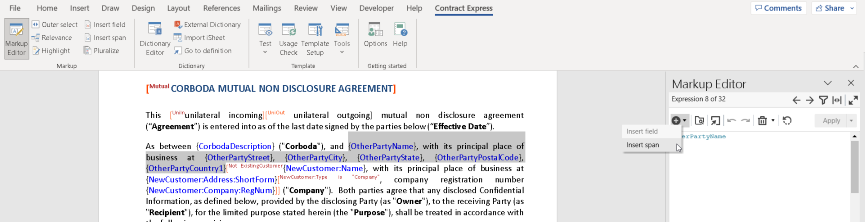
This will automatically place span brackets around your selected text and the Markup Editor will display “Enter span markup” where you can type the span rule.

Finally, click
Apply
to insert the expression drafted in the Markup Editor into the document.Reuse a span
To insert an  in the Markup Editor. The reuse tool contains all the span rules currently used in the template plus any Yes/No type variables that exist in the dictionary.
existing
span rule around your highlighted text, select the Reuse
button in the Markup Editor. The reuse tool contains all the span rules currently used in the template plus any Yes/No type variables that exist in the dictionary.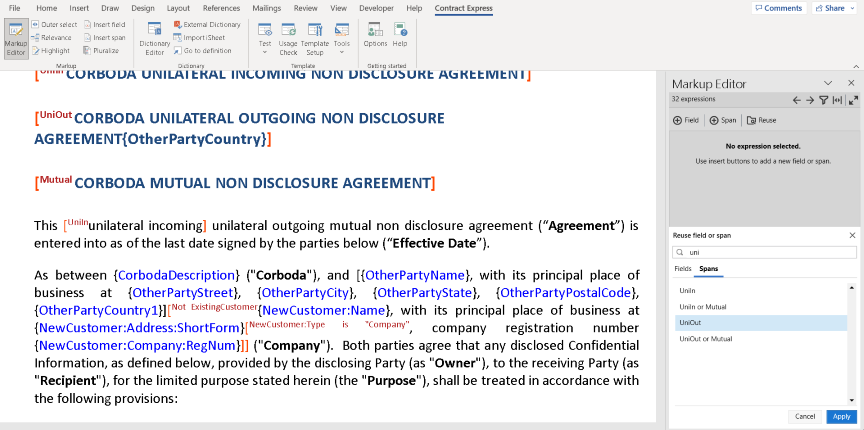
To add a rule from the reuse window, double-click the rule or select it and then click
Apply
. You can type in the search bar to filter through the results shown.You can also access the reuse tool when editing an existing or new expression by clicking on its icon  in the toolbar. Either double-click the rule or select it and then click insert. This will add it to the Markup Editor where you can tweak it as needed.
in the toolbar. Either double-click the rule or select it and then click insert. This will add it to the Markup Editor where you can tweak it as needed.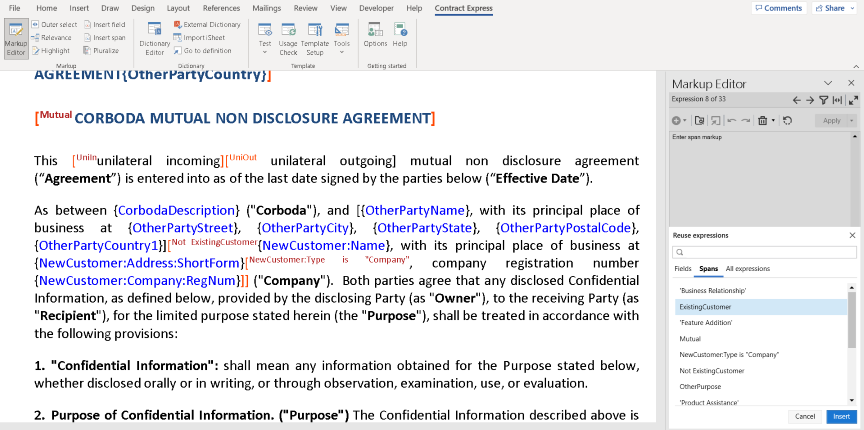
Finally, click
Apply
to insert the expression drafted in the Markup Editor into the document.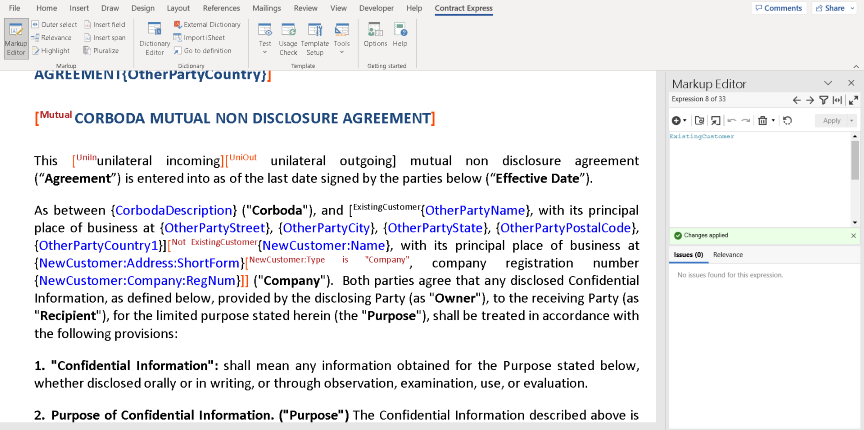
New variable detection
You can enter new variables into the document using the Markup Editor. When you apply a span that contains a new variable name, a new variable will be automatically created in the Dictionary. The Markup Editor will display the link to the newly created variable at the bottom of the panel, click the link to navigate to the variable in the Dictionary Editor and edit the details as needed.

Inserting a span from the Contract Express tab
Another way to insert a new span is to position the cursor at the point in the template you want the span to appear, or highlight the existing text in the template that you want to be controlled by the span, then press the
Insert Span
button in the Contract Express
tab in Microsoft Word.
This presents the Span Editor dialog.
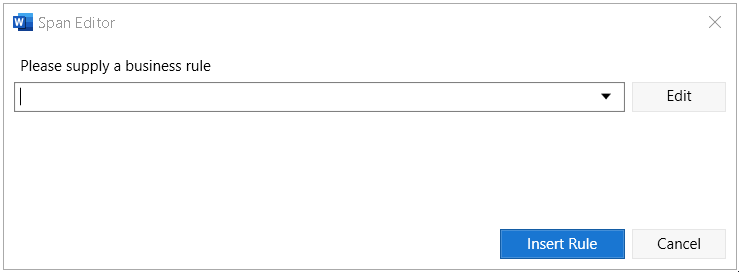
Either select an appropriate business rule from the drop down list or simply type a new one. The drop down list contains all the business rules currently used in the template plus any Yes/No type variables that exist in the dictionary.
Business rules
The conditional span business rule can be any expression with a Yes/No value, for example
Age IsMoreThan 21
or even a simple Yes/No question like
DirectorUKDomiciled
note
Remember that Variable names containing certain characters (including spaces) will need to be quoted using single quotes:
'Tax Regulations Apply'
For a list of characters that do not need quoting see the Special characters in variable names, template names, lookup column names, and text strings topic.
Updating spans using the Markup Editor
It is possible to update spans by using the Markup Editor. To do this, click the Markup Editor in the Ribbon and click into the span that you would like to update to display it or navigate to it using the left and right arrows.
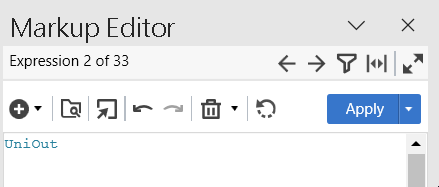
Edit the text in the Markup tab then click
Apply
at the top of the task pane.By clicking on the arrow on the Apply button, you can choose whether to only apply your changes to the single occurrence of the span that is selected by clicking
Apply to selected markup
. Alternatively, you can choose to apply it to all occurrences in the template of the selected span by clicking Apply to all matching markup
.
You can revert any edits that have been made to the markup by clicking on the reset icon  .
.
.When you start to make changes in the Markup Editor, automatic navigation will automatically pause to ensure you don’t lose your changes. The following message will appear at the bottom of the Markup Editor to indicate this change:

If at this point you try to navigate away from your edited expression using the previous and next occurrence buttons, the outer span button, or the filter button on the Markup Editor toolbar, you will be presented with the following options to ensure you don’t lose your work:

- Go backwill take you back to the originally selected expression in the Markup Editor so you can continue to make edits.
- Apply changeswill apply your changes to the originally selected expression in the document and will move the cursor to the new expression you were trying to navigate to.
- Discard changeswill discard any changes you made to the originally selected expression and move to the latest one you clicked into.
note
Note that it is not possible to edit the definition of a variable that is in a field. This must be edited using the Dictionary Editor.
Creating business rules
Simple business rules based on yes/no variables
The simplest form of business rule is one which is based on a yes/no type variable. In this case we may decide to create one called "AgreementInNY". By typing this into the span editor, the business rule is applied to the span and a yes/no variable is automatically created which controls the inclusion on the span (hint: to change the question phrasing - see Editing variables):
[
AgreementInNY
This Agreement is subject to the laws of the State of New York] Note that if your variable name contains certain characters, it will need to be quoted:
[
'Agreement In NY'
This Agreement is subject to the laws of the State of New York] Standard business rules based on selections
The most common form of business rule compares a question variable with a literal value. The syntax is usually:
Variable Name Is "Value"
for example:
Region Is "North America"
This usually comes from a text selection variable with 2 or more options (in our case the Region variable may have "Europe", "South America", "Africa" and "Australasia" as well as "North America":
[
Region Is "North America"
This Agreement is subject to the laws of the state of New York] note
Note that the value from text selection variables are double-quoted in the business rule. If the text selection variable also had spaces or other characters that need to be quoted in identifiers, the business rule would look like this:
[
'Contract Region' Is "North America"
This Agreement is subject to the laws of the state of New York] Combining business rules
Simple business rules can be combined using the Boolean operators "and", "or" and "not".
[
Region Is "North America" or Region Is "South America"
This Agreement is subject to the laws of the state of New York] Business rules based on computation variables
More complex business rules obviously take up more space in the template wording, which can make the template hard to read. One way to avoid this problem is to move the complex expression into a computable variable and use the computable in the body of the template. For example we could define a computable variable named
Americas
whose definition is:Region Is "North America" or Region Is "South America"
[
Americas
This Agreement is subject to the laws of the United States of America] Related Content
-
Show/hide spans
Format: Article,
1 min read
Article,
1 min read
-
What is a repeating span?
Format:
Article,
2 min read