
Enabling address search in the template
Contract Express has the ability to search for UK addresses and import them into the questionnaire. In order for this to be available in the questionnaire, it must be enabled in the template by setting the Mask on a variable to
searchaddress
. Although the searchaddress
mask can be applied to any text variable, it is advised that if multiple parts of an address is to be imported they should be imported using entities. See Creating an Entity variable for more information about entities.The address search is only available for UK addresses and will only work when using the
en-GB
locale.Let's walkthrough setting up an address in the template.
- Create an entity variable called Address.
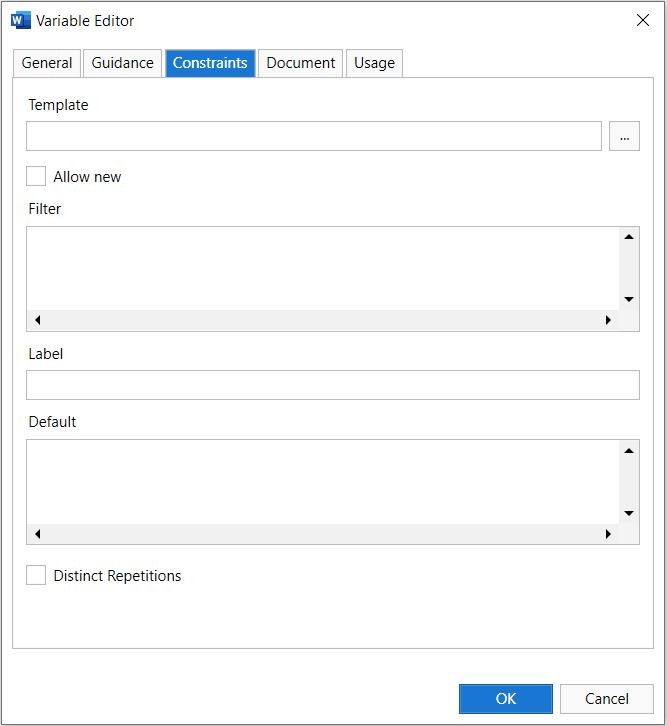
- Under the constraints tab, click on the ellipses for Template and select the auto-provisioned Address template in Contract Express.
- Expand the Address node and select all relevant fields for the template. Ensure that theNameandDescriptionfields are also selected.
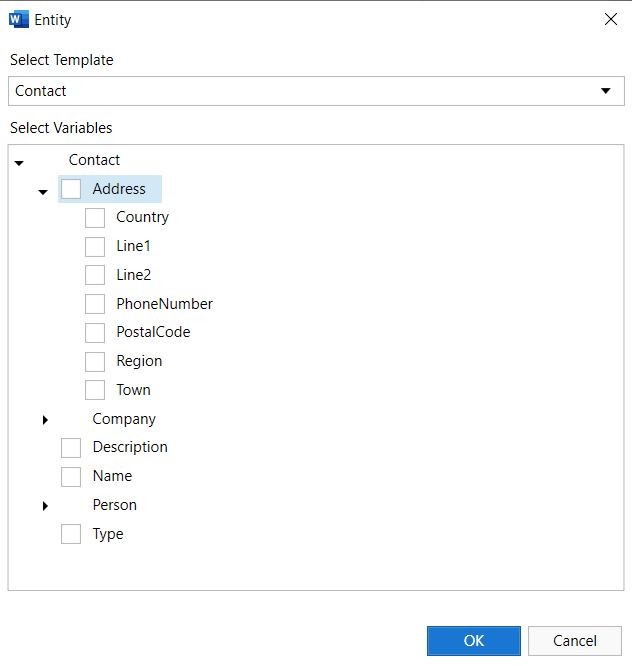
- Click OK to import the variables into the template.
- Drag and drop the variables into the template as applicable.