
Text selection variable options
Variable editor attributes: selection list items
This attribute is only pertinent for
text selection
variables.There are a group of sub-attributes that collectively determine which selection options appear on the questionnaire:
- Dynamic:options are specified statically or dynamically
- Search Mode:searchable lists can use "begins with" or "contains" to match the text entered by the user
- Unknown:the questionnaire user can explicitly state that the selection is unknown
- Other:the questionnaire user can specify options that are not in the list
- All:the questionnaire user can select all options with a single click
Attribute: Selection List Items
The Selection List Items section determines how individual options in a text selection are specified. There are two options and the Dynamic checkbox controls which of the options is selected as follows:
- Dynamic is unchecked:The text selection will be a static list of options
- Dynamic is checked:The text selection will be built dynamically from an expression such as a lookup expression
Static options
Static options are entered into the edit box on separate lines:
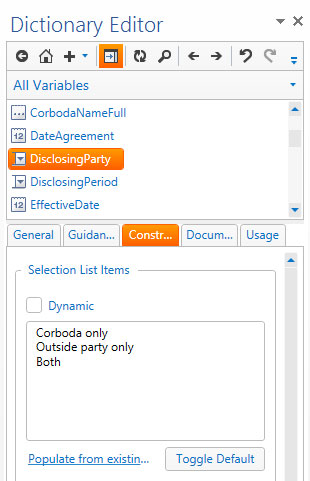
Default values are chosen by selecting an option and then clicking the
Toggle Default
button which will embolden the option and pre-select that answer on the questionnaire.note
For single select presentation styles only a single option can be a default, whereas for multi select presentation styles many options can be default values.
Dynamic options
Dynamic options are expressions which result in a list being created. They can be either:
- entered manually in the edit box, or
- clicking the correspondingEdit...button to the right of the edit box to invoke the expression editor.
For example, in the sample Non Disclosure Agreement, the OtherPartyCountry variable is a text selection whose text selection options are defined as a dynamic list. The expression is
Select Country
which instructs Contract Express to look for a lookup table containing a column called Country and present the options in the questionnaire from that lookup.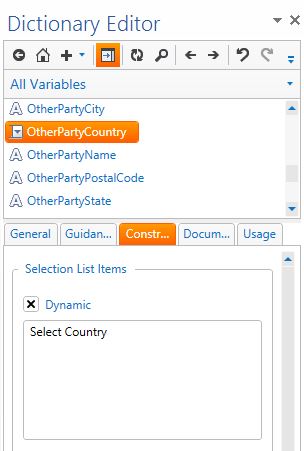
Attribute: Search Mode
Text Selection variables can have a Presentation Type of Searchable List. This results in the questionnaire presenting the user with a text box, but as the user types into the text box a dropdown pane will appear displaying text selections which match the text entered so far. The Search Mode attribute is displayed for Text Selections of this Presentation Type and defined how Contract Express will perform the search. The options are:
- Begins With: Only items that start with the entered text will be displayed
- Contains: Any item that contains the entered text will be displayed
Attribute: Show Unknown
When this sub-attribute is checked an additional option appears on the questionnaire which allows the user to explicitly state that the selection is unknown. This is useful if you do not want the text selection to be pre-filled with a default value. You can change the label for the unknown option from the default "select ..."
Attribute: Show Other
When this attribute is checked an additional option appears on the questionnaire which allows the user to enter an option or options that are not in the list of options.
This additional option is labeled
Other
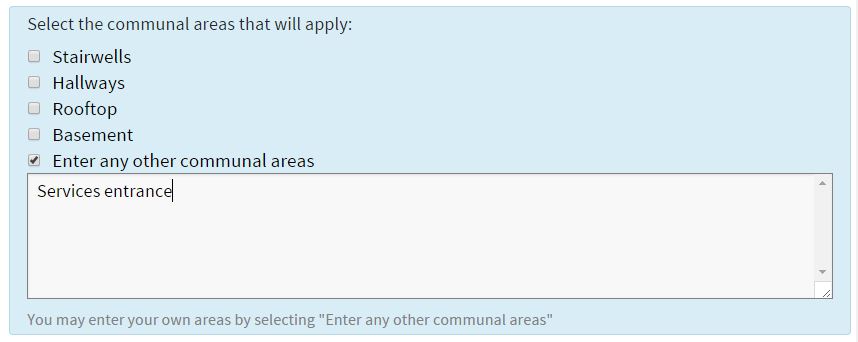
(for english_uk and english_usa locales) which can be changed by entering the new label in the corresponding edit box to the right.For example, consider a multi select checkboxes list of options representing communal areas in a leased property:
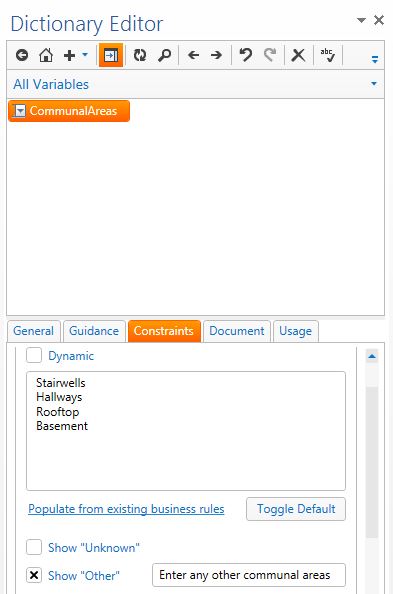
which is displayed on the questionnaire as:
note
Consider the effect of the user choosing the "Other" option on your generated document. If you are only using the variable in a field, their answer will automatically be used for the value of the field. If you are using the variable as part of a Business Rule you may need to add extra provision in for when they choose Other. Business Rules based on this scenario use the Other(VariableName) function.
Attribute: Show All
This sub-attribute is only pertinent for multi select presentation styles.
When this sub-attribute is checked an additional checkbox appears on the questionnaire which allows the user to choose all options with a single click
This additional checkbox is labeled
All
(for english_uk and english_usa locales) which can be changed by entering the new label in the corresponding edit box to the right.For example, consider a multi select checkboxes list of options representing communal areas in a leased property:
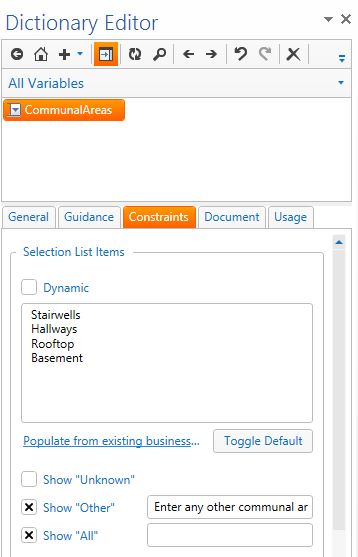
which is displayed on the questionnaire as:
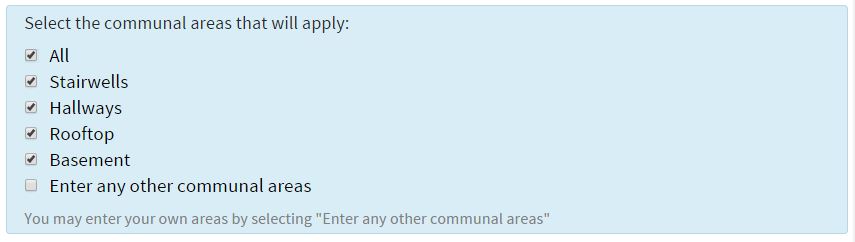
note
By changing the height attribute of a single dropdown variable, you can create a scrollable single-choice list box, where the user can see more than one option at a time but only choose one.
Attribute: Minimum Selections
This attribute is only pertinent for
Text Selection (Multi-select)
variables. It allows the user to specify the minimum number of options that must be selected for the question to be considered answered.For example, if
Minimum Selections
is set to 1
, users must select at least one option. If no option is selected, the question is treated as unanswered (unresolved)
rather than invalid.If an unresolved text value is configured, that value is used in the generated document.
When
Minimum Selections
is greater than 0 and no option is selected, the question is treated as unresolved. This ensures that the questionnaire correctly identifies incomplete responses and prevents the document from being treated as complete until the required selections are made.Attribute: Maximum Selections
This attribute is only pertinent for
Text Selection (Multi-select)
variables. It allows the user to to limit the number of options that can be selected. If users select more options than allowed, the questionnaire displays a validation message.When selection limits are not met, users see validation messages based on the number of selected options, for example:
- Select at least N options
- Select at most N options
Building dynamic selections
Dynamic selections are used anytime we do not want to use static options for our lists. They can be built from other multi-select variables, repeat values, lookup table, database tables views or SharePoint lists.
Other multi-select variable answers
Consider a multi-select variable with product options:
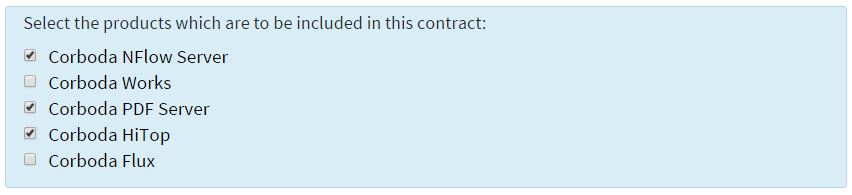
We may then want to choose which Products are being sold with a support package using one text selection variable:
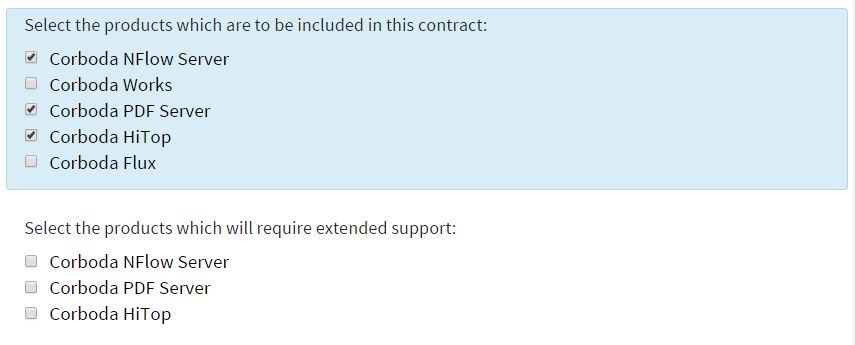
To do this we use the answer to the Product question as the
Options
for the Support question by entering it into the Dynamic Selections
area for SupportPackage: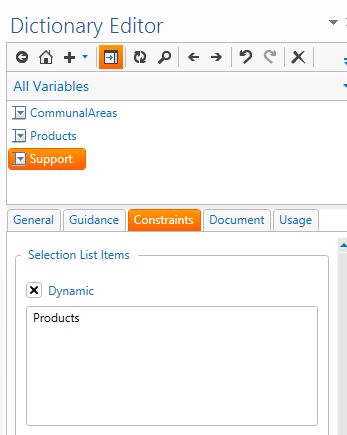
Repeats
We can also use Repeat values as the options for a text selection variable. Since text selections are filled with Lists, we need to build a list from our repeated values. We use the Collect function to do this. Let say we ask for one or more PartnerNames within a repeat span. Therefore our dynamic selections definition for the text selection variable EquityPartners becomes:
Collect(PartnerName)
Lookup tables
Columns from lookup tables can also be used to populate the options of text selections. In the dynamic selections area we use a select statement to refer to the column name, for example:
Select State
We can also display one column as the options seen on the questionnaire but have the value of the text selection come from another columns. This is useful if you want the user to choose the state but actually have the state code as the value for the variable:
Select Statecode, State
In the above example, the options on the questionnaire would be populated with state names such as Alabama, Alaska, Arizona etc but the value in the document would be AL, AK, AZ (useful for addresses)
note
Of course the above can also be achieved in place in the document by explicitly defining a lookup in the field rather than have
Contract Express Author
automatically associate a different column name. This is useful if you need to do many lookups from the one answer on the questionnaire. For more on lookups see Creating lookup tables in the template and Accessing external data in the questionnaire. External tables
Columns from database tables, views or SharePoint lists can also be used to populate the options on a text selection variable. These are very similar to working with lookups but you must add a FROM clause to the select statement to state the table name the lookup is to be performed on:
Select State From USStates
the automatic works as well:
Select Statecode, State From USStates
When data values actually reside in an external source, you must set up a link to that database by defining a Table in Contract Express.
Once the view has been created you can use Select statements such as those referred to above. You must always use a From clause.