
July 2024
Release notes explain new features and improvements made to ONESOURCE Data Hub.
Japanese language
ONESOURCE Data Hub is now available in Japanese. To switch to Japanese:
- Go toMy Settingsin the top-right corner of the application.
- SelectLanguage, then select the dropdown arrow and selectJapanese.
- SelectChange Language.
note
We've translated the fixed text in Data Hub to Japanese. Text that changes or user-created text will still appear in English. We're currently working on translating some remaining fixed text. If you have questions about upcoming translations, reach out to our support team.
Configuration
Blueprint
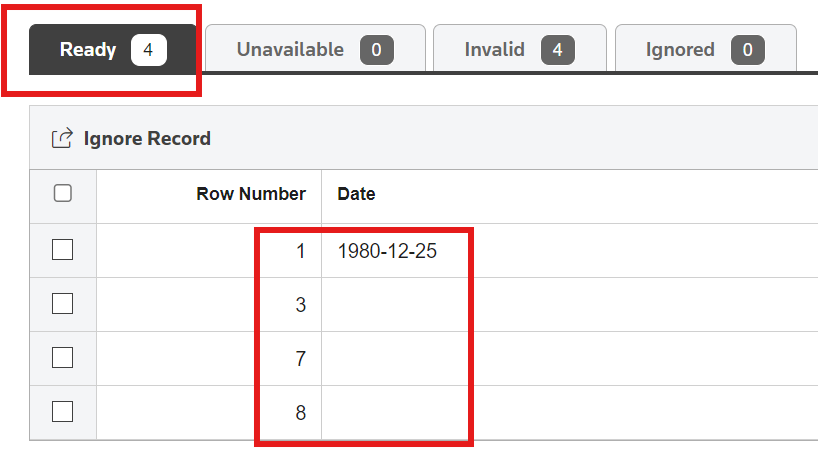
You can now leave the
Date
field empty in your file. Data Hub will process this as a valid value in the file and moves the record to Ready
.
Data Hub moves the record to an
Invalid
state for any value other than a blank space or other than the format configured in the schematic.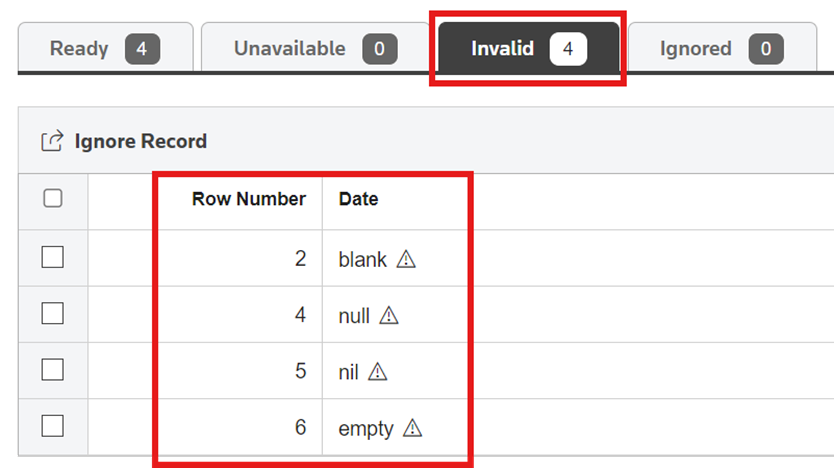
Manage Access tab for blueprints
You can now select between
Public
access or Restricted
access for specific users to a Blueprint. The system sets Public
as the default option. To give access to only specific users:
- Select theManage Accesstab, then selectRestricted,Add Users.
- Select users from the list or search for a user in theAll Itemstab.
- You can view your selections in theSelected Itemstab.
The Blueprint permission you set determines which users can perform cascading blueprint-related operations on the corresponding Schematic or Collection. These operations include:
- Creating, viewing, editing, hiding, and unhiding Schematics
- Processing with Schematics
- Downloading, deleting, editing, comparing, refreshing, and revalidating a topic of the Schematic
- Creating, viewing, editing, comparing, hiding, and unhiding Collections
note
Even if users have
View
, Edit
, or Delete
permissions for Schematics or Collections in Administration, users can only proceed with these actions if:
- You set the corresponding Blueprint access toPublic, or
- You've specifically granted access to those users.
- You can only addActiveusers to the restricted access list.
- The window will only show users you haven't already added, letting you to select from this list.
- When you switch the access level fromRestrictedtoPublic, the system removes all users you've added to this Blueprint.
- To view theManage Accesstab in Blueprints, you'll need to have theManage Accesspermission checkmarked in Administration.