Use Profiles in Authority Compiler
Authority Compiler profiles let you save and reuse compilation options (such as jurisdiction, content categories, and authority preferences) when running Authority Compiler.
If you are a new user, it is recommended that you define presets for common use cases using the
Profile
options. Profiles let you select, save, and reuse options you use frequently. Each time you access the Authority Compiler tool, you are provided with options to select an existing profile, view/edit profile settings for a selected profile, and create a new profile.Profiles in Authority Compiler save the options you want when you compile authority, such as jurisdictional settings, the scope of coverage, and other preferences for the appended authority.
Create new Authority Compiler profiles
- Select theAuthority Compilertool on the left side of your document to open Authority Compiler.
- SelectCreate New.
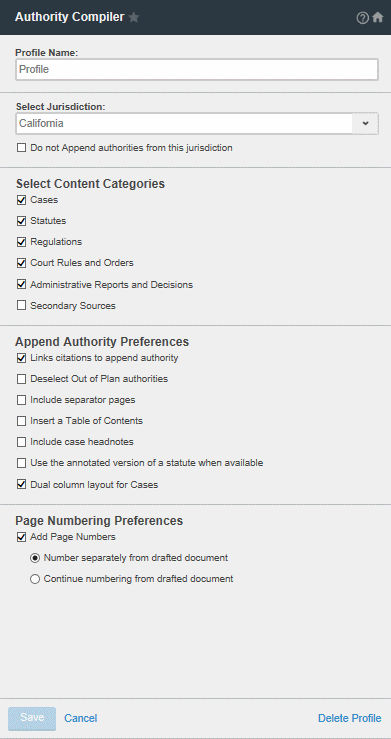
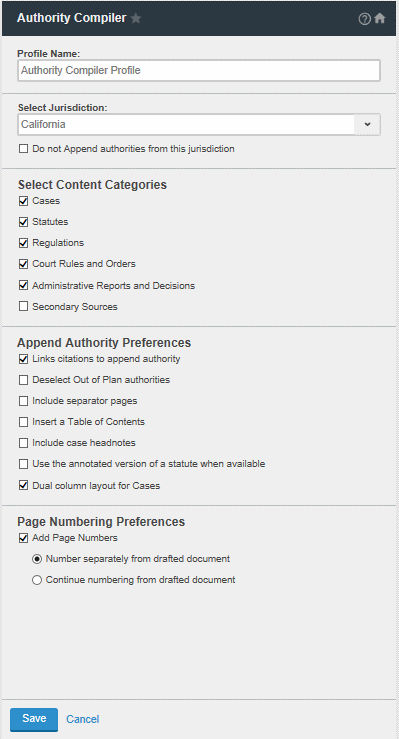
- Type a name for the new profile in theProfile Namefield.
- Select aJurisdictionfrom the list to designate a jurisdiction to aid in identifying citations. Citations that are recognized are listed on the Select Authority window and can be appended as an authority. To remove a jurisdiction from the appended authorities, select a jurisdiction from the list and selectDon't append authorities from this jurisdiction. Citations from this jurisdiction won’t be selected on the Select Authority window.
- Select theContent Categoriesto indicate the types of legal authority to include. Authorities within the scope are listed and can be appended as an authority. Options include:
- Cases
- Statutes
- Regulations
- Court Rules and Orders
- Administrative Reports and Decisions
- Secondary Sources
- Select theAppend Authority Preferences:
- Link Citations to appended authority: Insert hyperlinks for citation that go to the appended authorities. The links change color after processing according to Microsoft Word settings, but underlining, italics, and other styling are preserved
- Deselect Out of Plan authorities: If the citations in your document are not covered in your Westlaw subscription, the corresponding legal documents are not marked for inclusion in the appended documents. Out-of-plan authorities are labeled. If you opt to include these citations as authorities, additional charges may apply.
- Include separator pages: Inserts a separator page between appended documents.
- Insert a Table of Contents: Inserts a table of contents for appended documents that appear after your document and before the appended documents. The document names are hyperlinks that go to the first page of the appended legal document.
- Use the annotated version of a statute when available: The annotated version of a statute appears in the appended documents, if available.
- Dual Column layout for Cases: The appended cases will have the dual column layout.
- If you want appended documents to include page numbers, select Add Page Numbers. Then select toNumber separately from drafted documentorContinue numbering from drafted document.
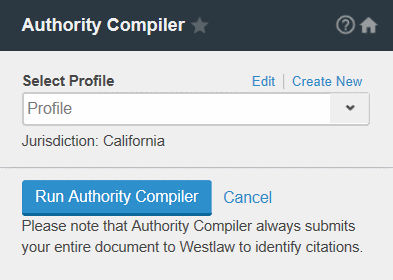
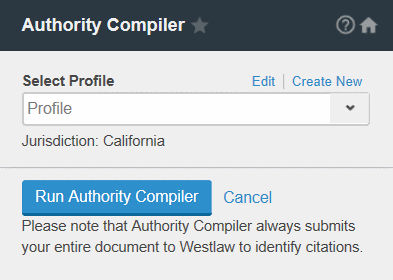
- SelectSave. Utilize the new saved profile in the Authority Compiler tool by selecting it from theSelect Profilelist, then selectRun Authority Compiler.
Edit and delete Authority Compiler profile settings
To edit the settings for an Authority Compiler profile:
- Select theAuthority Compilertool on the left side of your document.
- Select the profile you want to view or edit from theSelect Profilelist.
- SelectEditto edit the profile settings. The default profile can't be edited.
- Edit the settings and selectSave.
To delete an Authority Compiler profile:
- Select theAuthority Compilertool on the left side of your document.
- Select the profile you want to view or edit from theSelect Profilelist and selectEdit.
- SelectDelete Profile, and selectContinueto verify.