
Work with Cite Formatting
Review citation suggestions, apply formatting changes, and manage results with filtering, grouping, reports, and profiles in the Cite Formatting tool.
Check citations in your legal document, view suggestions for the correct citation format, and make formatting changes using the Cite Formatting tool.
- SelectCite Formatting.
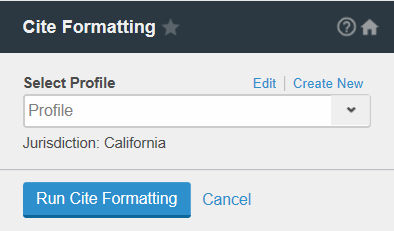
- If you are a new user, it is recommended that you define presets for common use cases using theProfileoptions. Profiles let you select, save, and reuse options you use frequently. Select theCite Formattingtool on the left side of your document.
- SelectRun Cite Formatting.
- Each citation displays in a list in the left pane and the citations status is displayed at the top of the Cite Formatting tool. Citation formats are marked as:
- Green checkmark icon
 : Suggestion matches the document text or a suggestion has been accepted.
 - Crossed out circle icon
 : No suggestions are available.
 - Question mark icon
 : Multiple suggestions are available. Choose a suggestion and select Accept.
- Optionally, select theGroup By(
 ) button at the top of the citations list to group citations by Citation StatusorAll instances of a Citation. You can also select theGroup Bybutton and selectRestore Default Viewto return to the default view.
 - Optionally, select theFilterbutton (
 ) at the top of the citations list to filter by content type, citation format, and citation type. Select the options you want to view, then select Apply.
 - Optionally, select the Collapse/Expand All Suggestions button (
 ) to display or hide the suggestions for each citation.
 - Optionally, select theShow Changesbutton (
 ) to Show Format DifferencesorShow Content Differencesbetween the existing citation and suggestion. You can also select theRestore Defaultbutton to return to the default view.
 - Optionally, select theDownload Cite Formatting Reportbutton (
 ) to share a copy of the citations and suggestions with a colleague. The Cite Formatting Report will retain any filters, groupings, and accepted suggestions applied.
 - Citations with formatting suggestions offer options for formatting. Select an option and selectAccept. The status of the citation formatting displayed at the top of the Cite Formatting tool updates.
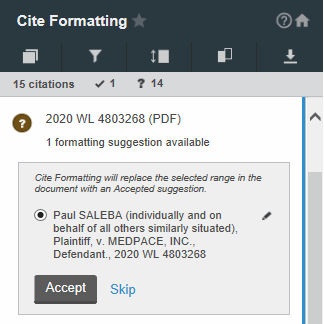
- Optionally, you can revert to the original citation formatting after accepting a suggestion by selectingRevert to original citation.

- Once you complete formatting your citations, selectFinishto close the tool.
Related Content
-
About Cite Formatting
Format: Article

