
Use Deal Proof
Locate errors and inconsistencies in your document, analyze references, and generate reports using the Deal Proof tool.
Analyze a document
These items are checked when a document is analyzed:
- Terms that appear to require definitions have been defined.
- Defined terms are located in the document and defined only once.
- Defined terms are located as stated in the document.
- Entries in the definition section are alphabetized.
- Punctuation is properly paired.
- Similar phrases and expressions are stated with consistency.
- Numeration is correct at all levels in the document.
- Open issues in the document have been addressed.
- Date errors that may need to be corrected.
- Internal cross-references that are invalid or not bookmarked.
- Inconsistencies between the Key Parties are identified versus those that appear in the signature block of the document.
You can locate errors and inconsistencies in your document. Further, if your main document contains references to other documents, the referenced documents can be analyzed as well. For example, if your main document uses a term that is defined in a separate document, the software can verify that the term is defined in that document. When analyzing a document, no changes are made to the content of your document.
- SelectDeal Proof.
- SelectAnalyze.
- If references to other documents are detected, a list of references displays. For each referenced document you want to include in the analysis, selectBrowse, locate the file, and selectOpen.
- When you are finished linking files to referenced documents, selectOKto continue analysis. Your draft document and the selected referenced documents are analyzed.
- All potential errors and inconsistencies and references display in the left pane.
- Expand/collapse the lists of flags and references found in the document and select the Flag and Reference types to go to the flag or reference link.
- Select the flag or reference link to go to the flag or reference in the document text.
- IfUpdate Result List Flags in real timehas been enabled, the results list will refresh each time a change is made to the document.
- SelectCreate Reportto generate a report of the analysis.
- SelectExportand selectDownloadto open the results in a separate document. SelectEmailto send the results as a Microsoft Outlook attachment. SelectDeliver Report.
- SelectCleanto remove all markings inserted in your document and close the Results pane. Cleaning a document doesn’t remove any of the substantive changes you make to the content of the document during the analyzing process. After cleaning a document, you can forward it to others, with no evidence of analysis.
Update Cross-Reference fields
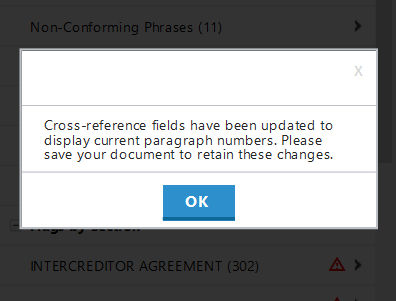
If you use Word bookmarks to link internal cross-references, fields need to be refreshed or updated to capture current paragraph numbers and correctly identify invalid cross-references. The update that will occur when you analyze a document in Deal Proof is as if you performed the same operation directly through Word. After analysis and review through Deal Proof, save the document to retain those updated fields.
High-Risk indicators
Within Deal Proof analysis results, you may see the High-Risk Indicator icon ( ). This icon identifies potentially high-risk errors in the document may lead to ambiguity or confusion, and potentially litigation. If you are pressed for time when reviewing the document, you can focus your attention on these errors.
). This icon identifies potentially high-risk errors in the document may lead to ambiguity or confusion, and potentially litigation. If you are pressed for time when reviewing the document, you can focus your attention on these errors.Once the errors are corrected or dismissed, the icon will disappear.
Create reports
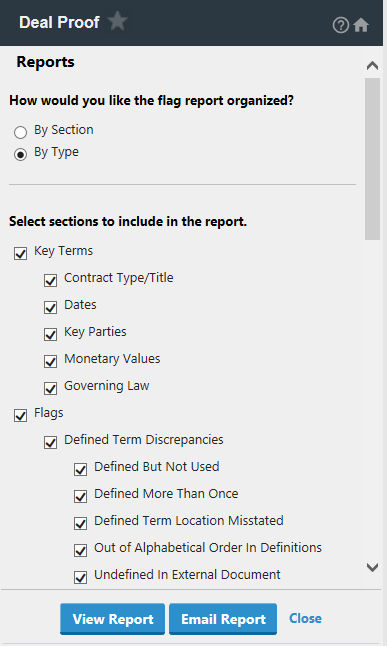
After analyzing a document, you can generate reports for key terms, flags, references, and an outline.
- Open your document in Microsoft Word and selectDeal Proofon the Drafting Assistant toolbar.
- SelectCreate Report.
- SelectBy SectionorBy Typeto indicate the flag report organization.
- SelectDownloadorEmailfrom the delivery options. Select a format from theFormatlist.
- Select any or all Key Terms to include in your report.
- Select any or allFlagsandReferencesyou want to include in your report.
- Select theOutlinecheckbox to create a report that shows an outline of key sections in your document.
- SelectGenerate Report.
Related Content
-
DealProof overview
Format: Article
-
Access Drafting Assistant Tools from Your Word Processor
Format:
Article

