
Convert a PDF using Drafting Assistant
PDF Converter transforms searchable or image-based PDFs into Word documents, using OCR when needed, so you can use Drafting Assistant tools.
If the document you need to work with is a searchable or image-based PDF, it is possible to convert that file to a Word document to utilize tools available in Drafting Assistant for that document. As the PDF is converted, any image-based text will be converted to plain text using Optical Character Recognition services.
- SelectPDF Converter.
- In the next window, select the PDF you want to convert.
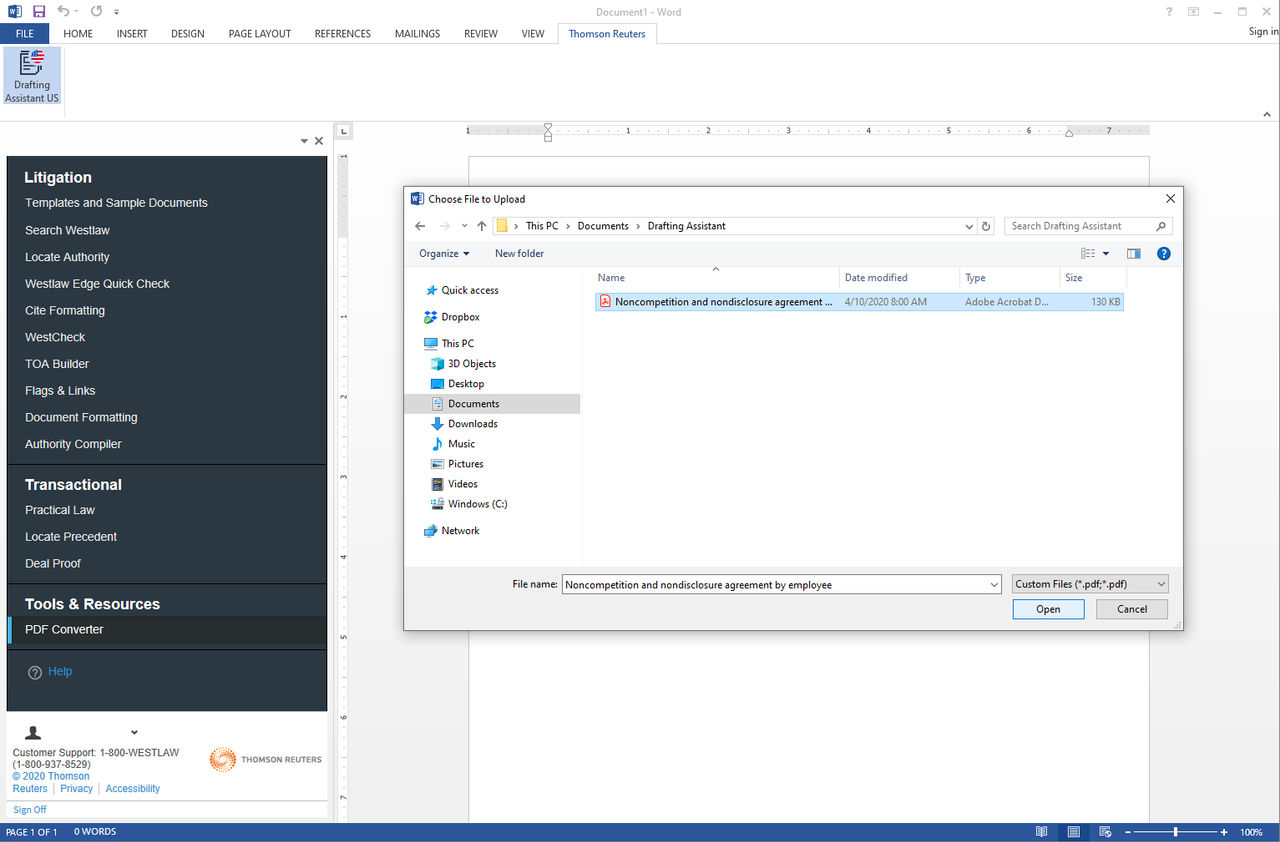
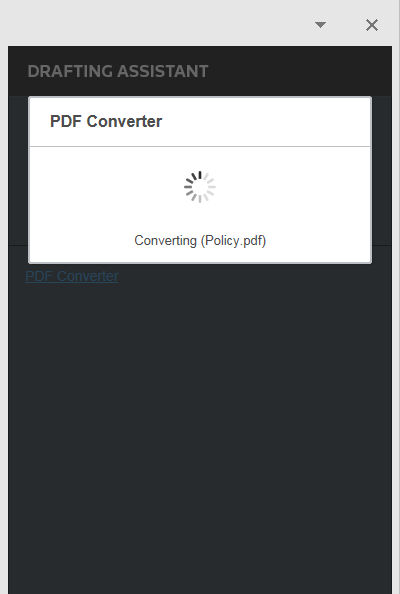
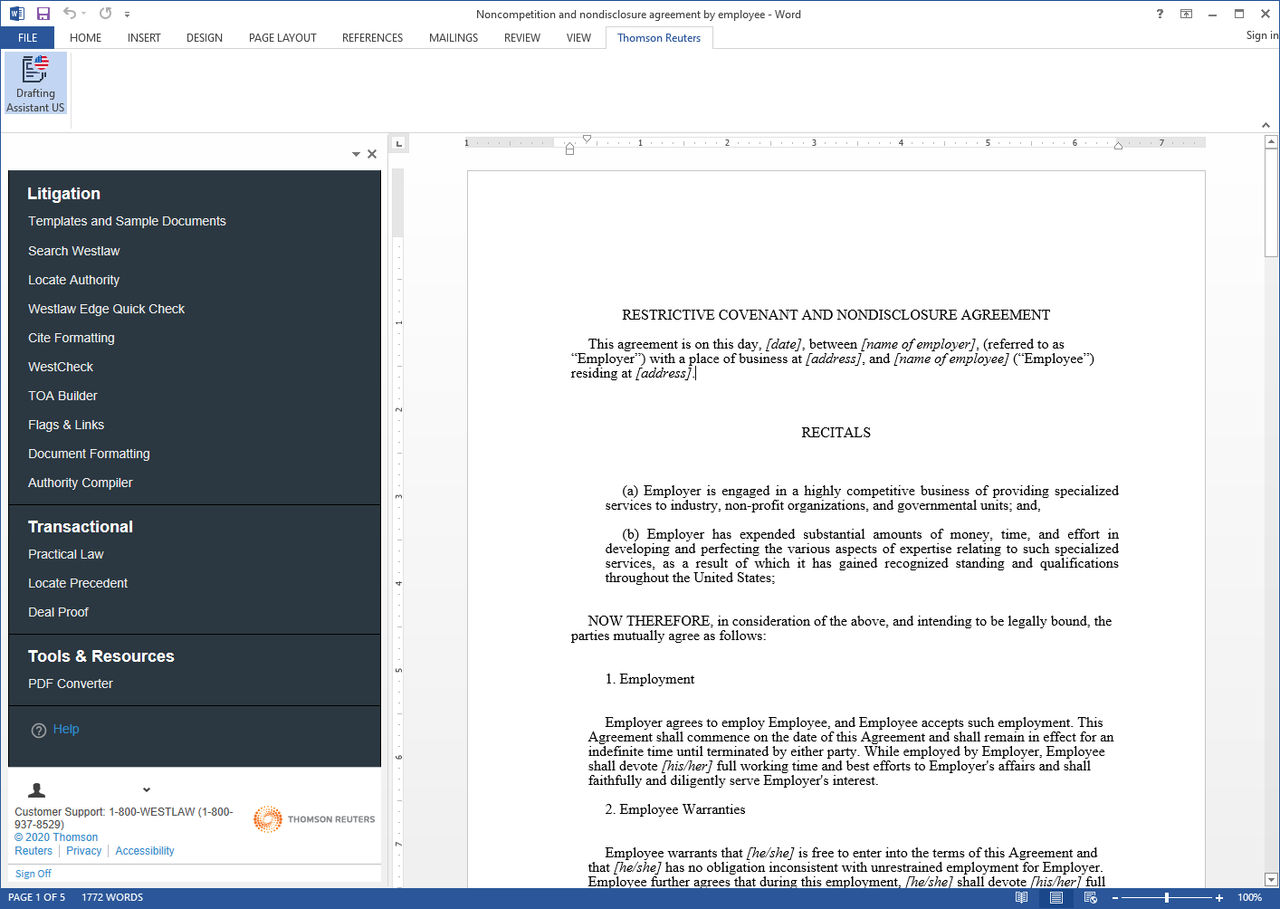
Drafting Assistant will automatically begin converting the PDF into a Word document. When the process is complete, the converted document will appear in a new instance of Microsoft Word. The tools menu will be open for you in the converted document for you to use the Drafting Assistant features and functionality.
Related Content
-
About Drafting Assistant Add-In for Word Online
Format: Article

