
Verify Quotations with QuoteRight
QuoteRight checks quoted statutory or case law text by extracting quotations, comparing them to the source, and letting you attach, review, and locate quotes per citation.
Use QuoteRight to verify the accuracy of statutory or case law quotations cited in your document. When the WestCheck tool extracts citations from your document, it also creates a list of quotations found in your document.
If a citation is linked to a quotation, the number of available quotations for the citation is listed after the citation in your citations list. WestCheck also creates a list of quotations found in your document. You can view the extracted quotations for the entire list or you can view the extracted quotations by individual citations.
When a quotation is attached to a citation, WestCheck compares the quotation in the user’s document against the actual quotation. QuoteRight displays the quotation text from both the user’s document and the cited document, noting if the quotation is identical or different.
View quotations by individual citation
Turn on the QuoteRight service in the WestCheck profile that you use when extracting your citation list. When QuoteRight is enabled and citations are extracted, an  ) button displays at the top of the WestCheck citations list.
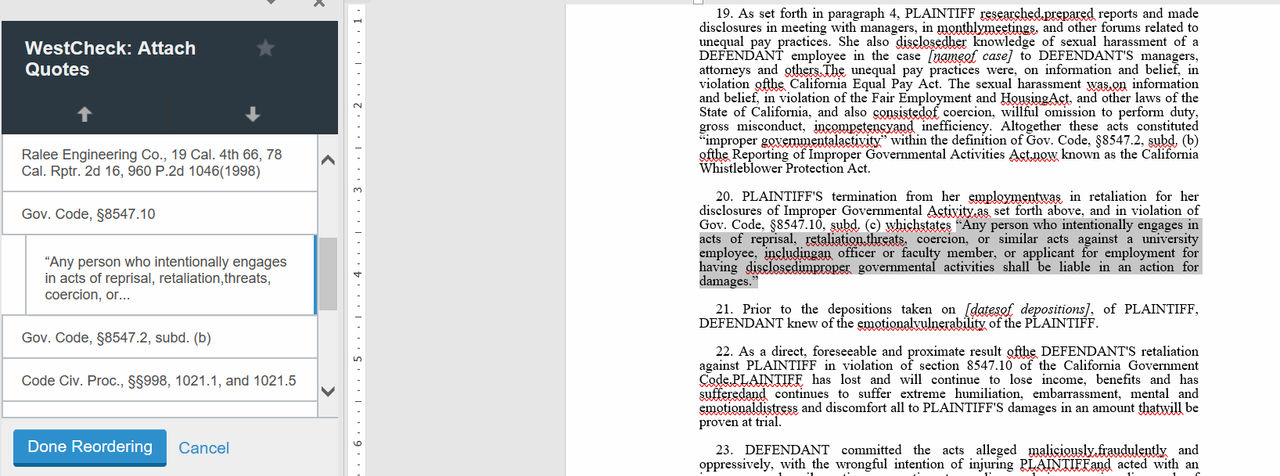
Attach Quotes
() button displays at the top of the WestCheck citations list. - Select theAttach Quotes() button located at the top of the WestCheck citations list.
- Select a quote from the list of quotes.
- Detach a quotation from a citation by dragging the quotation to theUnattached Quotesarea at the bottom of the quotes list.
- Attach a quotation fromUnattached Quotesat the bottom of the quotes list by dragging it to the citation you want to attach it to.
- Optionally, select a quotation and select theMove Up(
 ) or Move Down(
 ) button to move it up or down in the list.
To locate a quotation in your document, select it from the quotes list in the left pane. The document view will scroll to the location of the quote and the quote will be highlighted in your document.
Related Content
-
About Drafting Assistant Add-In for Word Online
Format: Article

