About Locate Authority
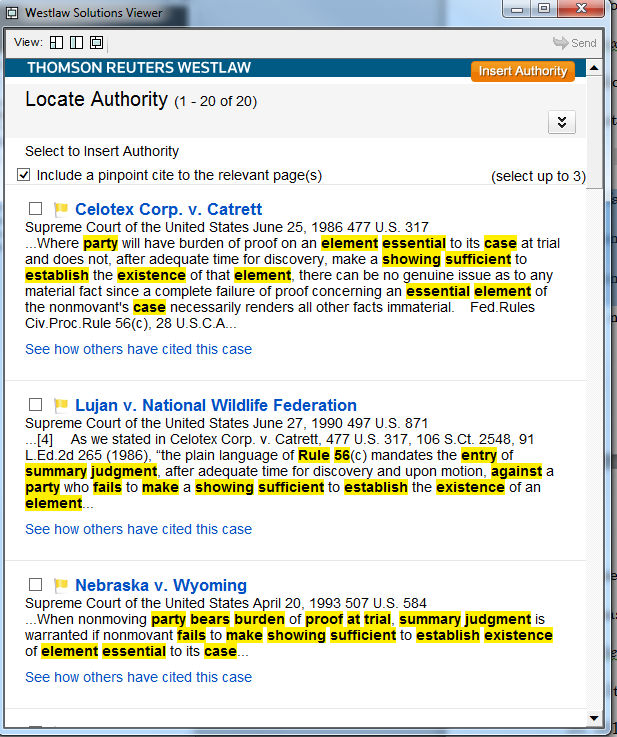
The Locate Authority finds matching Westlaw cases for selected draft text, lets you insert citations, and shows how other cases have cited them.
The Locate Authority feature in Drafting Assistant lets you find authority for language in your draft document. Locate Authority marks the text in the draft document and searches Westlaw for cases that best fit the text. From the result list, you can easily insert the citation into your draft document. Additionally, you can see how others have cited that case.
If you have a subscription to Westlaw, your search for authority is automatically run in Westlaw.
To locate an authority with Westlaw, complete the following:
- SelectLocate Authorityon the left side of your document.
- Select the text in the draft document for which you want to locate authority.
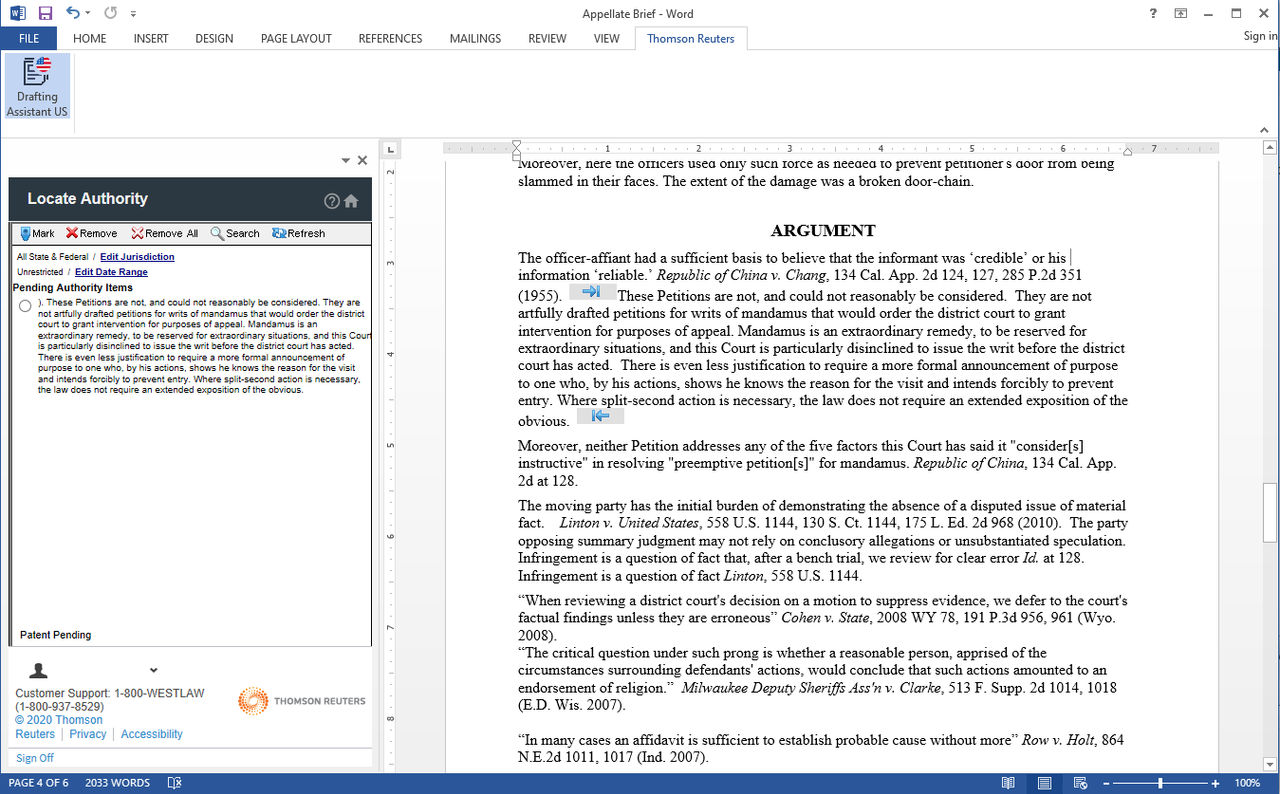
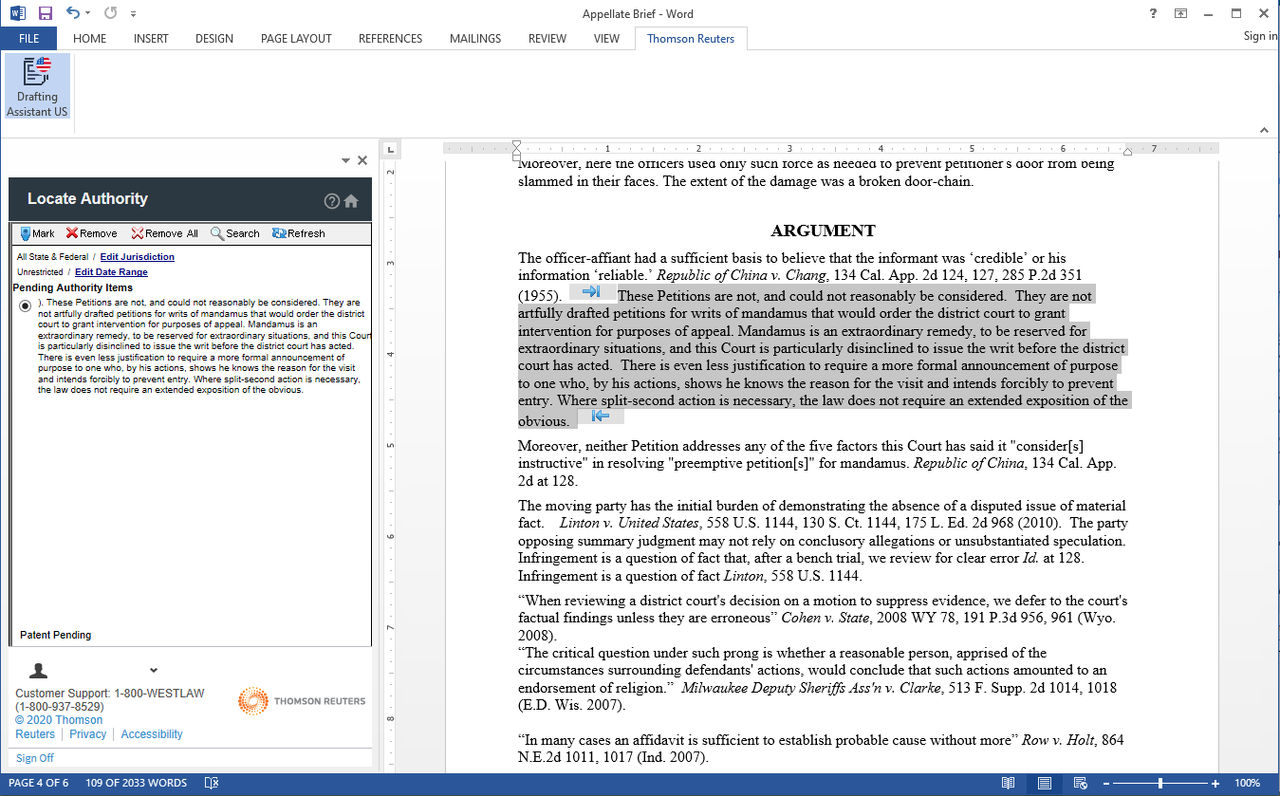
- SelectMarkin the Locate Authority category. A mark is placed at the beginning and at the end of the selected text and the text displays under Pending Authority Items in the left pane. You can mark more than 4,000 text selections in a document.
- By default, all jurisdictions for supporting authority are searched. To restrict the search to specific jurisdictions, selectEdit Jurisdictionin the left pane. If you don’t want to restrict the search by jurisdiction, skip to step 10.
- In the State list, select a different state.
- Select theInclude related federal content for selected itemcheckbox.
- In the Federal list, select a federal jurisdiction.
- SelectSave. The jurisdictions display next to Edit Jurisdiction in the left pane.
- SelectEdit Date Range. Select the calendar icon to select a date or type a date in the field, and then selectSave.
- Under Pending Authority Items, select the text for which you want to locate the authority, and then selectSearch.If you didn’t restrict the search by jurisdiction or by date, you will be prompted to sign on to Westlaw before the result list displays. To remove a selected text item under Pending Authority Items, select the text and selectRemove. To remove all selected text under Pending Authority Items, selectRemove All.
- Select the checkbox next to the case with the citation you want to insert in the document and selectInsert Authorityat the top of the viewer. After you insert the citation, the marks are removed from the text and a checkbox displays next to the language in the left pane. SelectSee how others have cited the case, if available, to view how other cases have cited your case.
- Optionally, select the checkbox toInclude a pinpoint cite to the relevant page(s)to include a pinpoint cite when inserting the authority into the document.
- Select up to 3 cases with the citations you want to insert.
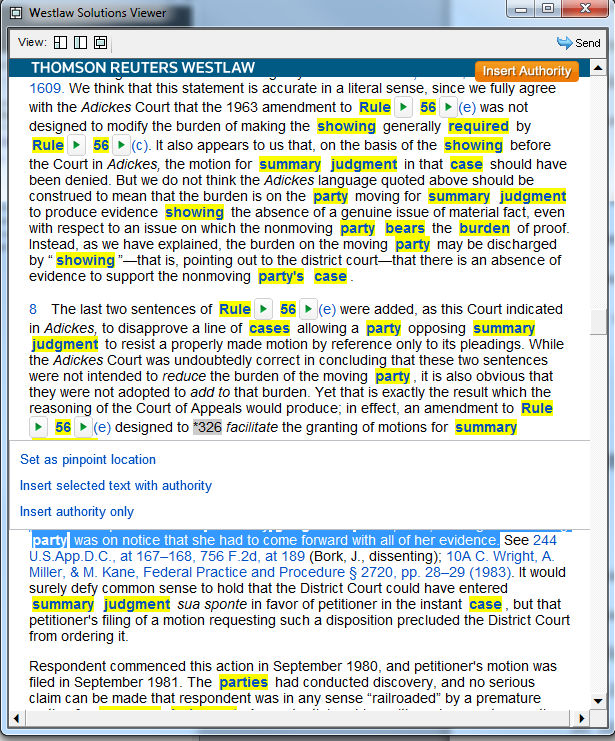
- Select a case name link to go to the language shown for the case in the result list.
- If you selected to Include a pinpoint cite to the relevant pages, you can select language in the case toSet as pinpoint locationto choose a new pinpoint page location for purposes of inserting authority,Insert selected text with authority, orInsert authority onlyto include the pinpoint location of the text you selected when inserting authority.