About Locate Precedent
Locate Precedent analyzes your contract, builds a clause outline, and helps you find relevant sample agreements and clauses for specific sections.
The Locate Precedent feature in Drafting Assistant lets you retrieve sample agreements and clauses from those agreements related to specific contract clauses in your document. Locate Precedent analyzes your contract and creates an outline so you can locate sample agreements related to clauses in your contract.
To create an outline of your document and locate precedent related to specific clauses, complete the following:
- SelectLocate Precedent.
- SelectGenerate Document Outline.
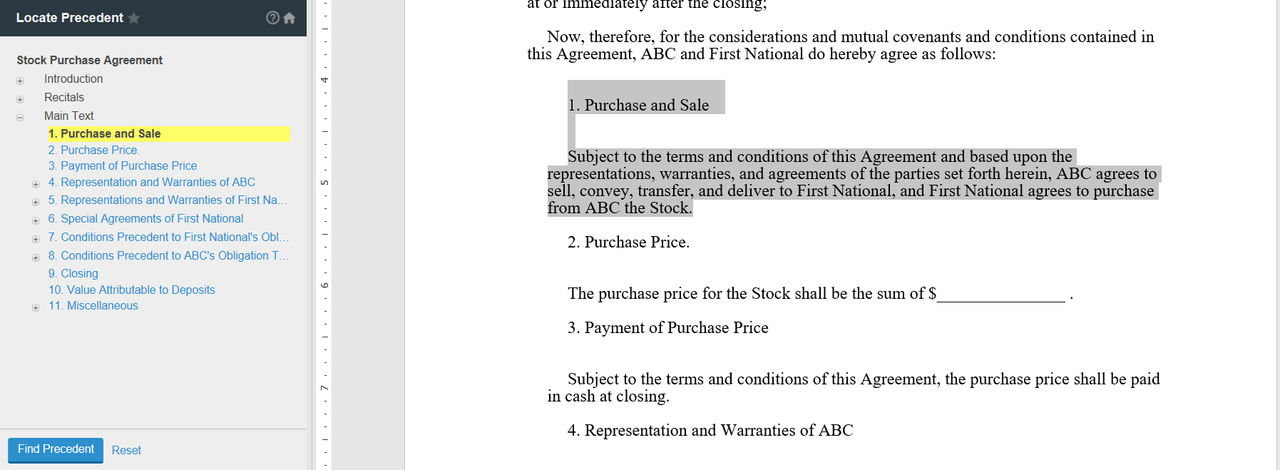
- Select a clause from the document outline on the left, and selectFind Precedentto search for precedent related to that section of content. Select theexpand/collapsebuttons (
 /
/ ) to expand/collapse the outline. The section you select is highlighted in the document text on the right.
- You have the following options:
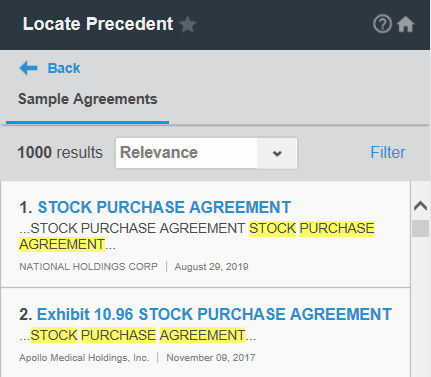
- SelectRelevanceorDatefrom the list at the top of the results to sort the list of results.
- SelectFilterat the top of the results list, select the filters, and selectApply Filters. SelectClear Allto remove all filters.
- SelectBackto return to the document outline.
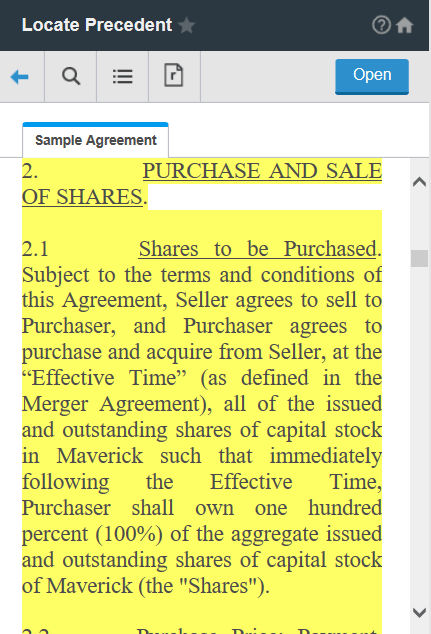
- Select aSample Agreementin the results list to open the document in the Locate Precedent pane. You have the following options:
- Return to List(
 ): Return to the full results list.
 - Open: Open the document in another instance of Microsoft Word.
- Search(
 ): Enter a search term in the field provided and press Enterto search within the sample agreement. At least 2 characters must be entered to begin a search. Use the arrows by the search term to go from search result to search result in the document. Select theXby the search term to remove the search.
 - Table of Contents(
 ): Return to the outline of the document.
 - Related Documents(
 ): See documents related to the selected sample agreement.
- Use the document and Clauses navigation to go to the next sample agreement or next clause. (
 )
)