
About Validate Document Formatting
Use Drafting Assistant Litigation's Document Formatting tool to validate court-rule compliance, auto-fix correctable issues, review detectable/informational rules, and apply or ignore suggested changes before filing.
Once you finish drafting your document, use the Document Formatting tool to check whether the document is formatted in accordance with your jurisdiction's court rules. The Document Formatting tool is only available in Drafting Assistant Litigation. Drafting Assistant uses the following categories of rules to help you validate the document’s format:
- Correctable rules: Relate specifically to your document and Drafting Assistant can correct them for you, for example, incorrect margins, fonts, and line spacing.
- Detectable rules: Relate specifically to your document but Drafting Assistant can't correct them for you, for example, if the document is over the page limit.
- Informational rules: Relate only to the type of document you are validating and provide additional information you may need prior to filing, for example, a blue cover is required.
Validate the format of a document by doing the following:
- SelectDocument Formattingon the left side of your document.
- Select the court from the Court lists. Optionally, selectSee Mapto view a map, and then select a state, select the court in the list, and selectOK.
- Select a document type from the Document Type list.
- Select theSave document before continuingcheckbox to save your original document as the Document Formatting tool will change that document.
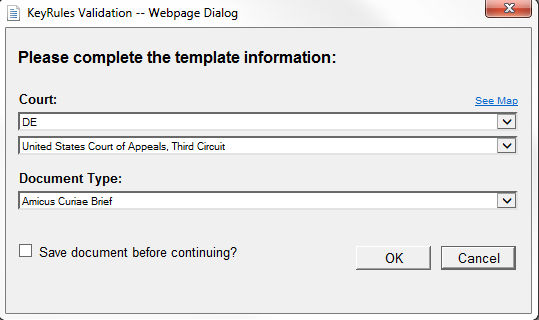
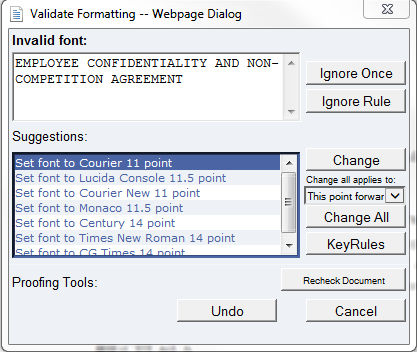
- SelectOK. The first correctable rule, for example, Invalid font, is listed.
- Do one of the following:
- To ignore the first instance of the rule and move to the next instance of the rule, selectIgnore Once.
- To ignore all instances of the rule and move to the next rule, selectIgnore Rule.
- To change the first instance of the rule and move to the next instance of the rule, select an option underSuggestionsand selectChange.
- To change all instances of the rule and move to the next rule, select This point forward in theChange All Applies Tolist. Then, select an option underSuggestionsand selectChange All.
- Repeat step 6 for each correctable rule.
- To sign on to Westlaw and access KeyRules, selectKeyRules.
- To recheck the document, selectRecheck Document.
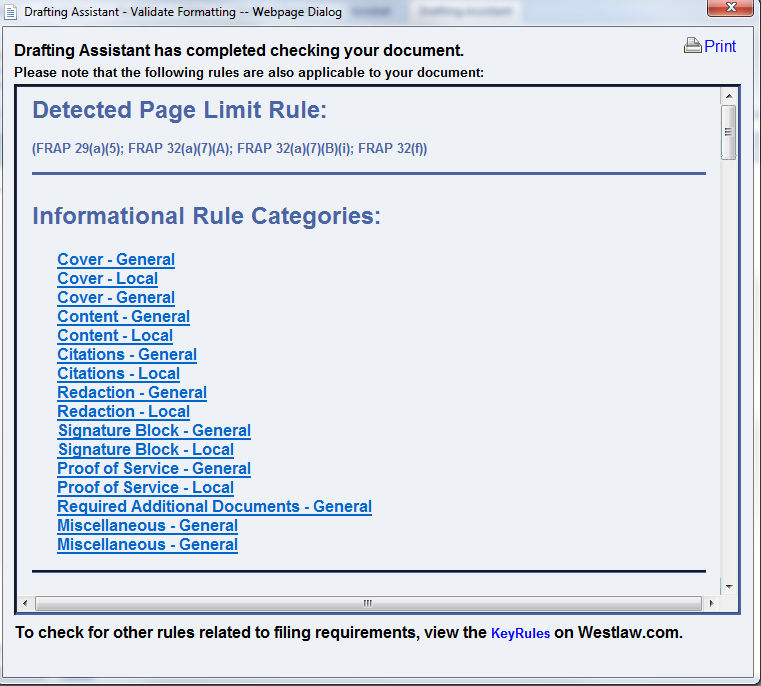
- After you finish checking the formatting of the document, a list of detectable and informational rules displays, if available. To print the list of detectable and informational rules, selectPrint.
- Select the redXto close.

