
Create a Citations List
WestCheck to extract, add, locate, verify, and download citations from your document's citations list for review, printing, or sharing.
Extract the citations from your document and create a citations list by selecting the
WestCheck
tool on the left side of your document, then selecting Extract Citation List
.Add citations to the Citations List
Once you have extracted a citation list, you can manually add citations to that list.
- Select theAdd Citationbutton (
 ) at the top of the citations list.
 - In theCitationfield, enter the citation.
- In theTitlefield, enter a title for the citation.
- SelectAdd.
Locate a citation
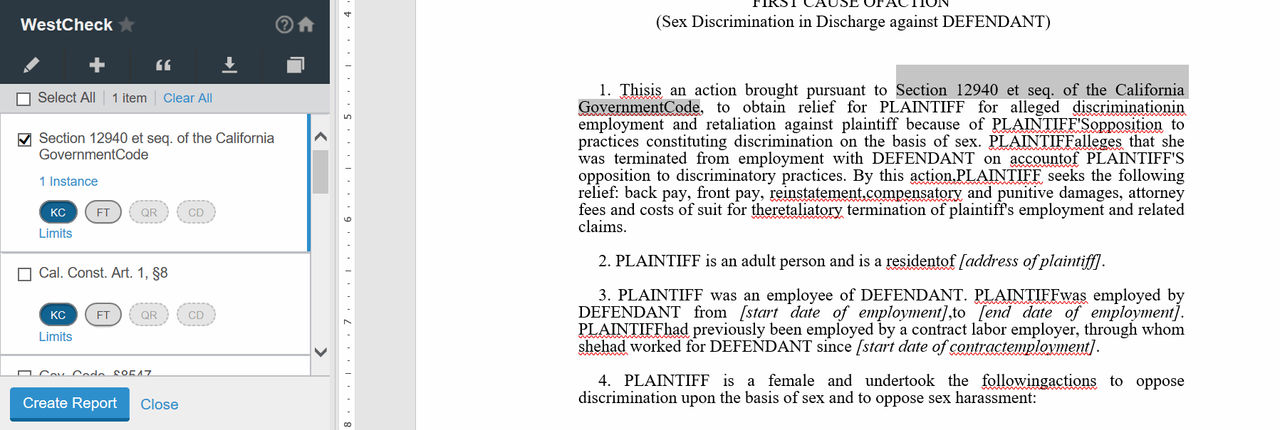
To locate a citation in your document, select it from the citations list in the left pane. The document view scrolls to the location of the citation and the citation is highlighted in your document.
Locate inaccurate citations
Citations that are unverified or that contain potential errors are displayed with an unverified tag next to them ( ). This mark remains until the citation is corrected and the WestCheck tool is run again or until the citation is manually added to the list.
). This mark remains until the citation is corrected and the WestCheck tool is run again or until the citation is manually added to the list.Citations that are not available with your subscription display with a red symbol displayed next to them.
Download, print, and send citations
Download, print, and send the entire citations list or individual citations in the list. This option is not available in the Drafting Assistant for Word on Mac/iPad application.
- Select the checkbox next to the citations you want to download. If you want to download all citations, select theSelect Allcheckbox.
- Select theDownloadbutton (
 ) at the top of the citations list.
 - Select a format from the list, then selectDownload.
Once downloaded, you can open and print the downloaded citations and you can send them to others via email.
Download, print, and send citations with the Office add-in
To download, print, and send the entire citations list or individual citations in the list using the Drafting Assistant Office add-in, complete the following:
To download, print, and send the entire citations list or individual citations in the list using the Drafting Assistant Office add-in, complete the following:
- Select the checkbox next to the citations you want to download in the WestCheck report. If you want to download all citations, select theSelect Allcheckbox.
- Complete the required fields and selectGenerate Report.
Once the email has been received, you can open and print the downloaded citations and you can send them to other via email.
Related Content
-
About WestCheck
Format: Article

