
Use Profiles in WestCheck
WestCheck Profiles let you save and reuse citation-checking presets (jurisdiction, services, QuoteRight and limits, sorting, and report options) for faster, consistent results.
If you are a new user, it is recommended that you define presets for common use cases using the
Profile
options. Profiles let you select, save, and reuse options you use frequently. Each time you access the WestCheck tool, you are provided with options to select an existing profile, view/edit profile settings for a selected profile, and create a new profile.Create new WestCheck profiles
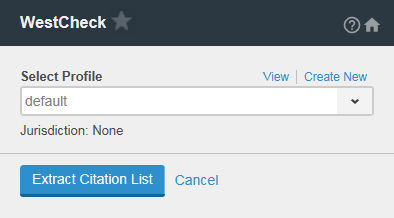
- Select theWestChecktool on the side of your document.
- SelectCreate New.
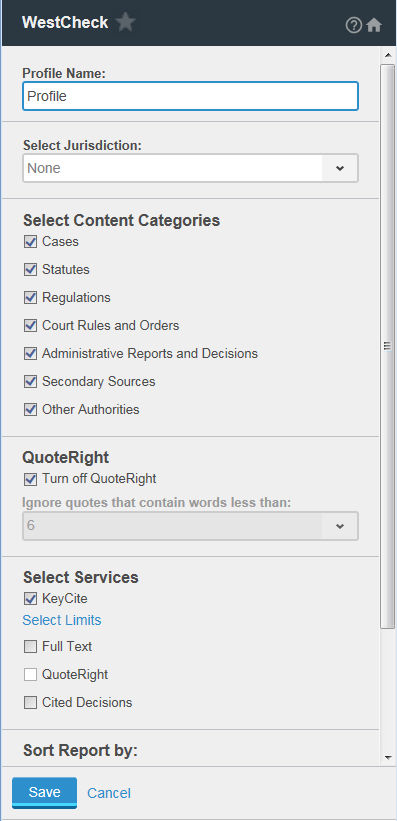
- Enter a name for the new profile in theProfile Namefield (for example, KeyCite History).
- Select aJurisdictionfrom the list.
- Select the content categories you would like to include in your citations list.
- When the WestCheck tool extracts citations from your document, it also creates a list of quotations found in your document. When a quotation is attached to a citation, the WestCheck tool compares the quotation in the user’s document against the actual quotation in the cited document. QuoteRight displays the quotation text from both the user’s document and the cited document, noting if the quotation is identical or different. You can also choose to ignore quotes that contain less than two to six words. The WestCheck tool extracts the citation but QuoteRight doesn’t attach quotations with less than the specified number of words to the citations (for example, select2to indicate that QuoteRight should not process quotations of fewer than two words). Turn this feature off by selectingTurn off QuoteRight.
- Select the services (KeyCite, Find, QuoteRight, and Cited Decisions) to use to check your citations. To set KeyCite limits, select theSelect Limitslink under theKeyCiteoption.
- Select to sort the WestCheck citation list report byCitationorServices (KeyCite, Find, QuoteRight, Cited Decisions).
- Select toInclude short form instances, unverified cites and cites for which no services have been requestedin the WestCheck summary. If you select this option, you can choose whether to:
- Include unverified citations and citations for which no services were selected into the report body.
- Include short form instances into the report bodyandInclude QuoteRight for short form instances into the WestCheck Report
- SelectSave.
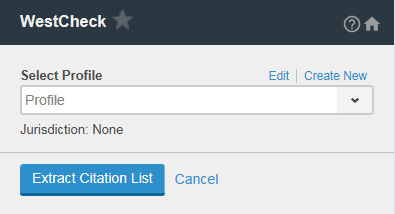
- Utilize the new saved profile in the WestCheck tool by selecting it from theSelect Profilelist, then selectingExtract Citation List.
View, edit, and delete WestCheck profile settings
To edit the settings for a WestCheck profile:
- Select theWestChecktool on the side of your document.
- Select the profile you want to view or edit from theSelect Profilelist.
- SelectEdit.noteThe default profile can be viewed but not edited.
- Edit the settings and selectSave. To delete the profile, selectDelete Profileat the bottom of the left pane. SelectContinueto confirm.
Related Content
-
Check Citations
Format: Article
-
Verify Quotations with QuoteRight
Format:
Article

