
Use Reports in WestCheck
After running WestCheck, you can create a report by choosing delivery method, formats, and result/citation options, then generate a linked summary with KeyCite flags and detailed service results.
- Once you have checked your citations in WestCheck, selectCreate Report.
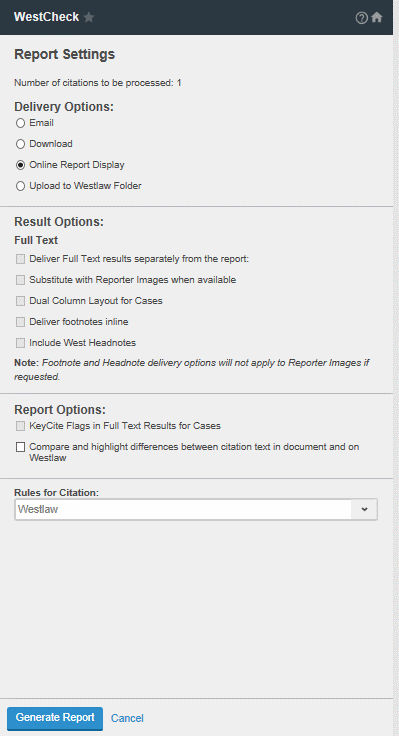
- Select theReport Settings.
- Choose from the following options:
- Delivery Options
- TheEmailoption provides fields for To, Subject, Email Note, and a Format list that lets you choose to deliver the report in Word, PDF, or RTF format. You can deliver the report to multiple email addresses.
- TheDownloadoption lets you choose to download the report in Word, PDF, or RTF format. This option is not available in the Drafting Assistant for Word on Mac/iPad application.
- TheOnline Report Displayoption lets you view the report in your browser and includes links to the full-text documents on Westlaw, links to the KeyCite history and citing references, and a navigational index. This option is not available in the Drafting Assistant for Word on Mac/iPad application.
- TheOnline Report Displayoption lets you view the report in your browser and includes links to the full-text documents on Westlaw, links to the KeyCite history and citing references, and a navigational index. This option is not available in the Drafting Assistant for Word on Mac/iPad application.
- TheUpload to Westlaw Folderoption lets Drafting Assistant subscribers deliver the report and any Full Text documents (Find results) to a selected Westlaw folder. Once you have selected this option, a Select Folder link will appear that lets you choose a Westlaw folder. Any Full-Text documents (Find results) will appear as links in the chosen Westlaw folder.
- Result Options
- SelectDeliver Full Text results separately from the reportand select Word, PDF, or RTF format to deliver all Full-Text requests in a separate document in that format. If you select this option, you may also want to selectCreate one file for all Full Text Resultsto deliver the Full Text requests separately and as one single document (instead of multiple documents).
- SelectSubstitute with Reporter Images when availableto deliver PDF images of case law documents exactly as they appear in the National Reporter System. If you select this option, you may also want to selectCreate one PDF for all Reporter Imagesto deliver the results as a single PDF (instead of multiple PDFs).
- SelectDual Column Layout for Casesto format the results in two columns per page. This option is not available for the Online Report Display.
- Report Options
- SelectKeyCite Flags in Full Text Results for Casesto display KeyCite flags and information in the Full-Text Results.
- Citation Options
- If you have access to Cite Formatting through a Drafting Assistant subscription, you have an additional option to view your citations within the WestCheck report in a particular rule format. This option is not available in the Drafting Assistant for Word on Mac/iPad application.
- Select theRules for Citationyou prefer from the list. This option is not available in the Drafting Assistant for Word on Mac/iPad application.
- By default, the rule format is Westlaw, which provides all of the citation details that may not be included in the citation formatting rules. For example, the Westlaw format includes all possible parallel citations, the specific date of a case decision, and the docket number for the case. This option is not available in the Drafting Assistant for Word on Mac/iPad application.
- SelectGenerate Report.
About WestCheck Reports
Reports generated using the WestCheck tool consist of a header, summary report, table of citations with services requested for each, detailed services reports, and a billing summary. Reports include linked KeyCite status flags and depth-of-treatment indicators for cited documents so that you know at a glance whether your authority is good law.
The online report includes the KeyCite status flags, links to the full-text documents on Westlaw, links to the KeyCite history and citing references, and a navigational index.
Related Content
-
Check Citations
Format: Article

