
Save an engagement as a PDF
Follow these steps to save an engagement as a PDF.
note
Before saving an engagement as a PDF, make sure to check in all workpapers so that they are included in the PDF.
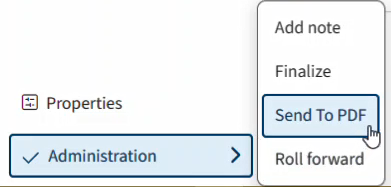
- In Engagement Manager, open the engagement you want to save and selectAdministration, thenSend To PDF.
- Mark the checkboxes for the options you want to use when you create the PDF, then selectNext.
- Mark the checkboxes for the security options you want to use and set up passwords, then selectNext.
- Select the options to save the PDF to your computer, save it to GoFileRoom, or both.
- SelectDoneto create and save the PDF.
Related Content
-
Finalize an engagement
Format: Article

