Install the Engagement Manager Link
The purpose of the Engagement Manager Link is to interact with other applications installed on your local computer. This includes:
- Launching the SMART Practice Aids application to set up a new engagement, edit an existing engagement, or edit a smart document.
- Opening a new Outlook message if you are right-clicking on a document and choosing to email via Outlook.
- ChoosingAdd Workpaperfrom Guided Assurance, when you subscribe to the desktop version of Checkpoint Tools, or rolling forward Checkpoint Tools documents using the desktop version.
To install the Engagement Manager Link:
- Open Engagement Manager.
- SelectSetup
 and select Downloads.
 - SelectEngagement Manager Linkand download the installation file.
- Select the installation file to run it and follow the steps in the wizard to install the Engagement Manager Link.noteWhen signing into Engagement Manager, or performing any of the actions in the application, you may receive a security prompt from your web browser asking permission toOpen Engagement ManagerLink. Mark theAlways allow demo.engagementmanager.thomsonreuters.com to open links of this type in the associated appcheckbox, which will prevent you from seeing this window regularly. None of the functionalities will work if you ignore or cancel the window.
Internal use only
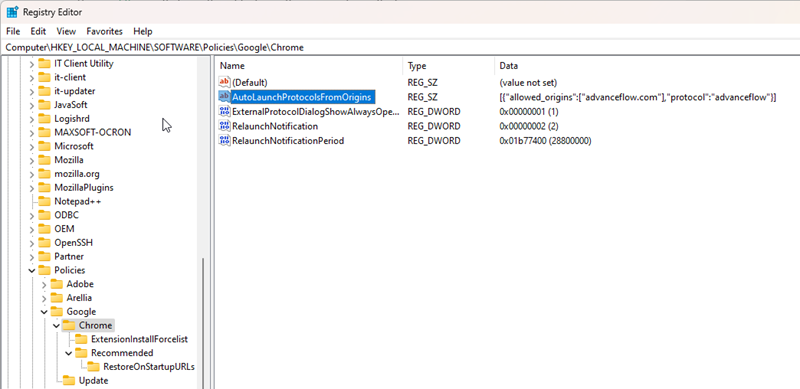
A computer tech can add a registry entry to prevent these prompts from appearing. We don’t want to give this to the average user because it may overwrite other similar existing registry entries with a similar purpose. For example, preventing this message from appearing when launching Citrix from VO, or preventing this message when editing a GoFileRoom document for GoFileRoom Link.
The registry entry should look something like this:
Windows Registry Editor Version 5.00
[HKEY_LOCAL_MACHINE\SOFTWARE\Policies\Google\Chrome]
"AutoLaunchProtocolsFromOrigins"="[{\"allowed_origins\":[\"engagementmanager.thomsonreuters.com\"],\"protocol\":\"engagementmanager\"}]"