
Managing Inactive Drawers
You can use one of the following methods to reduce the size of your list of drawers in FileCabinet CS. For example, you may want to remove drawers that are no longer active, either by removing or hiding clients that you choose as inactive.
Back up and delete drawers
Backup the client to a storage drive, CD, or other storage media, and then delete the drawer from FileCabinet CS. If you need to access this data in the future, you can restore the drawer to FileCabinet CS from the removable media, and then delete the drawer after your finished.
Archive and delete drawers
Archive all data in the inactive drawers and store the archive on a storage drive, CD, or other storage media, and then delete the drawer from FileCabinet CS. If for any reason you need to access this information in the future, you will first need to restore the archive.
Using the Focus Listing to only display active drawers.
Updating the status for individual drawers
- In theFolderslist, select the drawer for which you want to update the status.
- Choose , or select theDrawer Propertiesbutton in the toolbar.
- Select the new status from theStatusfield.
- SelectOK.
Focus the List of Drawers
You can focus the list of drawers to hide inactive and defunct clients from displaying, using the steps below.
- Mark theFocus drawer listcheckbox.
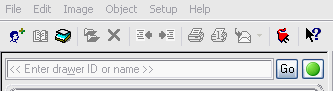
- Select theSort/Focusbutton (green circle) next to the drawer search field.
- Mark the status asActive,Inactive, orDefunctto display drawers of that status in the List of Drawers.
- SelectOK.
Adding a new data location for inactive folders
Set up a new data location for the inactive drawers
- Choose .
- Go to theData Locationstab.
- Select theAdd/Modify Data Locationbutton.
- Select theEnter Pathbutton in theAdd Data Locationdialog.
- Navigate to the location to store your inactive drawers, and then selectOK.noteThe folder in which the inactive data is stored must exist prior to setting up the path – FileCabinet CS does not automatically create the folder.
- Name the data location.
- SelectOK.You can use theTransfer Configurable Filesbutton and move the document folders from the existing location to the new location. Document folders can also be created automatically when a drawer is restored to a new data location. This takes longer when you restore, because the application must search for, and create any missing document folders.
Transfer inactive drawers to the new location
- Choose .
- Select the new data path in theCopy Drawersdialog from the drop-down list in theDestination locationfield.
- Highlight inactive drawers from theDrawers available to copypane, and then use theSelectbutton to move them to the right pane in the dialog.
- Mark theAutomatically create folderscheckbox.
- Select theCopybutton.
Delete copied drawers from active drawer list.
- Choose .
- Highlight the inactive drawers from theDrawers availablepane to delete pane to move them to the right pane.
- Select theDeletebutton.
- theYesbutton to confirm that you want to permanently delete these drawers from the current data location.
note
When you need to access your inactive drawers, change the data location to
Inactive Drawers
. While in the Inactive Drawers data location, you still have all available FileCabinet CS capabilities, including the ability to print, email, or the ability to push the documents to NetClient CS.
