
Setting up security options
At Thomson Reuters, we are aware that one of your firm's top concerns must be security of financial information. FileCabinet CS offers multiple levels of security, so that you can determine just how simplified or detailed your security needs. Besides having the ability to individually password-protect client drawers, you can also set up Standard Security or Advanced Security options, which are detailed below. Both types of security are accessed through the
Setup > System Configuration > Security
menu in FileCabinet CS.The Standard Security Options use the Master Password to control access. This simple security method is an "all or nothing" approach - if you know the Master Password, you have access to everything; if not, you're limited to the options chosen by the person who set up the security. In
Setup > System Configuration > Security
tab, the first option is to enter a Master Password, if you have assigned one. If you haven't assigned a Master Password, select Modify
to create one. The following options are available to limit to users who know the Master Password:- Limit users of drawer passwords
- Restrict access to Setup > System Configuration
- Restrict access to NetClient CS functions
- Restrict access to Help > Repair
- Restrict access to File > Archive
- Restrict access on Home Page
- Restrict Access to File > Print Reports
For more information on each of these options, highlight the option and read the description at the bottom of the
Security
dialog.Advanced User / Group Security If your firm requires more detailed security, limiting different groups of people to different areas of the application, you will want to invest time into setting up Advanced User / Group Security. To enable Advanced Security:
- Choose tab.
- Enter the Master Password.
- Mark the option toEnable advanced User/Group Security.
- The following dialog will appear, warning that you're enabling the advanced security option. SelectYes.
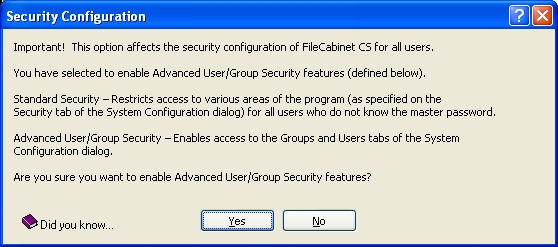
- Now you should see two new tabs in theSystem Configurationdialog:GroupsandUsers.
note
If the
Enable Standard Security
button appears in the Security
tab, then advanced user/group security is currently enabled. With advanced security options enabled, you can assign FileCabinet CS users to groups for which you can determine access privileges for certain areas of FileCabinet CS. You can add users to predefined groups, or groups that you have created. You can also add users to groups manually, or import users from your firm's domain controller if your firm uses a Windows network operating system.
