Asset Detail dialog

Show all hidden content
Use the
Asset Detail
window to enter detailed information for new assets or to modify information for existing assets.
To open this window, select
Add
or
Modify
in the
Asset List
window.

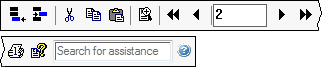
Asset Detail toolbar

Button
Function
Open a new asset record for the selected business activity. Shortcut:
Ctrl+A
Delete the selected asset from the current business activity. When you select this button, you will be prompted to verify that you want to delete the asset.
Cut the selected asset treatment. Shortcut:
Ctrl+X
Copy the selected asset treatment. For example, use this feature to copy the information entered in the Tax column to the Book column. Shortcut:
Ctrl+C
Paste the selected asset treatment. Shortcut:
Ctrl+V
Open the
Prior Depreciation Comparison
window, in which you can view a comparison of the application-calculated depreciation and the amount entered in the asset's
Prior Depreciation
field, located in the
Depreciation
tab of the
Asset Detail
window.
note
If an asset is coded as listed property or luxury auto and was placed in service in a prior year, the
Prior Depreciation Comparison
window contains additional fields in which you can enter the business use percentages for prior years. Business use percentages entered in this window apply to all treatment columns in the
Depreciation
tab, not just the Tax column.
Shortcut:
Ctrl+R
Move to the record for the lowest numbered asset for the selected business activity. Shortcut:
Ctrl+Page Up
Move to the record for the previous numbered asset for the selected business activity. Shortcut:
Page Up
Display the number of the currently selected asset.
Move to the record for the next numbered asset for the selected business activity. Shortcut:
Page Down
Move to the record for the highest numbered asset for the selected business activity. Shortcut:
Ctrl+Page Down
Open the
Print Current Asset
window, which enables you to print the following reports.
  • Depreciation Projection Report, for any treatment being calculated for the current asset - This report displays current depreciation enabled for each year of the asset's life.
  • Asset Information Report, for the current asset - This report prints the asset's
    Depreciation
    tab information in the
    Asset Detail
    window.
  • Asset Note Report - This report displays the information entered in the
    Note
    tab in the
    Asset Detail
    window.
Shortcut:
Ctrl+1
View the MACRS Asset Life table. Refer to this table when you need information about asset lives under the MACRS depreciation method. Shortcut:
Ctrl+H
Search the Help & How-To Center, where you can find information about windows and windows, step-by-step instructions, reference information, answers to frequently asked questions, and more. Shortcut:
F1
and
Ctrl+Y

Fields & buttons

Asset #
The next available number is automatically assigned to the new asset.
note
You can change how assets are automatically numbered.
Description
Enter a description of the asset.
Date in service
Required information.
Enter the date the asset was placed in service.
note
The oldest allowable date is 01/01/30. Dates from 01/01/00 to 12/31/29 are assumed to be in the 21st century.
Situs
Enter the state where the asset is held or located.
note
If you assigned the current multiple-unit activity to a specific situs in the
Setup
, then
Activities
window, this field is read-only.
Used
Mark this checkbox to indicate that the current asset is used property.
note
When you mark this checkbox, the application enters
Prop not qualified (GO Zone/168(k)/168(n))
in the
GO Zone/168(k) (force)
field in the asset's
Other
tab if the asset was placed in service before 9/28/2017.
Associations
The placement of association fields in the
Asset Detail
window varies depending on how the
Association
field order list is configured in the
Setup
, then
Associations
window.
If an association name is preceded by an asterisk and displayed in blue, the association is used for the UltraTax CS personal property tax return for the state in which the current asset is located.
If the button appears next to the first association field, that association has been set up as the primary association for this client. Select this button to open the
Association Wizard
and select the association value. The default values that were entered for all associations and the default asset class (from the
Method/Life Wizard
) will be entered for the asset.

Tabs in this window

Depreciation
tab
Disposal
tab
Transfer
tab
Vehicle/Listed
tab
Home Office
tab (Individual clients only)
Other
tab
Note
tab
Image
tab
note
A dot appears on each tab (except the
Depreciation
tab) in which data has been entered.

error-icon

Triva isn't available right now.

Check out the support page for our phone number and hours

error-close