
Install GoFileRoom Add-In
If you have administrative privileges, you can follow these steps to install the GoFileRoom Add-In.
important
- Prior to installing the latest GoFileRoom Add-In, verify that the prior version has been uninstalled. GoFileRoom functionality may be hindered if multiple versions of the Add-In are installed on the same machine.
- Microsoft .NET 4.0 Framework (or higher) must be installed on your machine to use the GoFileRoom Add-In.
To install the GoFileRoom Add-In:
- If .NET 4.0 Framework (or higher) is not installed, download and install Microsoft .NET 4.0 from the Microsoft website.
- Hover over your username, then selectPreferences. Go to theDownloadstab, then selectGoFileRoom Add-Infrom the dropdown list.
- After it downloads, right-click theGoFileRoom-Add-In.exefile, then selectRun as administrator.
- The InstallShield Wizard will guide you through the remainder of the installation process. SelectFinishto complete the installation. SelectYesto restart your computer.
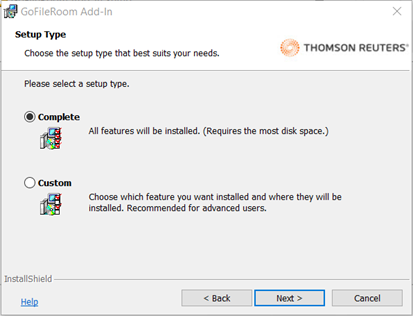
- (Optional) The GoFileRoom Add-In lets you make a customized installation and control what components are going to be installed. While it’s recommended to perform a Complete installation, the Custom install is available for certain situations.
note
- The InstallShield Wizard provides you with the option to install all the components of the GoFileRoom Add-In at once, or to choose which components to install.
- Terminal Server Add-In installations are required to be run at the console as an Administrator.
These are the commonly used features of the GoFileRoom Add-In:
- Adobe Acrobat integrates GoFileRoom and Adobe functionality.
- ControlPanel simplifies uploading and managing your files in GoFileRoom.
- Microsoft Office integrates GoFileRoom and Microsoft Word and Excel functionality.
- QuickLaunch lets you quickly launch and use GoFileRoom without having to sign in each time.
- If licensed, ScanFlow fully integrates with GoFileRoom. ScanFlow leverages 100% accurate barcode and indexing features to scan large batches of documents quickly and accurately.
note
- GoFileRoom supports the current and one prior version of the Add-In. If your firm experiences any issues, make sure your users have the latest version of the Add-In installed.
- There are 2 alternatives to perform the installation in silent mode:

