
Get started with GoFileRoom API services
About GoFileRoom APIs
The GoFileRoom and FirmFlow APIs provide quick access to document and workflow data through a comprehensive API library.
This extensive suite of endpoints lets your team integrate tax documentation and workflow status efficiently into existing systems, enhancing decision making and firm-wide monitoring with data access and analysis within your business intelligence (BI) tools.
These integrations also enable efficient tax document management, including ingestion and search, workflow assignments, and organization-specific reporting.
Additionally, they streamline administrative tasks, such as staff provisioning, driving further efficiencies.
Steps to get started
- Access the Developer Portal. Create an account or sign in to the Developer Portal:
- Create an account: If you have already established a Thomson Reuters Account, then this step can be skipped. For assistance with the Thomson Reuters Account, visit Account Setup.noteIt is possible to view guides, use cases, and product availability without creating an account.
- Once signed in, you have access to API documentation and learning content, including application management, technical implementation resources, and API Keys* (if requested).
- Establish a GoFileRoom username and password to be used for your API activities.
- Make sure that the GoFileRoom username has GoFileRoom permissions to access the areas within the scope of your projects. Generally, the API user is configured to be an Administrator and have full access to all GoFileRoom data.
- Take note of this GoFileRoom user for step 3.
- Get your GoFileRoom API key.This is a unique set of credentials that Thomson Reuters issues to your firm and should be safeguarded with only trusted individuals within your firm or 3rd parties assisting with your API projects. We suggest this because the GoFileRoom APIs provides access to sensitive and confidential information of your firm and Thomson Reuters works to protect your data. In addition, API access is only available to customers who have purchased and are currently licensed for the GoFileRoom application.
- Once you've registered, your firm’s licensee will need to contact Thomson Reuters support to request a GoFileRoom API key. Call 1-800-968-0600 and select queue options GoFileRoom support assistance.
- Support will request evidence to validate and approve the permissions of the person requesting the API key. This is a required step that safeguards your firm’s data and has strict policy management to keep your firm’s data safe.noteIf your firm is working with a 3rd party vendor to aid your API development projects, it is required that your firm’s licensee takes this step as we can't provide these details directly to a 3rd party.
- Inform Thomson Reuters Support of the GoFileRoom username designated for API use. Your support contact will assist in assigning this user account a legacy password for authentication to the APIs, which will be separate from the password you currently use to sign in to the GoFileRoom web interface.When a customer communicates which accounts they want to use to access API resources, you need to coordinate with a consultant to have these accounts temporarily made into a service account, which will allow for the access to the legacy GoFileRoom sign in method which doesn’t use CIAM or SSO. The consultant will make the account a Service account and issue a temporary password, which you will need to communicate to the user when providing these instructions:
- When the account is in this state, the user will attempt to sign in and, rather than being redirected to authenticate to the CIAM/Thomson Reuters account or (if they use SSO) their own Identity Provider, they’ll be prompted for a password on the same GoFileRoom page.
- The user will sign in with the temporary password issued by the consultant.
- They’ll then be prompted to change the password after logging in.
- Once they do, ask them to confirm they can sign out and log back in and log into the API with that new password they selected.
- After this is set the password will never change unless the customer requests assistance from us changing it. We have no way to see it and the only way to change it is to go through the previous process, so they should make sure to save it.
- Once the user confirms they can sign in successfully with the new password they selected, have a consultant remove the account from the Service account state.
noteThe customer now has 2 passwords for this account. When logging into the website the user will sign in with their CIAM/Thomson Reuters or SSO sign in. When logging into the API the user will use that legacy password you had them make. These passwords are NOT interchangeable. - When this review and setup is complete, next you'll receive an email with steps on how to proceed. This process can take up to 1 to 3 business.
- Download and install a web debugging tool.
- Download and install your debugging tool of choice. We recommend and test with Postman.
- Go to developers.thomsonreuters.com, search GoFileRoom by selecting the magnifying glass.
- Select theAPI Referencelink.
- Upon opening the new page, select theDownload OpenAPIlink to get the Postman Collection for the GoFileRoom Document Management API or the GoFileRoom FirmFlow API. Note that the GoFileRoom .JSON file will then be available.
- Review the Thomson Reuters Learning resources available.
- Go to developers.thomsonreuters.com, search for the following GoFileRoom API documentation using the magnifying glass:
- GoFileRoom Document Management API
- GoFileRoom FirmFlow API
- Let us do the heavy lifting: Did you know that our consulting teams are on standby to help your team with training, resources, and customized work related to your API development? If interested, contact your account representative at Thomson Reuters.
- (Optional) If your firm needs a User Acceptance Testing (UAT) environment, contact support.
- A GoFileRoom User Acceptance Testing (UAT) environment gives your firm a space to test functionality for APIs, applications built by the firm, or 3rd parties within a GoFileRoom database. This ensures API projects have no impact on your firm’s everyday production database. Sandbox access is available to customers who have purchased and are currently licensed for the GoFileRoom application.
- If your API team plans to test outside of your GoFileRoom application environment, we recommend that you set up this UAT (also known as Sandbox).
- What information do I need to bring to support if I need a UAT environment?For security reasons, you need to send the request on the company letterhead, and contain the following information:
- You need to send the confirmation from the firm’s email domain.
- The letter needs to contain today’s date.
- The letter needs to contain the signature of the person submitting the request.
- Example evidence:I, <name>, firm <licensee or delegate> for <Firm Name> (Firm ID: < firm ID>) would like to request a UAT environment for my firm. Set up <Employee Name> (Email: <firm email address>) as the UAT Database admin.
Variables
Name |
UAT Environment Value |
Production Environment Value |
|---|---|---|
username |
Your UAT username. |
Your production username. |
password |
Your UAT password. |
Your production password. |
apiToken |
The token used to sign in to GoFileRoom. |
The token used to sign in to GoFileRoom. |
API rate limit
GoFileRoom established API rate limits to ensure optimal performance, prevent server overload, and promote fair use among all API customers. Follow these guidelines to ensure efficient use of GoFileRoom's API resources while maintaining system performance and reliability.
- Rate limit:The GoFileRoom API enforces a rate limit of 10,000 requests per hour for each GoFileRoom firm.
- Reset interval:The request count resets at the top of each hour (for example, 1:00, 2:00).
- Exceeding the limit:When the rate limit is exceeded (the 10,000 requests per-hour limit), the server will respond:HTTP Status Code: 429 Too Many Requests
Manage API requests
API developers are encouraged to monitor their request rates and optimize their applications to stay within the allocated limits.
It is advisable to implement error handling for the 429 status code to gracefully manage request throttling.
Acquire an API token
You need an API token to call GoFileRoom services. Follow these steps to acquire a token.
- Open your web debugging tool, such as Postman, then open a new tab in your web browser.
- SelectPostas the HTTP verb, then enter[baseURL]/api/v1/user/loginfor the URL.

- Select theHeaderstab, then enterapplication/jsonforContent Typeand your API key forX-TR-API-APP-ID.
- Select theBodytab, then choose therawoption.
- Enter your username for the LoginName and password for the Password.
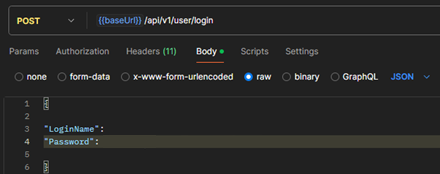
- SelectSend.
If your request was successful, you'll have a token value and authSuccess will be True. Copy the value in the token field, and save it as an apiToken to use with other GoFileRoom services.
Test your first API call
After acquiring an API token, you can call various GoFileRoom services. Use the following example of a simple call to view the list of drawers available to you.
The GoFileRoom developer community contains a list of services you can use with the GoFileRoom API.
- Open a new tab in your web browser.
- SelectGETas the HTTP verb and enter[baseURL]/api/v1/user/loginfor the URL.

- Select theHeaderstab, then enterBasic [apiToken]forAuthorizationand your API key forX-TR-API-APP-ID.
 Talk with your peers. The GoFileRoom developer community contains a list of services you can use with the GoFileRoom Document Management API and GoFileRoom FirmFlow API.Start by searching for the GoFileRoom API and choose API Reference.
API rate limit
GoFileRoom established API rate limits to ensure optimal performance, prevent server overload, and promote fair use among all API customers. Follow these guidelines to ensure efficient use of GoFileRoom's API resources while maintaining system performance and reliability.
- Rate limit:The GoFileRoom API enforces a rate limit of 10,000 requests per hour for each GoFileRoom firm.
- Reset interval:The request count resets at the top of each hour (for example, 1:00, 2:00).
- Exceeding the limit:When the rate limit is exceeded (the 10,000 requests per-hour limit), the server will respond:HTTP Status Code: 429 Too Many Requests
- Spike arrest policy:250 calls per second. This protects against traffic surges throttles the number of requests processed, protecting against performance lags and downtime.
Manage API requests
API developers are encouraged to monitor their request rates and optimize their applications to stay within the allocated limits.
It is advisable to implement error handling for the 429 status code to gracefully manage request throttling.
How administrators access and manage GoFileRoom API credentials
This guide helps administrators securely access and manage API credentials in the Thomson Reuters Developer Portal.
- Sign in to the developer portal.
- Enter your administrator credentials.
- Verify two-factor authentication if prompted.
- Locate and generate API credentials.
- Go toMy AppsorAPI Accesssection.
- SelectGoFileRoom API.
- SelectGenerate API Key.
- Copy the key.
- Manage access.
- Add an administrator:Go toUser ManagementselectAdd User. AssignAdministration role.
- Add standard users:Assign roles likeViewerorAPI User. Ensure permissions authorize viewing or using the API key.
- Restrict or remove access:SelectUser Management. Select userEditorRemove.

