
Can't enter text in the Information field in FirmFlow
This happens because you don't have permission for that field. Your administrator needs to give you access.
Scenario
You may find a custom field label, but can't enter text for it.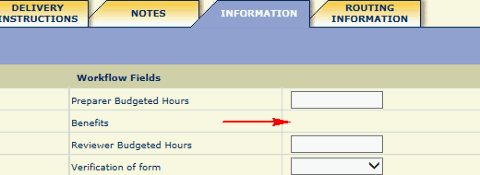
Cause
You don’t have permissions to enter data in that field.
Solution
Ask a GoFileRoom administrator to take the following steps to assign you to a group that has permissions to enter data in that field.
- In GoFileRoom, selectAdministration, thenManage FirmFlow.
- Select thePermissionstab.
- SelectWorkflowsfrom theCategoryfield, then select a workflow type.
- Verify you've marked the FirmFlow permission groups underEdit Workflow.
- SelectInformation Fieldsfrom theCategoryfield.
- The grid includes a column for each custom field on theInformation Fieldstab.
- Mark the checkbox for the fields that apply to FirmFlow permission groups.
- Go toAdministration, thenManage Users & Groups, and select theGroupstab.
- In theSelect Groupfield, select a group that has permission to access the information field.
- Make sure the person is in theGroup Memberslist.
note
The information field may not be available if the workflow is marked as completed. If you have
Super User
permissions, you can modify information fields even in a complete workflow.
