
Integrate with SafeSend
Map SafeSend Returns e-signed documents to specific drawers and indexes. The files can then be sent directly to GoFileRoom from the Delivered Returns report.
Show all hidden content
important
To use this integration, the firm must have an active SafeSend account.
Permissions
note
- Only administrators have access to the Account Management and User Management sections.
- Users must also have permissions in GoFileRoom to upload documents.
Create a custom user group
- In SafeSend, select theNavigation Widget.
- SelectAccount Management, then selectUser Management.
- Select theUser Groupstab, then selectAdd User Group.
- Add theNameof the group.
- AddDescription.
- This can be a general description of what roles this group has.
- There is a character limit of 100 for this field.
- Select theRolesto be applied to the group.
- Apply onlySend to GFRor
- Create a custom group with additional permissions.
- SelectAdd Group.
Add users to the group
- In SafeSend, select theNavigation Widget.
- SelectAccount Management, then selectUser Management.
- SelectEditin theActionsmenu of the user to be updated.
- Mark theGoFileRoomcheckbox in the User Group section.
- SelectUpdateto save any changes made.
Enable the integration
note
Only administrators have access to the Product Settings section.
Map to GoFileRoom
- In SafeSend, select theNavigation Widget.
- SelectProduct Settings.
- SelectGeneral.
- SelectLogin to GFR.
- Enter your GoFileRoomEmail ID.
- SelectVerify.
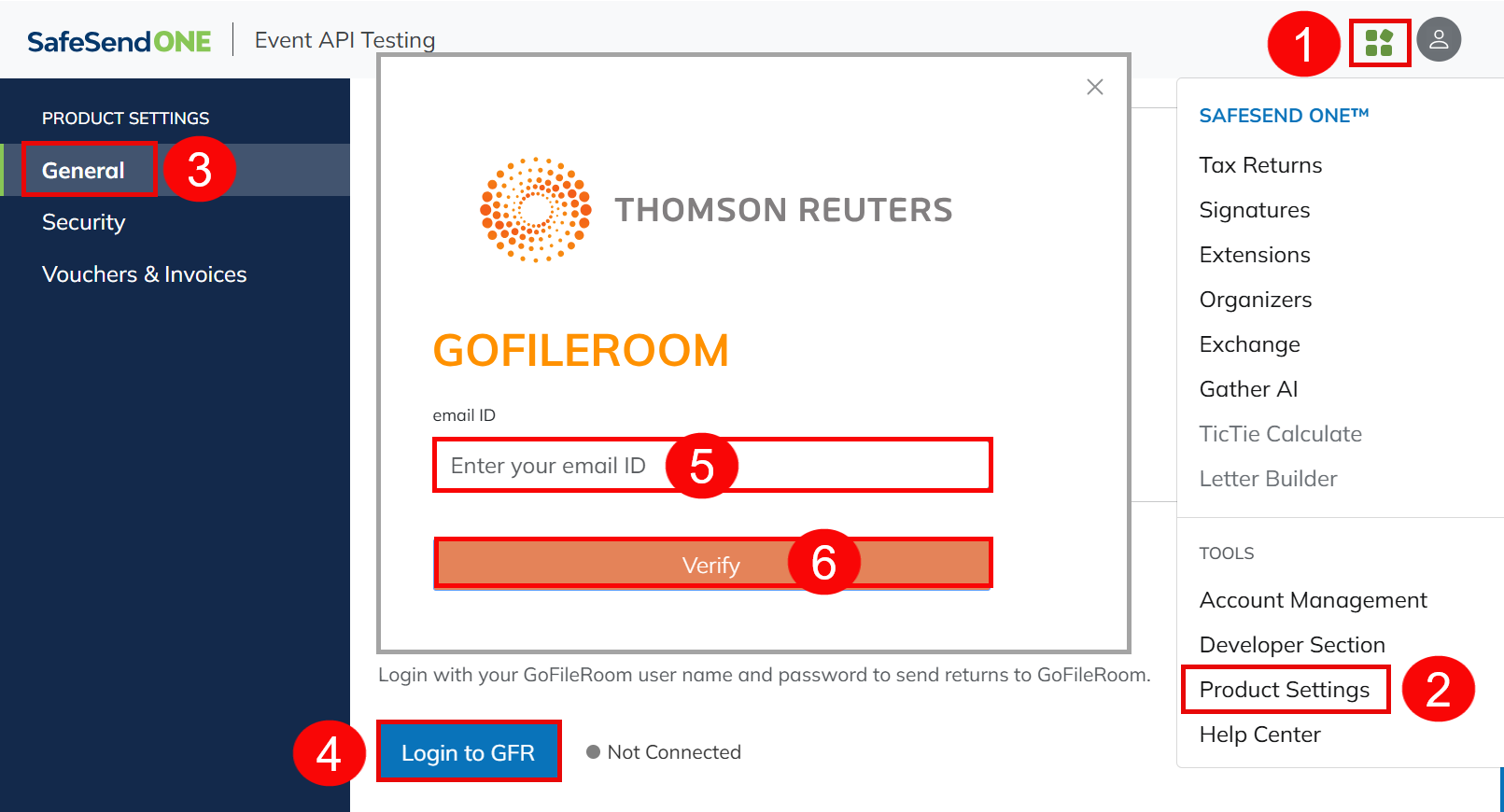
- Enter theAccess Codesent to your GoFileRoomEmail ID.
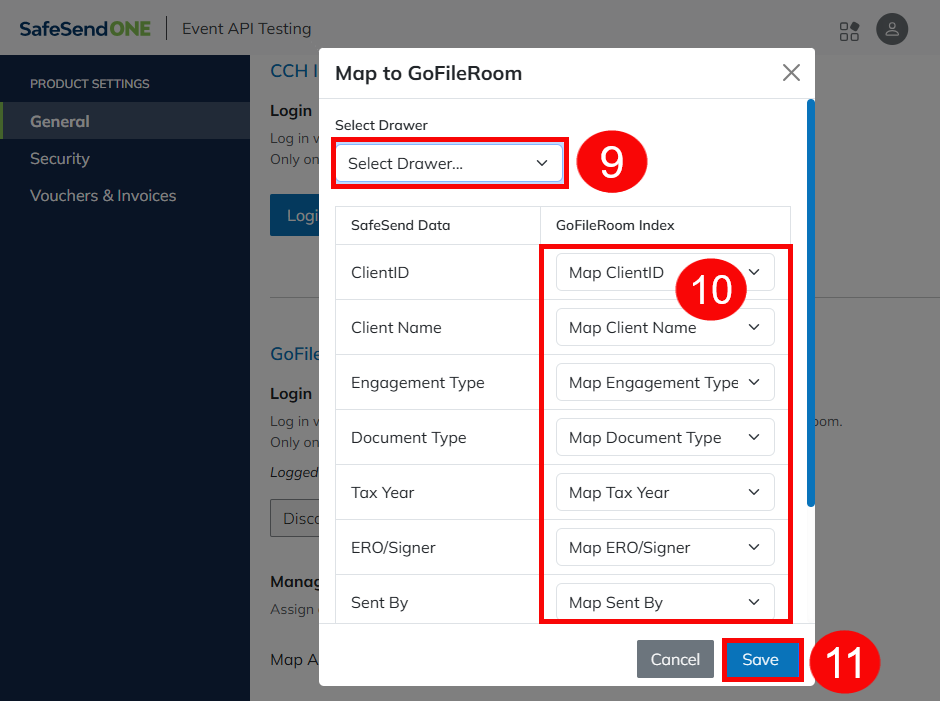
- SelectConfirm.
- Select aDrawer.
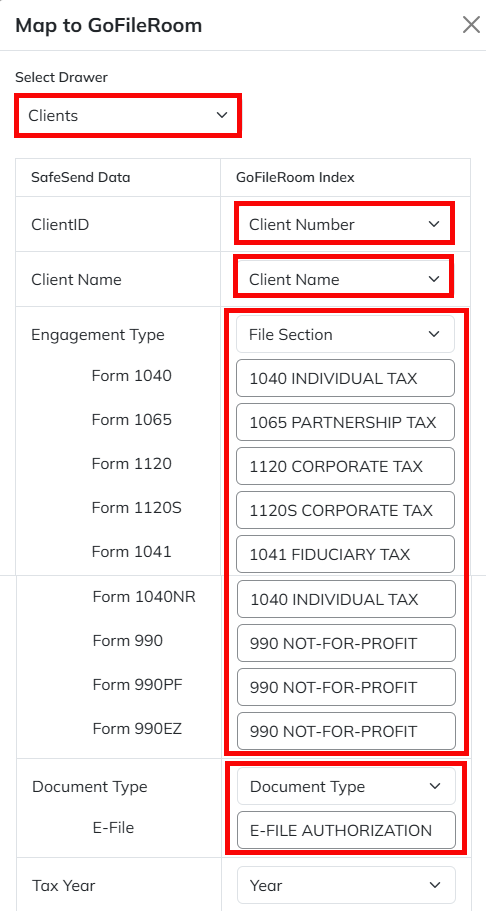
- Map items to the correctGoFileRoom Index.SafeSend dataGoFileRoom indexClientIDMap ClientIDClient NameMap Client NameEngagement TypeMap Engagement TypeDocument TypeMap Document TypeTax YearMap Tax YearERO/SignerMap ERO/SignerSent ByMap Sent By
- SelectSaveto apply your mapping choices.
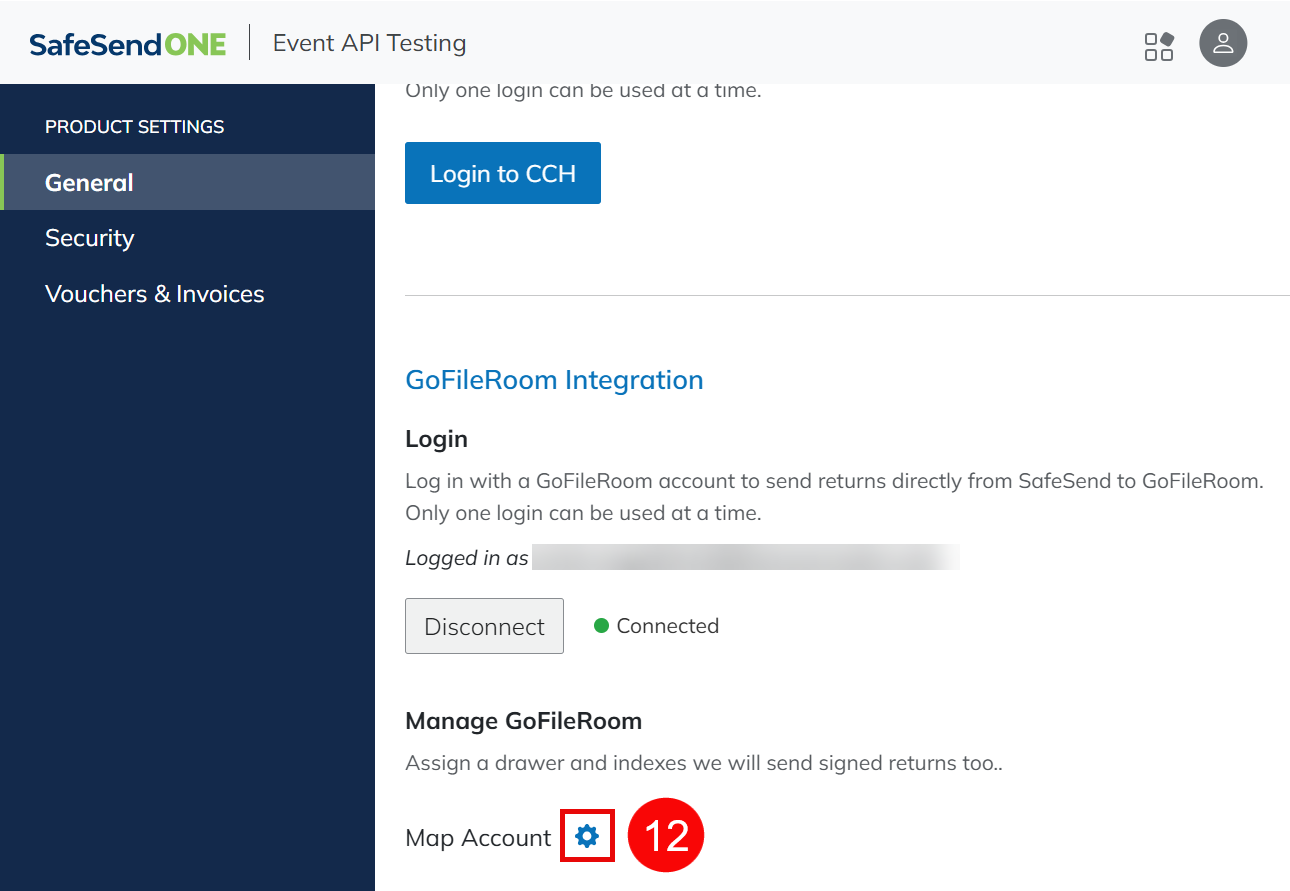
- Select theMap Accountgear icon to adjust mapping at any time.
Mapping requirements
Any indexes marked as required fields in GoFileRoom must be mapped in SafeSend. All other GoFileRoom Indexes in SafeSend can be left blank.
An asterisk in GoFileRoom indicates required fields. Client Name, Client Number, File Section, Document Type, and Document Date are required and must be mapped in SafeSend.
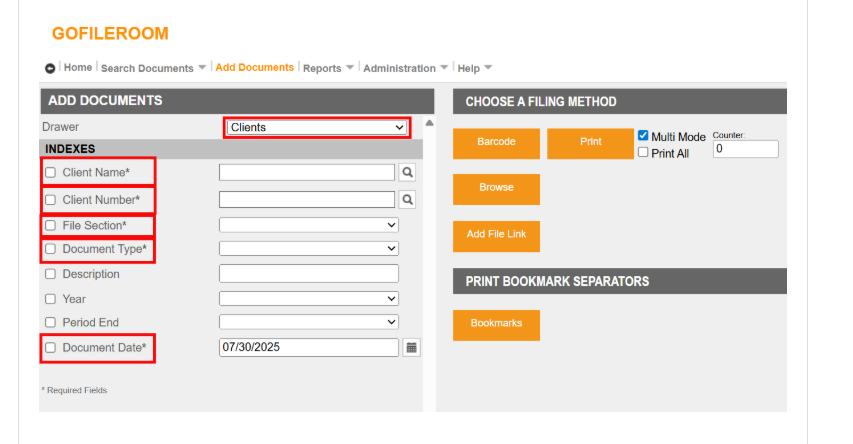
When additional information is to be entered, like for Document Type and File Selection, the text in GoFileRoom must match the text entered in SafeSend (ex: E-FILE AUTHORIZATION).
Example
Select Drawer: Clients
SafeSend Data | GoFileRoom Index |
|---|---|
ClientID | Client Number |
Client Name | Client Name |
Engagement Type | File Section |
Form 1040 | 1040 INDIVIDUAL TAX |
Form 1065 | 1065 PARTNERSHIP TAX |
Form 1120 | 1120 CORPORATE TAX |
Form 1120S | 1120S CORPORATE TAX |
Form 1041 | 1041 FIDUCIARY TAX |
Form 1040NR | 1040 INDIVIDUAL TAX |
Form 990 | 990 NOT-FOR-PROFIT |
Form 990PF | 990 NOT-FOR-PROFIT |
Form 990EZ | 990 NOT-FOR-PROFIT |
Document Type | Document Type |
E-File | E-FILE AUTHORIZATION |
Tax Year | Year |
Send to GoFileRoom
Signed documents can be sent to GoFileRoom from the Delivered Returns dashboard in SafeSend.
note
- The client must exist in GoFileRoom to send their documents with this integration.
- Users must also have permissions in GoFileRoom to upload documents.
- The client name and client number in GoFileRoom must match the client name and client ID in SafeSend.
Send items individually
- In SafeSend, select theAction (...)menu.
- SelectSend To GoFileRoom.
Send items in bulk
- Mark the checkbox next to the taxpayer's name.
- Select theSend to GoFileRoombutton.

