
Print from UltraTax CS to GoFileRoom
Follow these steps to set up integration between these 2 applications.
Initial set up
tip
The initial set up steps have been completed by default in the Virtual Office and SAAS environments.
- To turn on the integration between UltraTax CS and GoFileRoom (GFR), each workstation needs to perform a Desktop Setup.
- Thomson Reuters recommends downloading and installing the UltraTax CS licenses to ensure that they are up to date for integration purposes. Review Download and install licenses via CS Connect.
- Configure GoFileRoom indexes to UltraTax CS values.
- You can print UltraTax returns to GoFileRoom without installing theGoFileRoom Add-in. You'll only need to install the add-in if you want to edit documents.
UltraTax CS and GoFileRoom configuration options
- SelectSetup,Office Configuration, thenOnviotab.noteThis 1st step only applies when theOnviotab is available.
- SelectGoFileRoomfrom the Document management dropdown
- Select theGoFileRoomtab.
- SelectGoFileRoom Optionsto access the Configuration window.
- Select the GoFileRoom Drawer for which you'd like to establish mapping. You can select different drawers from the dropdown.
The following sections contain usage tips for the Index Mapping and Tax return type mapping sections of the Configuration window.
Index mapping
- GoFileRoom Index represents the GFRAddscreen for the selected drawer.
- UltraTax CS Property represents a value that will be passed to that screen from UltraTax CS.
- Values available from the dropdown include: UT Client ID, UT Client Name, Date Printed, Document Name, Document Type, UT Year, Period End, and Map Each Return Type.
- An option exists to use Custom Static Text to define a value that won’t change. It's recommended not to map the UltraTax Name with the Client Name because typically they are slightly different, which will cause a new client to be created when the PDF returns are added to GoFileRoom.Instead, use static text such as “PREPARER COPY AWAITING REINDEXING.” This way, the new client that gets created when the return is sent to GoFileRoom is very obvious as to what it is.If you search for a client by their name, you won’t see this 2nd incorrect client and get confused. If you need to find the preparer copy before the next day you can search by the client ID With Auto Reindexing turned on, the document will be re-indexed overnight and the duplicate client will no longer exist. Review Auto re-indexing overview.
These are the details you'll get in GoFileRoom when searching for the Client ID.
- SMITH, JOHN & MARY: SMITH001
- PREPAPER COPY AWAITING REINDEXING: SMITH001
Tax return mapping
note
The Tax return type mapping section of the Configuration window only applies when the Index Mapping option, File section, is set to value "[Map Each Return Type]."
- The Tax return type mapping section gives you more space for detailed indexing. It's possible to map a separate File Section for each type of return, and then a corresponding document type.
- When utilizing the Tax return type mapping options, both the File Section and Document type of each printed document are dynamically indexed using the options specified within the Tax return type mapping fields.

Recommendation:
Select Prompt to view/verify return indexes when printing to GoFileRoom
in the Configuration window when printing to GoFileRoom. This allows for a final review of the index information prior to sending the return data to GoFileRoom. Corrections to any index information, if necessary, are possible from the GoFileRoom window, which appears at print time when this option is selected.Print client e-file statuses
- OpenUtilitiesand selectElectronic Filing Status.
- Select the client ID to print, then selectPrint.
- SelectGoFileRoomin the Print where section, then selectGoFileRoom.
Print eSignature documents to GoFileRoom
Set up steps if you're not licensed for Onvio:
- In UltraTax CS, selectSetup, thenOffice Configurationtab, theneSignaturetab.
- Select theEnable electronic signatures (eSignature)checkbox .
- Select theGoFileRoomcheckbox.
Set up steps if you're licensed for Onvio:
- In UltraTax CS, selectSetup, thenOffice Configurationtab, theneSignaturetab.
- Select the checkboxEnable electronic signatures (eSignature).
- Select theOnviotab.
- In theDocument Managementdropdown, selectGoFileRoom.
Once set up, UltraTax CS will post all successfully signed and retrieved documents via CS Connect to GoFileRoom.
Print the preparer copy of a return
- OpenFileand selectPrint Returns.
- SelectPreparer Copyand select theGoFileRoomcheckbox.
- SelectTo Drawerto print to GoFileRoom.noteThis may sayPrintinstead ofTo Drawerif you try to print to another location at the same time.
Print extensions
- OpenFileand selectPrint Extensions.
- SelectGoFileRoom, then selectTo Drawer.
Print completed web organizers
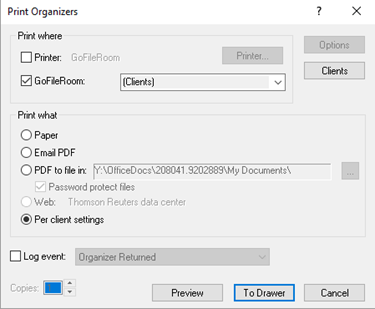
When you retrieve completed web organizers from CS Connect, you'll have a chance to print to GoFileRoom immediately. If you need to print to GoFileRoom after the web organizer is retrieved, use these steps:
- OpenFileand selectPrint Organizers.
- SelectGoFileRoomin the Print where section, then selectPer client settingsin the Print what section.
- SelectTo Drawer.
Print input screens
- OpenFileand selectPrint Input Screens.
- SelectGoFileRoomthen selectTo Drawerto print to GoFileRoom.noteThis may sayPrintinstead ofTo Drawerif you try to print to another location at the same time.

