
Use FileCabinet CS Document Migration Service to migrate documents to GoFileRoom
Use FileCabinet CS Document Migration Service to upload documents extracted from FileCabinet CS to GoFileRoom. This article explains the migration process in detail and provides specific information about migrating documents from FileCabinet CS to GoFileRoom.
Use the Document Migration Service
- Work with your Consultant on timing of when data should be sent to Thomson Reuters.
- Prepare and send your FileCabinet CS data for migration.
- Work with your Consultant to determine how uploaded documents will be indexed in GoFileRoom.
Your documents will be ready for use within GoFileRoom when the migration process is complete.
What to expect from the document migration
The document migration process is customized based on how your firm stored documents in FileCabinet CS and how your firm has set up GoFileRoom. Your firm should expect to commit some time to the migration process. The amount of time needed typically depends on the number of documents being migrated and on the consistency in naming conventions used to store documents in FileCabinet CS.
Due to differences between document management products, your firm’s documents may be added to GoFileRoom using generic file location information. However, you can change the file location of your firm’s documents later, if necessary.
Confidentiality
We acknowledge that your firm will be sending confidential client information. Thomson Reuters and the Technical Services team will use the information solely to migrate documents in a secure environment so that the documents will be available to your firm. We treat all client information as confidential. We retain your source data for 60 days after providing your firm with a document reconciliation report to help you identify and manage any unprocessed data. For additional information, you can view our Privacy Policy from the bottom of any page on our website, CS.ThomsonReuters.com.
FileCabinet CS Document Migration Service steps
Step 1: Schedule your migration date
After receiving your signed agreement, Technical Services will contact you within three business days to confirm scope and schedule date to begin the migration. If you are migrating documents as part of a Guided Implementation, your Consultant will discuss timing with you. The typical turnaround time for the entire migration is eight weeks from the time we receive your data.
Step 2: Prepare and send your client data for migration
Thomson Reuters will discuss preliminary information that your firm can compile to minimize the turnaround time for document migration. See the following client cross reference list for an example of this information.
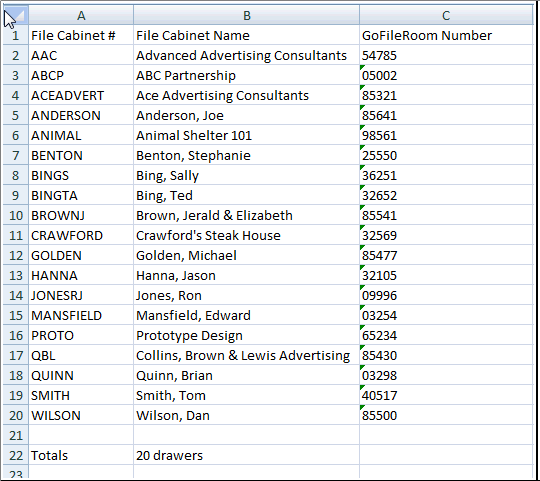
For the fastest and most efficient migration, you will send all your client data at one time and should designate a person at your office through which your Consultant and Technical Services will facilitate the migration.
important
Failure to properly prepare and send client data will result in the delayed processing of your migration. For assistance with copying or sending your data, contact Support at 800-968-0600.
Follow these steps to create a copy of your FileCabinet CS data. If your firm uses Virtual Office or Software as a Service to access File Cabinet CS, Thomson Reuters will obtain the backup for you and you will only need to complete step 6.
- Make sure that you have an external hard drive with enough space to store a copy of your FileCabinet CS data.
- Make sure that all FileCabinet CS documents are checked in. To display checked out documents in FileCabinet CS, selectHelp,Repair, thenFile Locks.
- If your firm has archived documents, you'll need to restore the documents you want to include in the migration.noteThomson Reuters won't migrate archived documents.
- In FileCabinet CS, selectSetup,System Configuration, then theData Locationstab. Note the path information for the data location containing client documents.note
- The default FileCabinet CS data location isX:\WinCSI\FCabData, where X represents the drive letter of your server.
- If your firm stores data using SQL format you will need to create the backup from the program usingFile, thenBackup. Be sure to select Drawers for the backup as this will convert the data to flat file format.
- Using the path you noted in step 4, go to the data location, copy the entire folder, and paste it to an external hard drive. If you prefer creating a backup from the program, selectFile, thenBackupand backup each data location noted in step 4.
- Create an entity mapping to identify each clients’ entity type for filing tax documents. Copy the spreadsheet(s) to the same external hard drive as data backup.
- If you use UltraTax CS, go toUtilities, thenClient Listing Reportsand export, as .CSV, the Client Contact Report for the 2 most recent years of UltraTax CS.
- If you do not use UltraTax CS, your firm will need to create an Excel spreadsheet listing all tax clients with their corresponding entity type. The list must include, at minimum, Client ID, Client Name and Entity Type (1040, 1065, 1120, etc.)
- Encrypt the data on the hard drive using a data encryption program such as BitLocker, a free application available from Microsoft.
- Send the encrypted hard drive to the Technical Services team at the following address:Thomson ReutersC/O Technical Services6300 Interfirst DriveAnn Arbor, MI 48108
- Email the password for the encrypted drive to a Technical Services representative.
note
Corrupted data won't be migrated from FileCabinet CS to GoFileRoom.
Step 3: Determine how to index documents in GoFileRoom
Index values must be assigned to each document stored in GoFileRoom. These index values identify the who, what, and when of a document so it can be quickly and easily located. You can customize index values to meet your firm’s needs. Your firm will need to determine how the migrated documents should be indexed in GoFileRoom. The following is an example of the indexing structure using our recommended best practices.
- Client Name:A unique, identifiable name. (This value can be transferred from your practice management application.)
- Client Number:A unique value (alphabetic, numeric, or alphanumeric) associated with a client name. (This value can be transferred from your practice management application.)
- File Section:Identifies the type of work associated with the document. This value may also be used to identify correspondence or other permanent information. Examples include: Individual Tax 1040, Business Tax 1120, Audit, etc. (These values are controlled by your firm’s GoFileRoom administrator.)
- Document Type:Identifies the type of information contained in the document. The Document Types available vary depending on the File Section. Examples include: Tax Return, Workpapers, Financial Statement, etc. (These values are controlled by your firm’s GoFileRoom administrator.)
- Description:Provides additional details about a document.
- Year:Identifies the year of services applicable to the document. (These values are controlled by your firm's GoFileRoom administrator.)
- Period End:Identifies the period of services applicable to the document. (These values are controlled by your firm's GoFileRoom administrator.)
- Document Date:Identifies a specific date associated with the document.
Documents we extract from FileCabinet CS are assigned GoFileRoom index values as follows.
FileCabinet CS | GoFileRoom index value | Additional information |
|---|---|---|
Drawer ID | Client number | If the drawer ID in FileCabinet CS doesn't match the Client Number in GFR, you must set up a cross reference. |
Drawer name | Client name | Associated through drawer ID in FileCabinet CS and client number in GoFileRoom. |
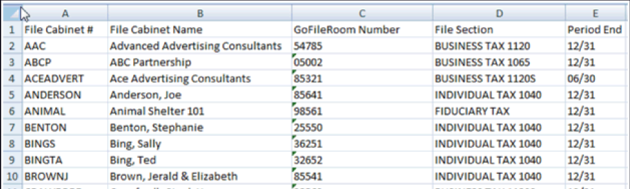
N/A | File section | Can be indexed under a generic file section. If your firm requires more specific mapping, provide the entity-type reference for each client, as shown in the file section and period-end mapping example, after this table. |
Folder name | Document type | Can be indexed under a generic Document Type. If your firm can provide a cross-reference list for File Section values, we may be able use the FileCabinet CS folder name to determine the Document Type. Your firm will need to address any undefined Document Types before the migration can be completed. |
Document name | Description | The name of the file being extracted from FileCabinet CS. |
Folder/creation date | Year | Can be determined by a year contained within the folder name or by the date the document was created. The date will be left blank for Permanent Documents. |
N/A | Period end | Can be determined through a cross-reference list. If period end cannot be determined through the folder name or cross-reference, period end of 12/31 will be used. |
Creation date | Document date | The date the document was created |
Example: file section and period-end mapping
Step 4: Index mapping approval and migration
After we assign the indexes, but before migrating documents, we'll provide your firm with a review spreadsheet that shows the proposed index mapping for all documents that will be migrated, as shown in the following sample mapping example. At this point, your firm can make any necessary changes.
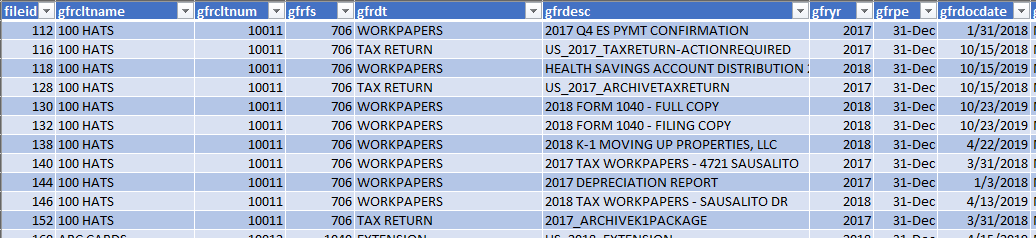
After your firm has given final approval on the index mapping, we can begin the document upload process. Depending on the number and size of the documents, the upload can take between one and several days. Technical Services can typically determine how long the upload will take before starting the process.
note
The maximum number of documents that can be processed per night is 30,000. However, the presence of multiple large documents (over 1GB) may reduce this number.
When the migration process is complete, you'll receive a spreadsheet with document filenames, indexing information, and GoFileRoom document IDs, which are assigned to all documents uploaded to GoFileRoom.
Print a client list from FileCabinet CS
Follow these steps to print a client list from FileCabinet CS.
- In FileCabinet CS, selectFile, thenPrint Reports.The default Print Reports settings are for the Drawer List report.
- SelectContinue.
- UseSelect Allto include all drawers in the report.
- SelectExport.
- In the Save As window, go to the location where you want to save the Drawer List report and selectSave.By default, the report is saved as a DIF file.
- Open the report file in Microsoft Excel.
Related Content
-
Request document migration services from Technical Services
Format: Article,
4 min read
Article,
4 min read

