
Preview the template
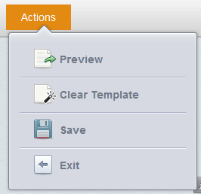
You can preview the letter or filing instruction with sample data applied. Select or hover over the
Actions
button on the template page and select Preview
.
The template appears in a preview page (this initial, quick preview contains no page breaks, it is one long page for previewing).
- In the template preview, you can see default tax return field values from the Letters and Filing Instructions module. To change these values, selectEdit Preview Data.
- This opens a window showing all field references in the template, including conditions, listed alphabetically. Customize the values as needed, then selectSave Data.noteFor preview data for the Form Listing, each form is separated by a comma. Putting commas in the Preview Data field for Forms Listing is equivalent to theEnterkey.
- To test conditions using sample data, change the value in the Preview Data field for the condition.
- SelectTo PDFto preview the letter with page breaks.
- You will get a prompt to enter aLetterhead. If you want to preview the template with the default header and footer or with your new header and footer created in Letters and Filing Instructions, selectPreview PDFwithout entering anything.
A new window will open showing you what a printed version of your letter or filing instruction, with Preview Data, will look like (including page breaks and footers).

