Linked vs unlinked submission for partnership returns

Select whether to link or unlink the MeF state package when creating the electronic filing batch.

What is linked filing

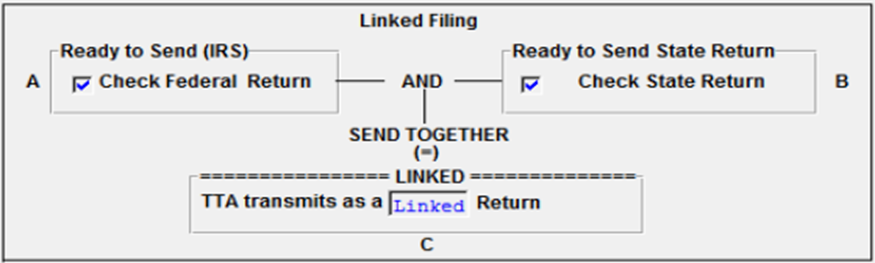
Linked filing connects your state tax return to your federal tax return, submitting them either simultaneously or soon after.
  1. Go to the
    Create Electronic Filing Batch
    screen, then go to the
    Select Return/Extension
    section.
  2. Select
    Check Federal Return
    and
    Check State Return
    for the federal and state returns.
  3. Select the
    Qualified
    returns to submit.
You can submit linked returns using 2 methods, depending on prior acceptance of your federal return.
For Federal returns that have prior acceptance:
  1. Create the qualified state e-file.
  2. Follow each step of the
    Steps of Electronic Filing
    screens in the State Organizer.
  3. Ensure your federal return details are accurate. You need this to link your state and federal returns and to attach a federal return copy.
  4. Close the return after creating the qualified state return.
  5. On the
    Create Electronic Filing Batch
    screen, in the
    Select Return/Extension
    section, select both the
    federal ready to send
    and the
    states ready to send
    options.
For Federal returns that don't have prior acceptance:
  1. Create the qualified state e-file.
  2. Follow each step of the
    Steps of Electronic Filing
    screens in the State Organizer.
  3. Ensure your federal return details are accurate. You need this to link your state and federal returns and to attach a federal return copy.
  4. Close the return after creating the qualified state return.
  5. On the
    Create Electronic Filing Batch
    screen, in the
    Select Return/Extension
    section, select both the
    federal ready to send
    and the
    states ready to send
    options.
Thomson Reuters first submits your federal return, while holding your state return. When your federal return is accepted, we'll submit your state return as a linked filing. If rejected, your state return is also rejected. In case of rejection, correct your federal return and resubmit both.

What is unlinked filing

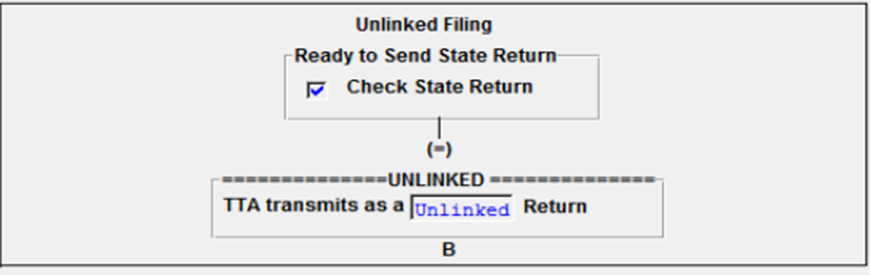
Unlinked filing lets you submit your state return independently, without directly connecting it to a federal return submission.
  1. Go to the
    Create Electronic Filing Batch
    screen, then go to the
    Select Return/Extension
    section.
  2. Select
    Check State Return
    .
  3. Select the
    Qualified
    returns to submit.
To submit an unlinked filing:
  1. On the
    Copy of Federal Return
    screen within the State Organizer or Common State Organizer, select
    State Only Copy of the Federal Return
    .
  2. Create the qualified state e-file, following each step on the State Organizer's
    Steps of Electronic Filing
    screens.
  3. Ensure your federal return details are accurate. You need this to link your state and federal returns and to attach a federal return copy.
  4. Close the return after creating the qualified state return.
  5. On the
    Create Electronic Filing Batch
    screen, in the Select Return/Extension section, select
    states ready to send
    .

Reject codes

Thomson Reuters may reject otherwise qualified state returns if conditions exist that would cause MeF to reject the return. These reject codes are specific to MeF filing:
  • Error 9501
    : For both linked and unlinked submissions. State return was being checked in, but no federal file could be found.
  • Error 9502
    : For linked submissions only. Federal return rejected and state was dependent on federal return being accepted.
  • Error 9974
    : Only unlinked submissions can be made. Error occurs if
    Create a federal copy for state only return
    was selected. To correct this error:
    1. Go to the
      Organizer
      States
      Common State
      Fed-state Electronic Filing Options
      .
    2. Select
      Federal Copy State Only Opt (Optional)- Federal Copy for state Only Return
      .
    3. Send returns to e-file when it's ready to submit.
    4. Go to the
      Send Return
      screen. Check only
      State Ready to send
      .
    5. Submit the selected returns as
      State Only
      . If you don’t submit this as a
      State Only
      return, the return will be rejected.

error-icon

Triva isn't available right now.

Check out the support page for our phone number and hours

error-close