
Groups administration
The
Admin
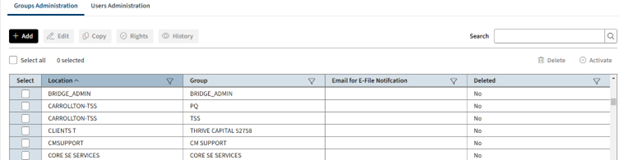
dropdown is where you can add, edit, and delete users and groups. You can also review the permissions and history for groups or users.- SelectAdmin, thenAccess Control.
- Select theGroups Administrationtab.noteAt the start, only thefirm groupis available (located at ***). The group name is determined by Thomson Reuters during the initial set up and may vary based on the firm’s configuration. All members of this firm group have full access user rights to every account.
Example: Suppose the firm has offices in
Dallas
, New York
, and Los Angeles
. Each office has an administrator responsible for creating groups and managing users. The firm administrator
can set up a dedicated group for each location and assign one or more location administrators to any group as needed.Add groups
- On the Groups Administration page, selectAdd
 .
. - Enter a name, location, and email for this group.
- Select the permissions to grant to administrators associated with this group such asAdd Returns,Delete Returns,Assign Returnsand more.
 noteAdministrators that belong to this group can pass whatever user rights they're granted to their own groups and users.
 - Use the search to quickly find a group.

- Select each account that the administrator needs to access. Only the assigned accounts are accessible by members of the group.
- UseFull accesswhen granting access to an entire account.
- UseLimitedandPreparerto restrict access within an account to specific returns assigned to groups or users.
- SelectCreate.
Edit a group's permissions and assign users to a group
- On the Groups Administration page, select the groups you want to edit.
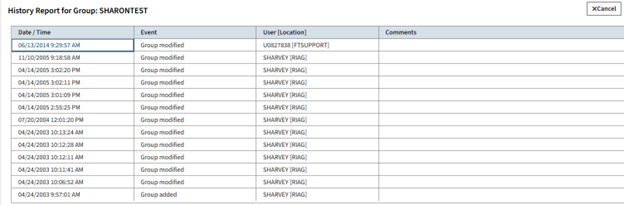
- Select one of the options that appliesEdit,Copy,Rights,History.

- Select theUsers Administrationtab, to see a list of theAvailable Userswho are members of the group.
- Select the user to add to the group and selectAssign.
- You can review and add or delete specific permissions associated with a group, then selectUpdateto save the changes.
- SelectCopy,Rights, orHistoryto perform the action on the group.
Delete or activate single or multiple groups
You can delete or activate a single group or multiple groups simultaneously. 
Select the groups, then select
Disable
, Delete
or Activate
.Related Content
-
Access control
Format: Article,
1 min read
Article,
1 min read

